
Home › Personal Finance › Savings Goal Excel Template
Previewing: Version 1 · Savings Goal Planner. Pick another version on the right.
Instant download · No sign-up · No email
Use this free savings goal Excel template to turn a target amount and a date into a clear plan: how much to deposit, when you will get there and how far along you are. Pick the version that fits how you save.
Choose your version
- File
- .xlsx · 64 KB · 2 sheets
- Works with
- Microsoft Excel (.xlsx)
- Macros
- None · formulas only
- Price
- Free
Reach your savings goals with a simple Excel plan
A savings goal turns “I should save more” into a number and a date. You choose a target amount and a target date, and the template works out how much to put aside each week, every other week or every month, including any interest you earn.
This Excel template for savings goal planning works for an emergency fund, a home down payment, a vehicle replacement, a vacation or an education fund. Record your real deposits as you go and the progress, milestones and projected finish date update on their own.
Best for
- One big goal, such as an emergency fund or a down payment
- Several goals competing for the same monthly budget
- People who want to see if they are ahead of or behind plan
Maybe not for
Anyone who only needs a basic budget. Use a budget template first, then come back here once you know how much you can set aside each month.
Which version is right for you?
All three are free, formula-driven Excel files. They are independent, so you can download more than one.
Version 1
Savings Goal Planner
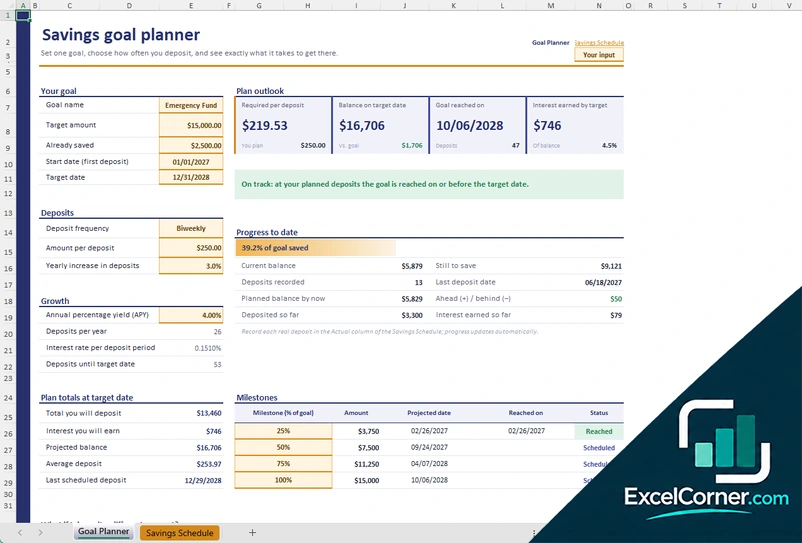
Set one goal, choose how often you deposit and see exactly what it takes to get there: the deposit you need, the date you reach the goal and the interest you earn along the way.
Goal PlannerSavings Schedule
.xlsx · 64 KB
Version 2
Savings Goal Tracker
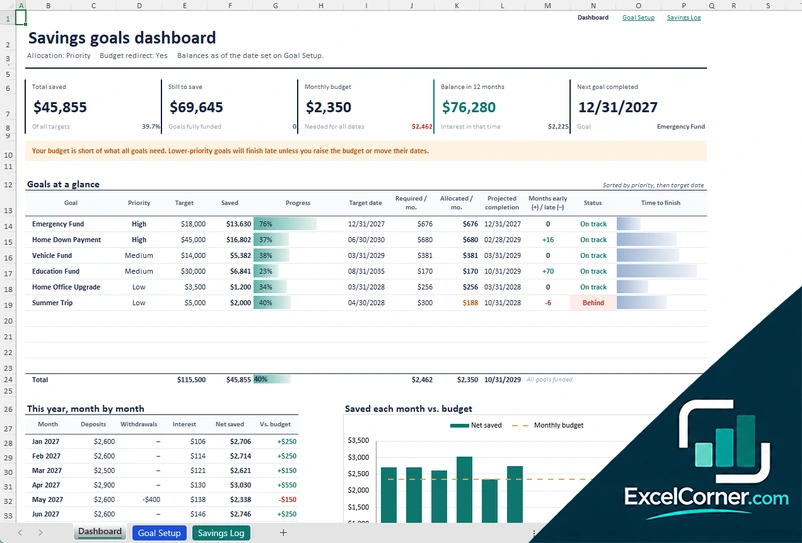
Track several savings goals at once. Enter your monthly savings budget, choose how it is split and log each deposit to see progress, status and projected completion for every goal.
DashboardGoal SetupSavings LogEngine
.xlsx · 113 KB
Version 3
Savings Goals Portfolio
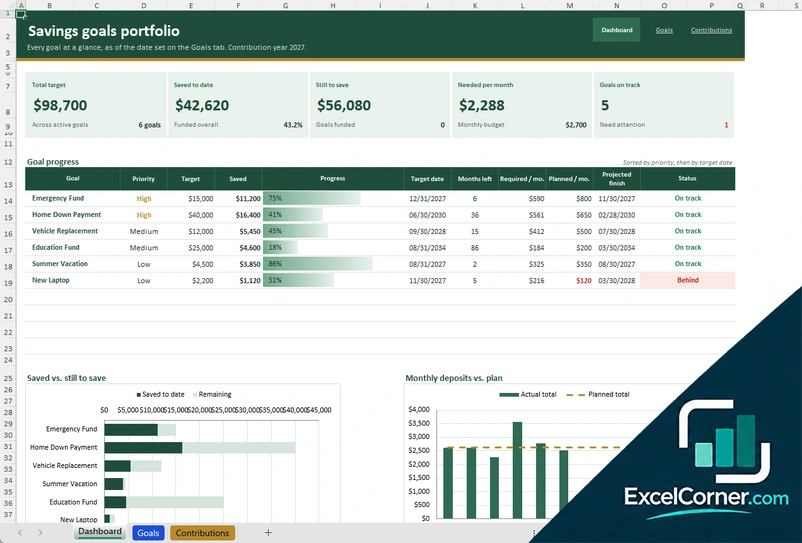
Define each goal once and follow them all from one dashboard: total target, saved to date, still to save, the monthly amount you need and which goals are on track.
DashboardGoalsContributions
.xlsx · 28 KB
What is inside the savings goal Excel templates
Version 1: Savings Goal Planner
Your goal sheet takes a goal name, target amount, amount already saved, start date and target date. You choose a deposit frequency, such as biweekly, the amount per deposit and an optional yearly increase, and add the APY of your savings account. The planner shows the deposit you need, the balance on the target date, the date you reach the goal and the interest earned, with milestones at 25%, 50%, 75% and 100% and a quick what-if comparison of other deposit amounts. The Savings Schedule lists every deposit with planned and actual amounts and a note.
Version 2: Savings Goal Tracker
Goal Setup holds up to 10 goals with category, priority, target amount, target date and starting balance, plus your monthly savings budget. You choose how the budget is split (by priority, proportionally or manually) and whether money from finished goals moves to the next goal. The dashboard shows total saved, still to save, the balance in 12 months and the next goal to be completed, with progress, required and allocated amounts per month, projected completion and a status for every goal. Deposits, withdrawals and interest go in the Savings Log, and the tracker also projects your savings by goal for the next five years.
Version 3: Savings Goals Portfolio
The Goals sheet defines each goal once, with category, priority, target amount, target date, starting balance and planned monthly deposit. The dashboard shows the total target, saved to date, still to save, the monthly amount you need and how many goals are on track, with a progress table sorted by priority and target date. A suggested monthly split shares your budget by priority, so high-priority goals are funded first. Monthly deposits go in the Contributions tab, where actual totals are compared with the plan for the contribution year.
How to use the savings goal Excel template
- Download
Pick the version you want and open it in Excel. - Set your goals
Enter each goal name, target amount, target date and what you have already saved. Fill in the input cells; formula cells calculate on their own. - Choose your deposits
Set how often you deposit and how much, or your monthly savings budget, and add an interest rate (APY) if your savings earn interest. - Record real deposits
Log what you actually save. Progress, milestones and your projected finish date update automatically.
Check your progress every month. If you fall behind, the templates show how much more you need to deposit to reach the goal on time, so you can adjust the amount or move the target date.
Savings goal ideas you can plan in Excel
Common savings goals include an emergency fund, a home down payment, a vehicle replacement, a vacation, an education fund or a major purchase such as a new laptop or a home office upgrade.
A short goal like a trip is easy to finish and helps you build the habit. A long goal like a down payment benefits from a yearly increase in your deposits and a savings account that earns interest, and the templates include both in the plan.
Tips to reach your savings goal faster
- Start with the goal that protects you most, usually an emergency fund.
- Set up automatic deposits on payday so saving does not depend on willpower.
- Match your deposit frequency to how you are paid, for example biweekly.
- Increase your deposits a little each year as your income grows.
- Record every deposit, even small ones, and add windfalls such as a tax refund or bonus.
- Review your progress each month and adjust the amount or the target date if you fall behind.
Frequently asked questions
Is this savings goal Excel template free?
Yes. All three versions are free to download as .xlsx files. You do not need an account or an email address.
Which version should I choose?
Choose the Savings Goal Planner (Version 1) if you are saving for one goal and want to know the deposit you need. Choose the Savings Goal Tracker (Version 2) if you have several goals, a monthly budget to split between them and a log of deposits. Choose the Savings Goals Portfolio (Version 3) for a one-page dashboard of every goal with monthly contributions. They are separate files, so you can use more than one.
How many savings goals can I track?
The planner is built around one goal. The tracker has room for up to 10 goals. The portfolio lists all your goals in one table, each with its own target, priority and target date.
Can I include interest in my savings goal?
Yes. Enter the annual percentage yield (APY) of your savings account and the templates include interest in the required deposit, the projected balance and the finish date.
How do I record my deposits?
In the planner, type each real deposit in the Actual column of the Savings Schedule. In the tracker, use the Savings Log. In the portfolio, use the Contributions tab.
How does the tracker split my monthly budget between goals?
You choose an allocation method: Priority (High goals are funded first, then Medium, then Low), Proportional (every goal gets the same share of what it needs) or Manual (your own amounts). You can also redirect money from finished goals to the next goal.
Does the template work in Google Sheets?
The files are made for Microsoft Excel and use standard formulas with no macros. You can upload them to Google Drive and open them with Google Sheets, but some formatting or charts may look different.
Is my financial information stored online?
No. The templates are plain Excel files, so the numbers you type stay in your own file on your own computer.
These templates are educational tools, not financial advice. Results depend on the information you enter. Excel is a trademark of Microsoft Corporation; Excel Corner is not affiliated with Microsoft.