
Home › Personal Finance › Student Loan Excel Template
Previewing: Version 1 · Student Loan Payoff Planner. Pick another version on the right.
Instant download · No sign-up · No email
Use this free student loan Excel template to see what you owe, what you pay each month and when you will be debt-free. Compare repayment strategies, add extra payments and track your progress. Pick the version that fits where you are.
Choose your version
- File
- .xlsx · 304 KB · 3 sheets
- Works with
- Microsoft Excel (.xlsx)
- Macros
- None · formulas only
- Price
- Free
Plan your student loan payoff in Excel
Student loans often come in several pieces: federal subsidized and unsubsidized loans, PLUS loans and private loans, each with its own balance, interest rate and servicer. A student loan Excel spreadsheet template puts them all in one place and shows what you owe, what you pay each month and when you will be done.
This Microsoft Excel student loan template comes in three versions. The payoff planner compares the avalanche method, the snowball method and a custom payoff order across all your loans and tracks your real payments. The repayment calculator starts earlier: it follows each disbursement, the interest that builds before repayment begins and the repayment plan you choose. The planner and tracker gives you a simple snapshot of your loans, a monthly payment log and a side-by-side comparison of repayment plans.
Best for
- Borrowers with several federal and private loans
- Comparing repayment strategies and repayment plans
- Graduating students who want to see their first payment before repayment begins
Maybe not for
Anyone with a single loan and a fixed payment, where your servicer’s online calculator may be enough. Rules for forgiveness and income-driven plans are best checked with your servicer.
Which version is right for you?
All three are free, formula-driven Excel files. They are independent, so you can download more than one.
Version 1
Student Loan Payoff Planner
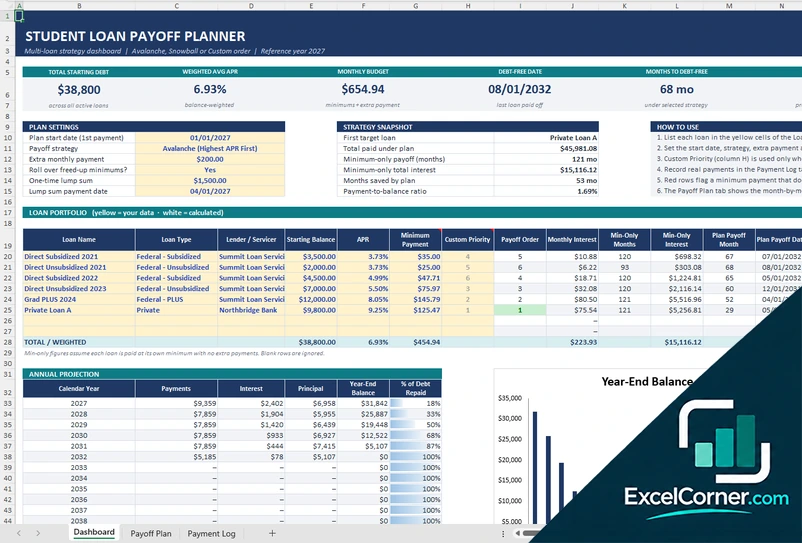
Plan your student loan payoff across all your loans. Choose avalanche, snowball or a custom order, add extra payments and see your debt-free date, total interest and interest saved.
DashboardPayoff PlanPayment Log
.xlsx · 304 KB
Version 2
Student Loan Repayment Calculator
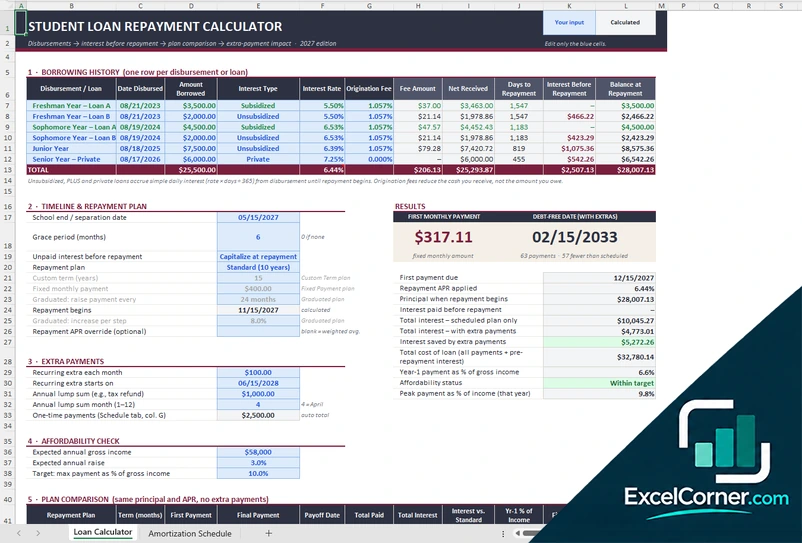
See what your student loans will cost before and during repayment. Enter each disbursement, choose a repayment plan and add extra payments to see your first payment, payoff date and interest saved.
Loan CalculatorAmortization Schedule
.xlsx · 88 KB
Version 3
Student Loan Planner and Tracker
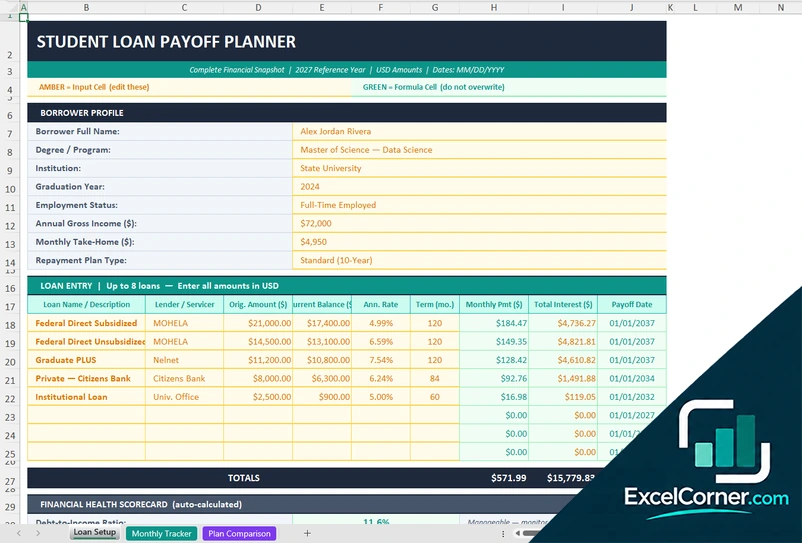
Start with a snapshot of your student loans: a borrower profile, a table for up to 8 loans and a financial health scorecard. Then log each payment and compare repayment plans side by side.
Loan SetupMonthly TrackerPlan Comparison
.xlsx · 18 KB
What is inside the student loan Excel templates
Version 1: Student Loan Payoff Planner
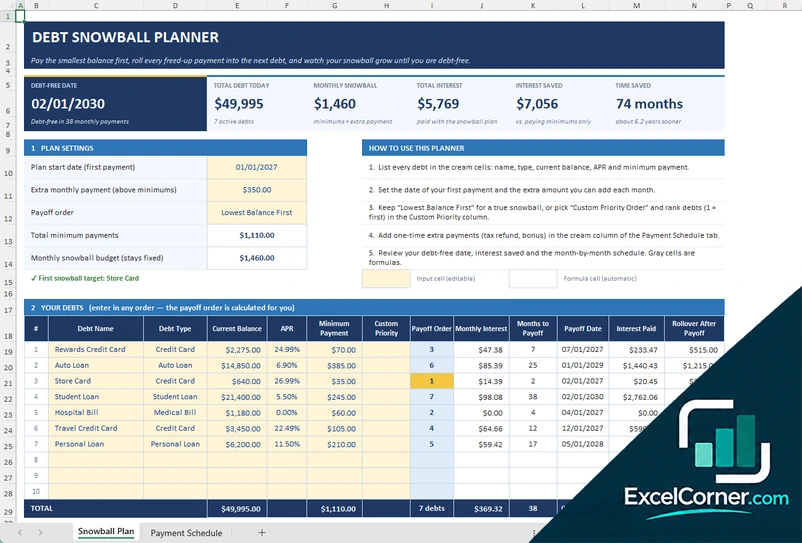
The dashboard starts with your plan settings: start date, payoff strategy, extra monthly payment, whether freed-up minimums roll over and an optional one-time lump sum. You list up to 8 loans with type, lender, balance, interest rate and minimum payment, and the planner shows the payoff order, payoff date and interest for each one, flags any loan whose minimum does not cover the monthly interest and adds an annual projection with a balance chart. Key results include total starting debt, weighted average APR, debt-free date, months to debt-free, total interest and interest saved compared with paying only the minimums. The Payoff Plan sheet projects every loan month by month, and the Payment Log records each payment with its interest and principal portion.
Version 2: Student Loan Repayment Calculator
The borrowing history has one row per disbursement or loan, with date, amount borrowed, subsidized, unsubsidized or private interest, rate, origination fee and the interest that builds before repayment begins. You set the school end date, the grace period, whether to capitalize unpaid interest and a repayment plan: standard (10 years), extended, graduated, a custom term or a fixed payment. Results show your first monthly payment, the debt-free date with extras, total interest and interest saved, while an affordability check compares your payment with your expected income and a plan comparison shows each option side by side. The Amortization Schedule lists every payment and has a column for one-time extra payments.
Version 3: Student Loan Planner and Tracker
Loan Setup holds a borrower profile (program, income and take-home pay) and a table for up to 8 loans with lender, original amount, current balance, interest rate, term, monthly payment and total interest. A financial health scorecard shows your debt-to-income ratio, your total loan burden against income and your weighted average interest rate. In Monthly Tracker you record each payment and follow the running balance and cumulative interest. Plan Comparison puts standard, graduated, extended and income-based plans next to each other, with a custom term and extra payment and an informational check of forgiveness programs.
How to use the student loan Excel template
- Download
Pick the version you want and open it in Excel. - Enter your loans
Loan name, type, lender, balance, interest rate and minimum payment, or each disbursement for the repayment calculator. Fill in the input cells; formula cells calculate on their own. - Set your plan
Choose a payoff strategy or a repayment plan, then add the extra monthly payment or lump sum you can make. - Review and track
Check your payoff date and the interest you save, and log your payments as you make them.
Update your balances and interest rates whenever your servicer changes them, and review the plan again after any extra payment.
Which student loan template do you need?
| Payoff Planner | Repayment Calculator | Planner and Tracker | |
|---|---|---|---|
| Best for | Already repaying several loans | Planning before or at the start of repayment | A simple snapshot and a monthly payment log |
| You enter | Loans, interest rates, minimums and a strategy | Disbursements, grace period and a repayment plan | Borrower profile, up to 8 loans and your payments |
| You get | Payoff order, debt-free date and interest saved | First payment, plan comparison and an affordability check | Financial health scorecard and a plan comparison |
You can use more than one: start with the calculator to choose a repayment plan, then use the planner to track the payoff.
Tips to pay off student loans faster
- Check that your minimum payment covers the monthly interest on each loan. The planner flags loans where it does not.
- Pay the minimum on every loan and send extra payments to one target loan.
- Add a lump sum, such as a tax refund or a bonus, as a one-time extra payment.
- Remember that unsubsidized and private loans can accrue interest from disbursement, before repayment begins.
- Compare repayment plans and check each one against your expected income before you choose.
- Log every payment so your balances match your servicer’s statements.
Frequently asked questions
Is this student loan Excel template free?
Yes. Both versions are free to download as .xlsx files. You do not need an account or an email address.
Which version should I choose?
Choose the Student Loan Payoff Planner (Version 1) if you are already repaying several loans and want to compare strategies and track payments. Choose the Student Loan Repayment Calculator (Version 2) if you want to see the interest before repayment, compare repayment plans and check what you can afford. Choose the Student Loan Planner and Tracker (Version 3) for a simple snapshot of your loans with a monthly payment log. They are separate files, so you can use more than one.
Which kinds of student loans can I enter?
All three templates work with federal Direct subsidized and unsubsidized loans, Grad PLUS loans and private loans. You enter the balance, interest rate and payment for each one.
How many loans can I enter?
The Student Loan Payoff Planner and the Student Loan Planner and Tracker have room for up to 8 loans. The Repayment Calculator has a borrowing history with one row per disbursement or loan.
Can I compare the avalanche and snowball methods?
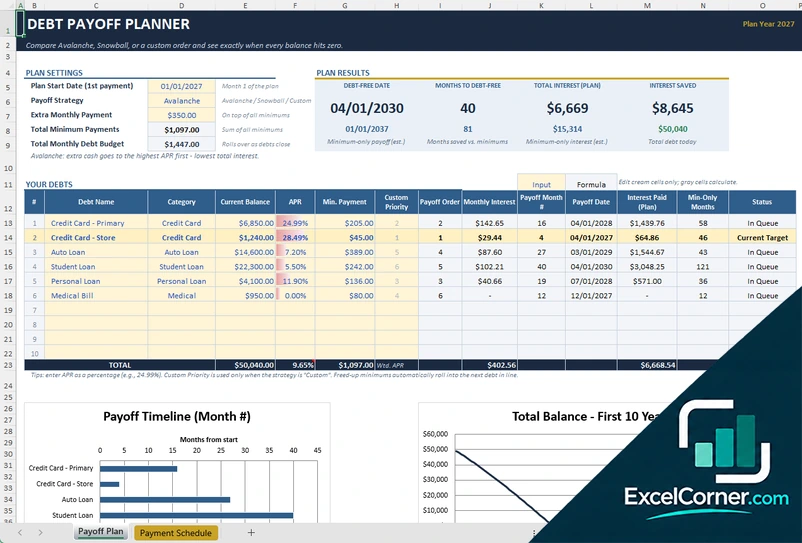
Yes. In the planner, choose Avalanche (highest interest rate first), Snowball or a custom priority order, and see the payoff date, total interest and interest saved compared with paying only the minimums.
Does it show the interest that builds before repayment starts?
Yes. The Repayment Calculator tracks the interest on each disbursement until repayment begins, lets you choose whether to capitalize it, and shows the balance when repayment starts.
Does the template work in Google Sheets?
The files are made for Microsoft Excel and use standard formulas with no macros. You can upload them to Google Drive and open them with Google Sheets, but some formatting or charts may look different.
Is my financial information stored online?
No. The templates are plain Excel files, so the numbers you type stay in your own file on your own computer.
These templates are educational tools, not financial or legal advice. Results depend on the information you enter, and your servicer’s figures are the ones that count. Excel is a trademark of Microsoft Corporation; Excel Corner is not affiliated with Microsoft.