
Home › Personal Finance › Bill Calendar Template Excel
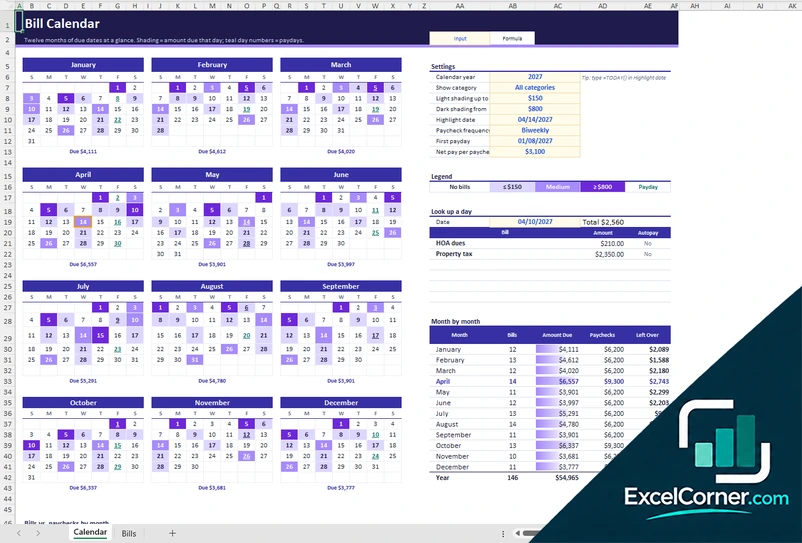
Previewing: Version 1 · Bill Calendar. Pick another version on the right.
Instant download · No sign-up · No email
Use this free bill calendar template for Excel to see every due date and payday in one place. Know what is due this week, what is still unpaid and how much is left after bills. Pick the version that fits how you budget.
Choose your version
- File
- .xlsx · 52 KB · 2 sheets
- Works with
- Microsoft Excel (.xlsx)
- Macros
- None · formulas only
- Price
- Free
Never miss a due date with a bill calendar in Excel
A bill calendar shows when each bill is due, so nothing slips through the cracks. List your rent or mortgage, utilities, subscriptions, insurance, loans and credit cards once, and the template places every payment on its due date, including bills that repeat monthly, quarterly or once a year.
These Excel bill pay calendar templates also show your paydays, so you can see whether the money arrives before the bills do. Use the yearly calendar for a bird’s-eye view, or the monthly calendar to mark bills as paid and follow your balance day by day.
Best for
- Households with many recurring bills and subscriptions
- People paid biweekly, twice a month or monthly
- Anyone who wants to see what is left after bills each month
Maybe not for
Anyone who only needs a simple list of bills to check off. A bill paying checklist is quicker for that.
Which version is right for you?
All three are free, formula-driven Excel files. They are independent, so you can download more than one.
Version 1
Bill Calendar
See twelve months of due dates at a glance. Shading shows how much is due each day, paydays are marked, and a month-by-month table compares your bills with your paychecks.
CalendarBills
.xlsx · 52 KB
Version 2
Monthly Bill Calendar
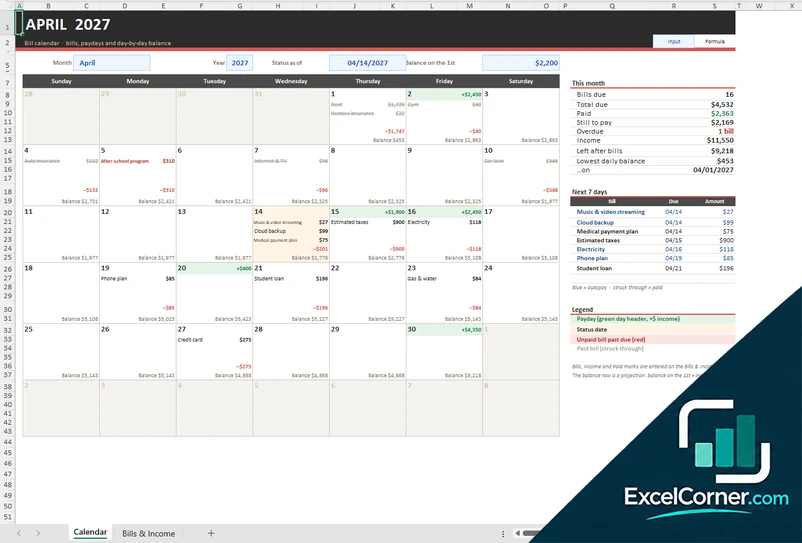
Follow your bills and paydays day by day. See which bills are due, which are paid, what is overdue and what your balance will be on every day of the month.
CalendarBills & Income
.xlsx · 30 KB
Version 3
Bill Calendar Planner
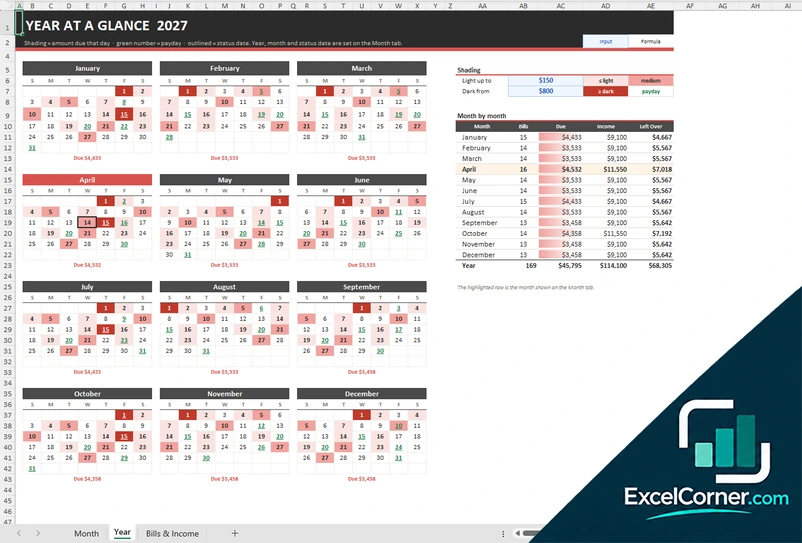
Plan your bills and income in one workbook. A month view shows due dates, paydays and your daily balance, and a year view shows the full year at a glance.
MonthYearBills & Income
.xlsx · 58 KB
What is inside the bill calendar Excel templates
Version 1: Bill Calendar
List every recurring bill once on the Bills sheet, with payee, category, frequency, first and last due date and notes, and the calendar places each payment on its due date. Settings let you choose the calendar year, show one category at a time, set the shading thresholds and enter your pay frequency, first payday and net pay per paycheck. A look-up box shows the bills due on any date, and a month-by-month table lists the number of bills, the amount due, your paychecks and what is left over, with a chart of bills against paychecks.
Version 2: Monthly Bill Calendar
The Calendar sheet shows each bill on its due day and each payday with the income it brings, plus a projected balance for every day. A summary shows the bills due, the total due, what is paid and still to pay, what is overdue, your income, what is left after bills and your lowest daily balance, and a list shows the bills due in the next 7 days. On the Bills & Income sheet you set up income sources and bills once, then mark bills as Paid. Paid bills are struck through, unpaid bills past due turn red and autopay bills are marked in blue.
Version 3: Bill Calendar Planner
The Month sheet works like a day-by-day bill calendar, with bills on their due dates, paydays with their income, a projected daily balance and a summary of what is due, paid, overdue and left after bills. The Year sheet adds the full-year view, with shading for the amount due each day, a month-by-month table of bills and what is left over, and the current month highlighted. You choose the year, month and status date on the Month sheet, and you set up your bills and income sources once on the Bills & Income sheet.
How to use the bill calendar template in Excel
- Download
Pick the version you want and open it in Excel. - List your bills
Enter each bill once with its category, how often it repeats and its first due date. Fill in the input cells; formula cells calculate on their own. - Add your income
Enter your pay frequency, your first payday and your net pay, or each income source in the monthly versions. - Check the calendar
See due dates, paydays and what is left after bills. In the monthly versions, mark bills as paid as you go.
Update the list when a bill changes or ends: use the last due date to stop a bill, and clear the Paid column when you start a new month.
Which bill calendar do you need?
| Bill Calendar | Monthly Bill Calendar | Bill Calendar Planner | |
|---|---|---|---|
| View | Twelve months at a glance | One month, day by day | One month plus a full-year view |
| Best for | Seeing due dates and paydays across the year | Marking bills paid and tracking your balance | The monthly detail and the yearly picture together |
| You enter | A bill list, pay frequency and net pay | Bills, income sources and Paid marks | Bills, income sources and Paid marks |
They are separate files, so you can use more than one.
Tips to stay on top of your bills
- List every recurring bill once, including annual and quarterly bills such as insurance or property tax.
- Mark autopay bills so you know which ones still need your attention.
- Enter your paydays to check that money arrives before the big bills are due.
- Mark bills as paid as you go, and clear the Paid column when you start a new month.
- Look at the lowest daily balance in the month to spot tight days before they happen.
- Use the last due date to stop a bill that ends, such as a final loan payment.
Frequently asked questions
Is this bill calendar template for Excel free?
Yes. All three versions are free to download as .xlsx files. You do not need an account or an email address.
Which version should I choose?
Choose the Bill Calendar (Version 1) if you want to see the whole year of due dates and paydays at once. Choose the Monthly Bill Calendar (Version 2) if you want a day-by-day month view where you mark bills as paid and follow your balance. Choose the Bill Calendar Planner (Version 3) if you want the monthly calendar and a full-year view in one file. They are separate files, so you can use more than one.
Can I track my paydays and income?
Yes. The Bill Calendar uses your pay frequency, first payday and net pay per paycheck. The monthly versions let you list each income source with its frequency (biweekly, semimonthly or monthly) and show your paydays and income on the calendar.
How do recurring bills work?
You list each bill once with its frequency, such as monthly, every 2 months, quarterly, semiannual or annual, and its first due date. The calendar places every payment on its due date. A due day that does not exist in a month, such as the 31st, moves to the last day of that month.
Can I mark bills as paid?
Yes. In the monthly versions, mark a bill as Paid and it is struck through on the calendar. Unpaid bills past their due date show in red and autopay bills are marked in blue.
Does the template work in Google Sheets?
The files are made for Microsoft Excel and use standard formulas with no macros. You can upload them to Google Drive and open them with Google Sheets, but some formatting or charts may look different.
Is my financial information stored online?
No. The templates are plain Excel files, so the numbers you type stay in your own file on your own computer.
These templates are educational tools, not financial advice. Results depend on the information you enter. Excel is a trademark of Microsoft Corporation; Excel Corner is not affiliated with Microsoft.