
Home › HR & Workforce Management › Employee Productivity Tracker Excel Template
Previewing: Version 1 · Daily Productivity Tracker. Pick another version on the right.
Instant download · No sign-up · No email
Use this free employee productivity tracker for Excel to measure output, efficiency and quality for every employee and team. Log work daily or weekly, compare it with your targets and see who is ahead and who needs support. Pick the version that fits how you measure productivity.
Choose your version
- File
- .xlsx · 332 KB · 3 sheets
- Works with
- Microsoft Excel (.xlsx)
- Macros
- None · formulas only
- Price
- Free
Track employee productivity in Excel with real targets
Productivity is output compared with a target for the time and cost it takes. An employee productivity tracker spreadsheet records the work done, the hours worked and the quality of that work, then turns them into numbers you can compare across people, teams and months.
These Excel templates measure productivity in three ways. One logs every task with a time standard and shows efficiency against earned hours. Another scores employees against weighted goals and links the score to an incentive pool. The third logs weekly results and combines attainment, quality and utilization into a single productivity score with labor cost.
Best for
- Managers who want a simple daily or weekly productivity log for a team
- Operations and service teams with measurable output such as tickets, orders or documents
- HR and team leads who run goal-based reviews or incentive programs
Maybe not for
Creative or knowledge roles where output is hard to count. Goal scores work better than unit counts there.
Which version is right for you?
All three are free, formula-driven Excel files with sample data you can replace. They are independent, so you can download more than one.
Version 1
Daily Productivity Tracker
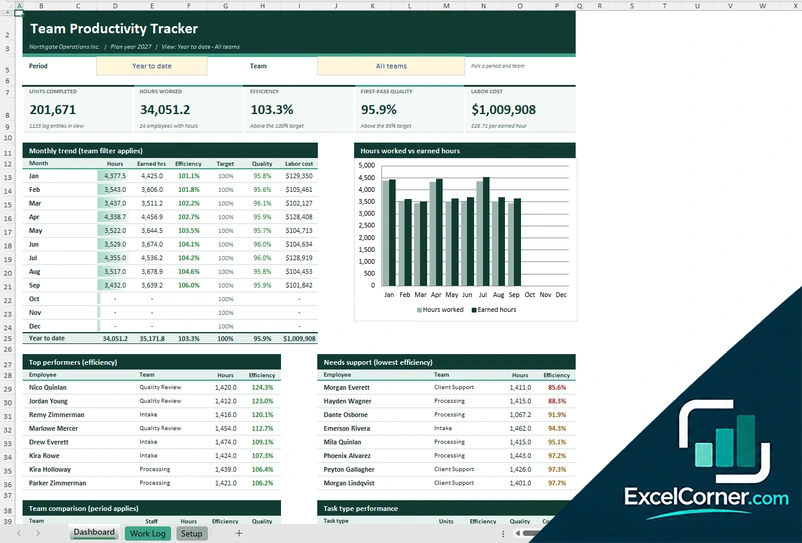
Log work by employee and task, and see efficiency, first-pass quality and labor cost for any team and period.
DashboardWork LogSetup
.xlsx · 332 KB
Version 2
Goals Scorecard
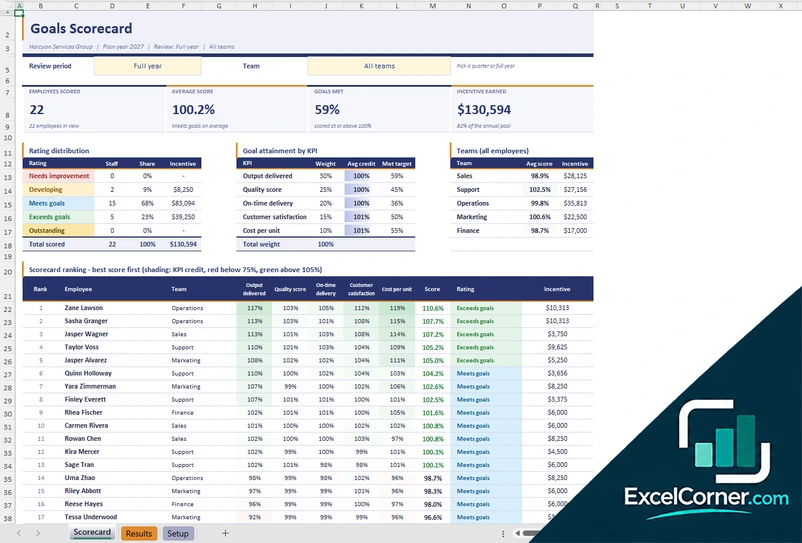
Score every employee against weighted goals by quarter, rate the results and see the incentive each person earns.
ScorecardResultsSetup
.xlsx · 65 KB
Version 3
Weekly Productivity Scorecard
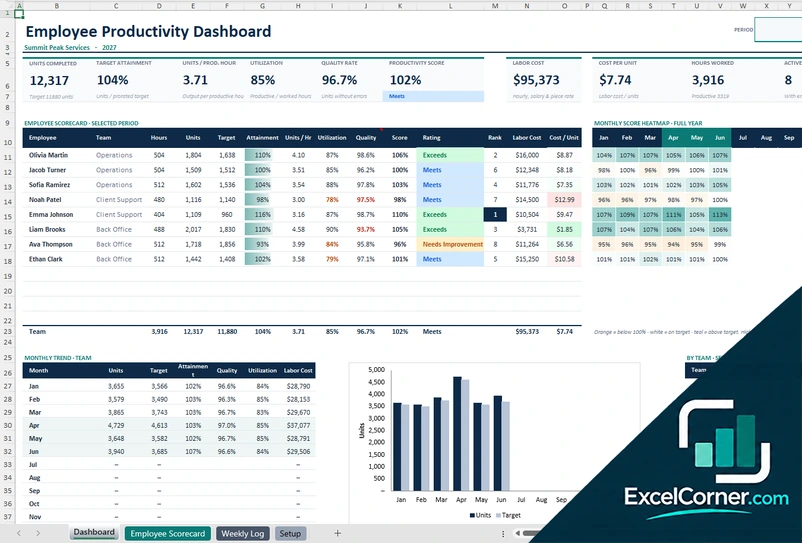
Log each week’s hours and units, and get a productivity score from attainment, quality and utilization, plus labor cost per unit.
DashboardEmployee ScorecardWeekly LogSetup
.xlsx · 190 KB
What is inside the employee productivity tracker Excel templates
Version 1: Daily Productivity Tracker
On the Work Log you add one row per employee, task and period, with the date, the task type, the units completed, the hours worked and the units reworked. The Setup sheet holds the task types with a standard number of minutes per unit, the efficiency and quality targets, a watch threshold and the roster with each employee’s team, role and hourly cost. Earned hours are calculated as units times the standard minutes divided by 60. The Dashboard lets you pick a period and a team and shows the units completed, the hours worked, efficiency, first-pass quality and labor cost, a monthly trend, the top performers and the employees who need support, a team comparison and the performance of each task type.
Version 2: Goals Scorecard
On the Setup sheet you define five goals, for example output delivered, quality score, on-time delivery, customer satisfaction and cost per unit, each with a weight, a direction and a target for every quarter. You also set the annual incentive pool, the credit floor and cap and the rating bands with their payout multipliers. On the Results sheet you enter each employee’s quarterly result for each goal, and empty cells are ignored rather than scored as zero. The Scorecard shows the employees scored, the average score, the share of goals met and the incentive earned, with a rating distribution, goal attainment, a team summary and a ranking from the best score down. You can review a single quarter or the full year, for all teams or one team.
Version 3: Weekly Productivity Scorecard
The Weekly Log takes one row per employee per week, with the hours worked, the productive hours, the units completed and the units with errors. The Setup sheet holds each employee’s pay type, which can be salary, hourly or piece rate, the scheduled hours, the weekly target, the quality target and the utilization target, plus the weights of the score, which are 50 percent for target attainment, 30 percent for quality and 20 percent for utilization, and the rating bands. The Dashboard shows units completed, target attainment, units per productive hour, utilization, quality rate, the productivity score, labor cost and cost per unit for a period you choose, with an employee scorecard, a monthly score heatmap, a monthly trend and a team view. The Employee Scorecard page shows one person month by month with automatic review notes.
How to use the employee productivity tracker in Excel
- Download
Pick the version you want and open it in Excel. - Set up teams and targets
Enter your company name, teams, employees, targets and standards on the Setup sheet. Fill in the input cells; formula cells calculate on their own. - Log the work
Add one row per employee and period with the units completed, hours worked and any rework, or enter the quarterly results for each goal. - Review the dashboard
Pick a period and team to see efficiency, quality, labor cost, top performers and the employees who need support.
Enter results on a fixed schedule, daily or weekly, so trends are easy to compare and nobody is judged on a partial period.
Which productivity tracker do you need?
| Daily Productivity Tracker | Goals Scorecard | Weekly Productivity Scorecard | |
|---|---|---|---|
| Method | Units against a time standard | Weighted goals by quarter | Attainment, quality and utilization |
| Best for | Teams with countable output | Reviews and incentive pools | Weekly reviews with labor cost |
| You get | Efficiency, quality and cost per unit | Score, rating and incentive earned | Productivity score, rating and cost per unit |
They are separate files, so you can use more than one.
Tips for measuring employee productivity fairly
- Set targets and time standards from real work, and review them at least once a year.
- Measure quality together with volume, so speed does not hide errors and rework.
- Compare people doing similar work: a team average is fairer than a company average.
- Use a minimum number of hours before ranking anyone, so short periods do not distort results.
- Look at the trend over several months before acting on a single bad week.
- Share the results with employees and talk about the causes before you set new targets.
Frequently asked questions
Is this employee productivity tracker for Excel free?
Yes. All three versions are free to download as .xlsx files. You do not need an account or an email address.
Which version should I choose?
Choose the Daily Productivity Tracker (Version 1) to log each task with units and hours and compare efficiency against time standards. Choose the Goals Scorecard (Version 2) to score employees against weighted goals and an incentive pool. Choose the Weekly Productivity Scorecard (Version 3) to log weekly results and get a productivity score with utilization and labor cost. They are separate files, so you can use more than one.
How is efficiency calculated?
In the Daily Productivity Tracker, earned hours equal the units completed multiplied by the standard minutes per unit, divided by 60. Efficiency is earned hours divided by hours worked, so 100 percent means the work took exactly the standard time.
Can I track hourly, salaried and piece-rate employees?
Yes in the Weekly Productivity Scorecard, where each employee has a pay type of salary, hourly or piece rate and overtime after a set number of hours. The Daily Productivity Tracker uses an hourly cost for each employee.
How does the goals scorecard work?
You define up to five goals with a weight and a quarterly target. Each result becomes a credit between a floor and a cap, the weighted average becomes the score, and rating bands turn the score into a rating and an incentive payout.
Does the template work in Google Sheets?
The files are made for Microsoft Excel and use standard formulas with no macros. You can upload them to Google Drive and open them with Google Sheets, but some formatting or charts may look different.
Is my employee information stored online?
No. The templates are plain Excel files, so the names and pay rates you type stay in your own file on your own computer.
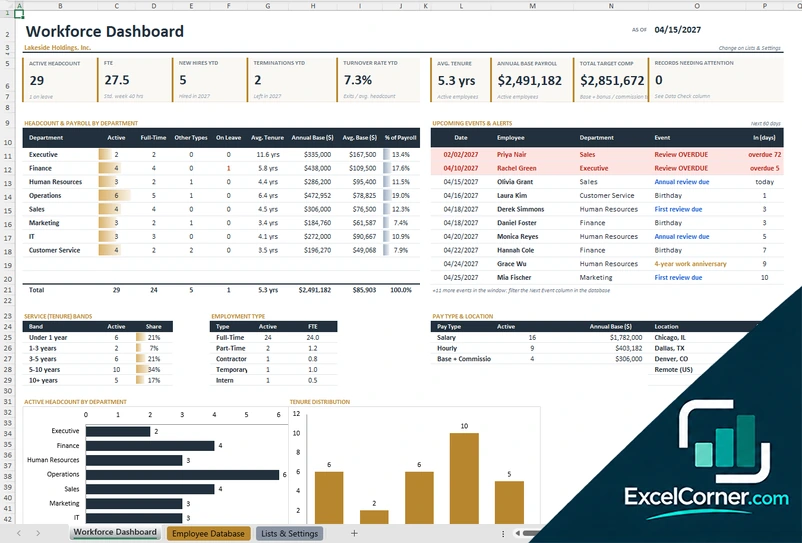
More free HR and workforce templates
These templates are planning tools with sample data. Review pay, incentive and performance decisions with a qualified HR or legal professional. Excel is a trademark of Microsoft Corporation; Excel Corner is not affiliated with Microsoft.