
Home › Project Management › Resource Allocation Template Excel
Previewing: Version 1 · 26-Week Allocation Plan. Pick another version on the right.
Instant download · No sign-up · No email
Use this free resource allocation template for Excel to decide who works on which project and for how many hours. Allocate people week by week or as a share of an FTE, spot the people who are overbooked and find who has room for new work. Pick the version that fits your projects.
Choose your version
- File
- .xlsx · 184 KB · 4 sheets
- Works with
- Microsoft Excel (.xlsx)
- Macros
- None · formulas only
- Price
- Free
Allocate people to projects in an Excel resource allocation template
Resource allocation assigns people to projects for a given amount of time. A good allocation plan shows, for each person and period, how much of their available time is committed, so you can see overbooking early and find free capacity for new work.
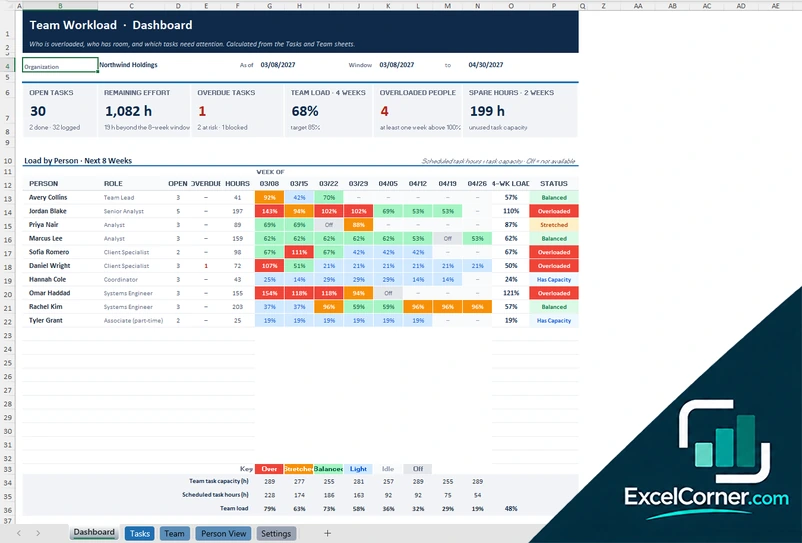
These Excel resource allocation templates offer three approaches. The first is a 26-week plan with a dashboard where you can include or exclude tentative work. The second is a weekly workload planner with an overview and watch lists. The third is a project FTE matrix, where you allocate a percentage of a full-time FTE to up to four projects per person each month.
Best for
- Project managers who share people across several projects
- Resource managers who need to find capacity for new projects
- Professional services firms that plan utilization and labor cost
Maybe not for
Time tracking. These templates plan allocation, not hours worked, so use a timesheet to record what really happened.
Which version is right for you?
All three are free, formula-driven Excel files with sample data you can replace. They are independent, so you can download more than one.
Version 1
26-Week Allocation Plan
Allocate people to projects for 26 weeks and see utilization, overbooked people, free hours and planned cost for any week.
DashboardAssignmentsWorkloadSetup
.xlsx · 184 KB
Version 2
Weekly Workload Planner
Pick any week and see the scorecard, the chart and the lists of over-allocated people and the people with the most availability.
OverviewAssignmentsWorkloadSetup
.xlsx · 154 KB
Version 3
Project FTE Matrix
Allocate a percentage of a full-time FTE to projects each month and compare staffing with capacity and budget.
DashboardAllocationSetup
.xlsx · 60 KB
What is inside the resource allocation Excel templates
Version 1: 26-Week Allocation Plan
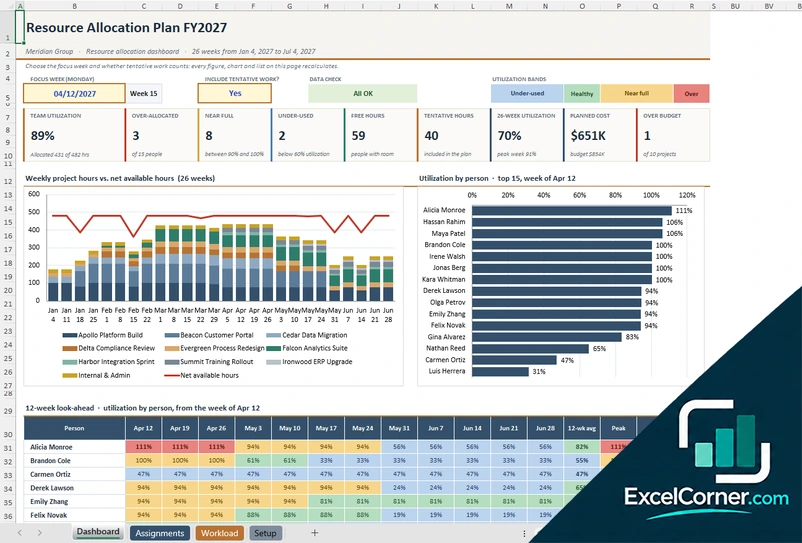
On the Assignments sheet you add one row per person and project with the task or phase, the start and end dates, the hours per week, the status, the role and the type of work, such as client project or time off, and the weekly hours in the grid are calculated from the dates, the hours per week and the holidays. Lines marked tentative count only when the switch on the Dashboard is set to yes. The Dashboard lets you choose the focus week and shows the team utilization, the over-allocated, near full and under-used people, the free hours, the tentative hours, the 26-week utilization, the planned cost and the projects over budget, with a chart of weekly project hours against net available hours, utilization by person and a 12-week look-ahead. The Workload and Setup sheets hold the weekly workload and the team.
Version 2: Weekly Workload Planner
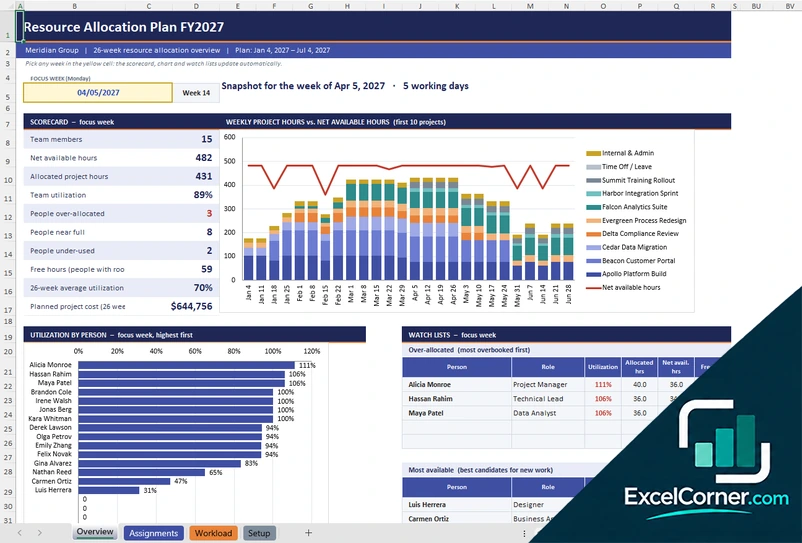
The Assignments sheet is a plan of who works on what, when and how many hours per week, with the weekly hours in the grid calculated from the dates and accounting for holidays and partial weeks. The Workload sheet adds up the load by person and by week, and the Setup sheet holds the team and the project list. On the Overview you pick a focus week in the yellow cell, and the scorecard shows the team members, the net available hours, the allocated project hours, the team utilization, the people over-allocated, near full and under-used, the free hours and the 26-week average utilization, with a chart of weekly project hours against the net available hours, utilization by person and watch lists for the over-allocated people and the most available people, who are the best candidates for new work.
Version 3: Project FTE Matrix
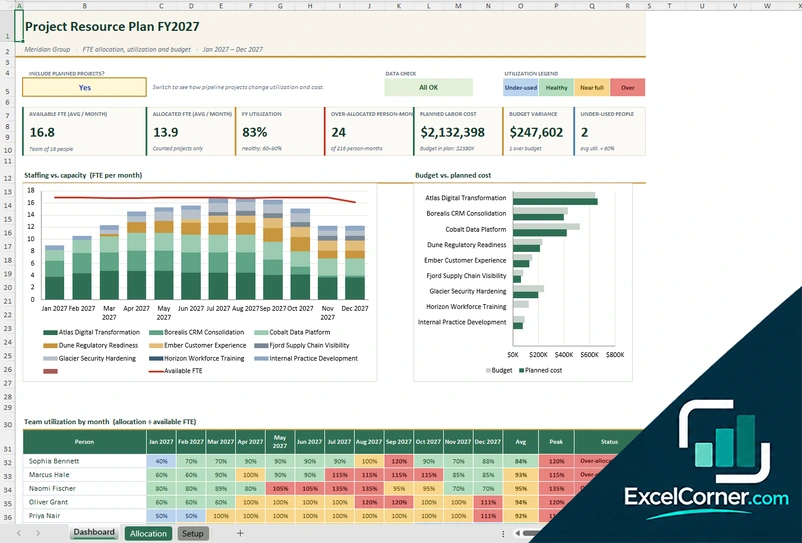
On the Allocation sheet each person can work on up to four projects per month. You enter the percentage of a full-time FTE for each project and month, and leave reduces the availability. The sheet shows the available hours, the average and the peak, and calculates the team allocated FTE, the team available FTE and the team utilization by month, with colors that compare the allocation with the availability. The Dashboard has a switch to include planned projects, and shows the available FTE, the allocated FTE, the fiscal-year utilization, the over-allocated person-months, the planned labor cost and the budget variance, with a chart of staffing against capacity, a chart of budget against planned cost for each project and a table of utilization by person and month.
How to use the resource allocation template in Excel
- Download
Pick the version you want and open it in Excel. - Set up the team
Enter your people with their role, hours per week and rate, plus holidays and time off. Fill in the input cells; formula cells calculate on their own. - Allocate the work
Add one row per person and project with the dates and the hours per week, or enter the percentage of an FTE each month. - Check the load
Choose a week or a month and review utilization, the people who are over-allocated, the free hours and the planned cost.
Mark uncertain work as tentative and switch it on and off to see how it changes utilization before you commit.
Which resource allocation template do you need?
| 26-Week Allocation Plan | Weekly Workload Planner | Project FTE Matrix | |
|---|---|---|---|
| Allocation unit | Hours per week | Hours per week | Percent of a FTE per month |
| Best for | A dashboard with tentative work | A scorecard and watch lists | Up to four projects per person each month |
| You get | Utilization, look-ahead and planned cost | Over-allocated and most available people | FTE utilization and budget variance |
They are separate files, so you can use more than one.
Tips for resource allocation
- Allocate against net available time, after holidays, leave and non-project work.
- Keep utilization in a healthy range, such as 60 to 90 percent, and not at 100 percent.
- Separate confirmed work from tentative work, so you can plan for both.
- Look at the weeks that peak, not only the average.
- Use the list of most available people to staff new projects.
- Review allocations when a project is delayed or approved.
Frequently asked questions
Is this resource allocation template for Excel free?
Yes. All three versions are free to download as .xlsx files. You do not need an account or an email address.
Which version should I choose?
Choose the 26-Week Allocation Plan (Version 1) for a dashboard with tentative work and a look-ahead. Choose the Weekly Workload Planner (Version 2) for a scorecard of one week with watch lists. Choose the Project FTE Matrix (Version 3) to allocate a percentage of an FTE to projects each month. They are separate files, so you can use more than one.
How does the template detect overallocation?
It compares the hours allocated to each person in a week with the hours they have available after holidays and time off. A person above the limit is marked as over-allocated, and the bands show under-used, healthy, near full and over.
Can I include tentative projects?
Yes. In the 26-Week Allocation Plan you mark each line as confirmed or tentative and use a switch on the dashboard to include or exclude tentative work. The Project FTE Matrix has a similar switch for planned projects.
Does it track labor cost?
Yes. The templates multiply the allocated hours by each person’s rate to show the planned labor cost and compare it with the budget of each project.
Does the template work in Google Sheets?
The files are made for Microsoft Excel and use standard formulas with no macros. You can upload them to Google Drive and open them with Google Sheets, but some formatting or charts may look different.
Is my data stored online?
No. The templates are plain Excel files, so the names and figures you type stay in your own file on your own computer.
More free resource and capacity templates
These templates are planning tools with sample data. Check the figures, rates and assumptions against your own situation before you make staffing or budget decisions. Excel is a trademark of Microsoft Corporation; Excel Corner is not affiliated with Microsoft.