
Home › Project Management › Excel Resource Planning Template
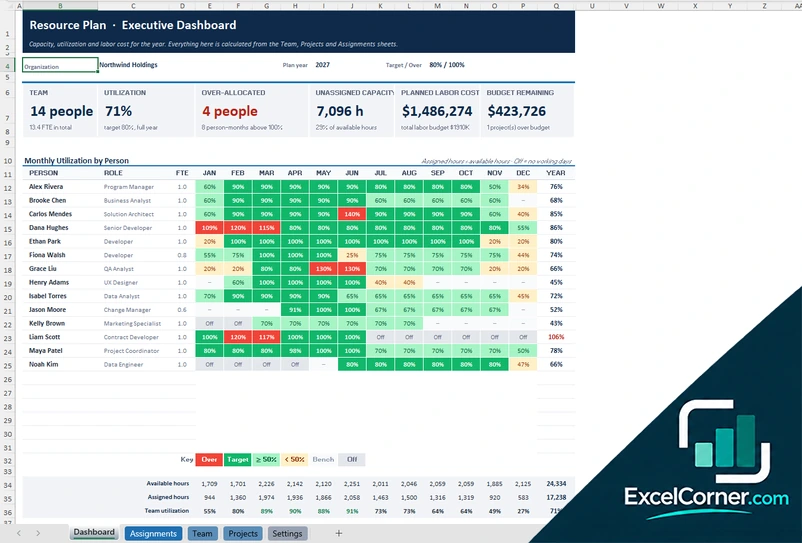
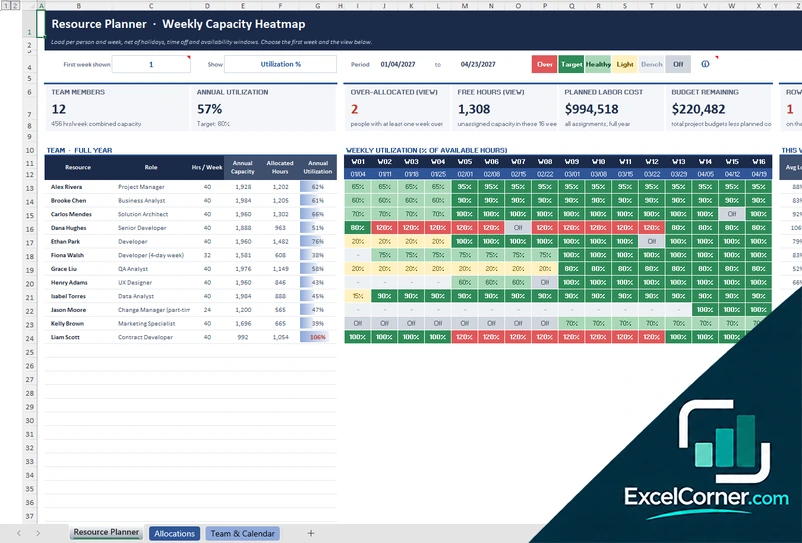
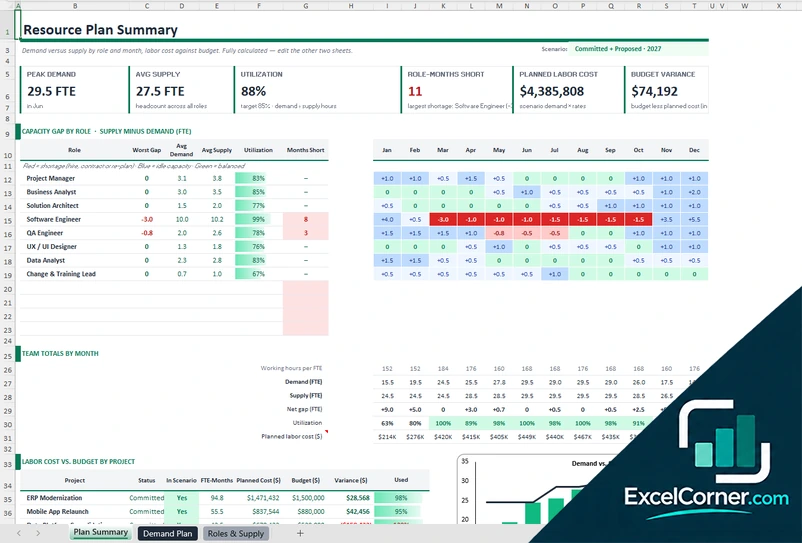
Previewing: Version 1 · Resource Plan Dashboard. Pick another version on the right.
Instant download · No sign-up · No email
Use this free resource planning template for Excel to plan who works on which project and when. Assign people to projects, see their utilization by month or by week, find capacity gaps before they become problems and track the planned labor cost against budget. Pick the version that fits how you plan.
Choose your version
- File
- .xlsx · 124 KB · 5 sheets
- Works with
- Microsoft Excel (.xlsx)
- Macros
- None · formulas only
- Price
- Free
Plan your resources across projects in Excel
Resource planning matches the people you have with the work you have to deliver. A resource plan shows who is assigned to each project, how much of their time it takes and whether anyone is overbooked or has free capacity, so you can fix the plan before the work starts.
These Excel resource planning templates look at the plan in three ways. The first is a yearly plan with a dashboard of monthly utilization by person. The second is a weekly capacity planner with a heatmap that accounts for holidays and time off. The third plans demand and supply by role in full-time equivalents, with scenarios, so you can see where you will be short and what it costs.
Best for
- Project and program managers who share a team across several projects
- Resource managers who need to see capacity by week or by month
- Department heads who plan headcount by role against a budget
Maybe not for
A task-level project schedule. Resource planning works at the level of people, projects and time, not individual tasks.
Which version is right for you?
All three are free, formula-driven Excel files with sample data you can replace. They are independent, so you can download more than one.
Version 1
Resource Plan Dashboard
Assign people to projects and see utilization by month, over-allocation, unassigned capacity and planned labor cost.
DashboardAssignmentsTeamProjectsSettings
.xlsx · 124 KB
Version 2
Weekly Capacity Planner
See the load of every person week by week, net of holidays, time off and availability windows.
Resource PlannerAllocationsTeam & Calendar
.xlsx · 94 KB
Version 3
Demand and Supply Plan
Plan the FTE each project needs from each role and compare it with the supply, by month and by scenario.
Plan SummaryDemand PlanRoles & Supply
.xlsx · 41 KB
What is inside the resource planning Excel templates
Version 1: Resource Plan Dashboard
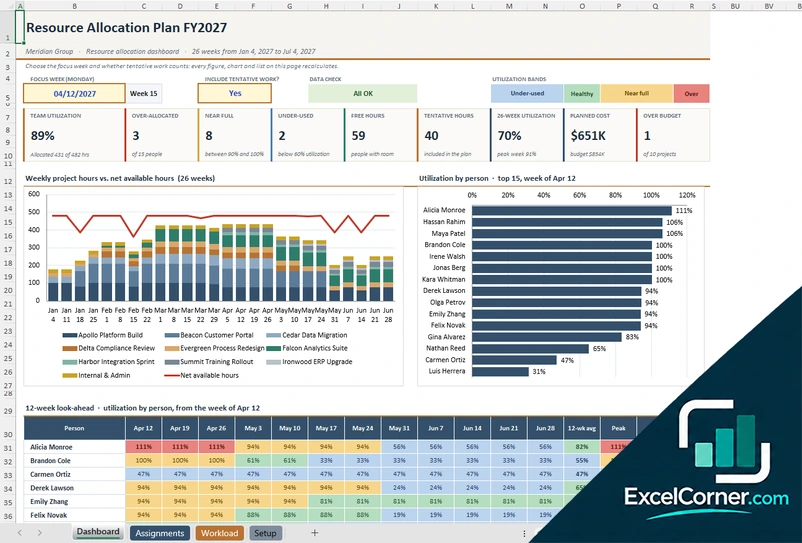
The Team sheet lists your people with their role, FTE and hourly rate, and the Projects sheet lists the projects with their budgets. On the Assignments sheet you add one row per person and project, with the role, the start and end dates and the allocation as a percentage of a day, and the sheet calculates the hours per week, the total hours, the planned cost and the planned hours by month. The Dashboard shows the team size, the utilization, the over-allocated people, the unassigned capacity, the planned labor cost and the budget remaining, with a heatmap of monthly utilization by person and totals for the available hours, the assigned hours and the team utilization. The Settings sheet holds the organization, the plan year and the targets.
Version 2: Weekly Capacity Planner
On the Team and Calendar sheet you list your people with their hours per week, rate and availability, together with holidays and time off. On the Allocations sheet you add one row per assignment with the resource, the project, the start and end dates, the hours per week, the role and the rate, and the sheet calculates the workdays, the total hours, the planned cost and the share of weekly capacity. The Resource Planner shows a weekly heatmap that you can switch between utilization percentage and hours, starting from the week you choose, with the annual capacity, the allocated hours and the annual utilization of each person, the average load, the peak week and the weeks over capacity. The summary shows the team size, the over-allocated people, the free hours, the planned labor cost and the budget remaining.
Version 3: Demand and Supply Plan
On the Demand Plan sheet you enter how many FTE each project needs from each role, month by month, with the project status, an in-scenario flag, the rate and notes about the assumptions, and the sheet calculates the FTE-months, the hours and the planned cost. On the Roles and Supply sheet you enter the supply for each role. The Plan Summary lets you choose a scenario, such as committed work only or committed plus proposed work, and shows the peak demand, the average supply, the utilization, the role-months short, the planned labor cost and the budget variance, with a capacity gap by role and month, team totals by month and the labor cost against budget by project.
How to use the resource planning template in Excel
- Download
Pick the version you want and open it in Excel. - Set up your team
List your people with their role, hours per week or FTE, rate and time off, and your projects with their budgets. Fill in the input cells; formula cells calculate on their own. - Assign people to projects
Add one row per person and project with the start and end dates and the allocation, as a percentage or as hours per week. - Read the plan
Check utilization, the people who are over-allocated, the free capacity and the labor cost against budget.
Review the plan every week or month, and update it when a project starts, slips or ends.
Which resource planning template do you need?
| Resource Plan Dashboard | Weekly Capacity Planner | Demand and Supply Plan | |
|---|---|---|---|
| Planning unit | People by month | People by week | Roles in FTE by month |
| Best for | A yearly plan across projects | Weekly capacity with holidays and time off | Hiring and capacity gaps by role |
| You get | Utilization heatmap and labor cost | Weekly heatmap, free hours and cost | Gap by role, scenarios and cost against budget |
They are separate files, so you can use more than one.
Tips for resource planning
- Plan against realistic capacity: subtract holidays, leave and non-project time.
- Keep some slack in the plan, since fully booked people cannot absorb surprises.
- Include ongoing support work, not only projects, so utilization is honest.
- Look at weekly peaks and not only yearly averages.
- Plan demand by role first when you do not yet know who will do the work.
- Update the plan when priorities change and share it with project managers.
Frequently asked questions
Is this resource planning template for Excel free?
Yes. All three versions are free to download as .xlsx files. You do not need an account or an email address.
Which version should I choose?
Choose the Resource Plan Dashboard (Version 1) for a yearly plan with monthly utilization by person. Choose the Weekly Capacity Planner (Version 2) when you need weekly detail with holidays and time off. Choose the Demand and Supply Plan (Version 3) to plan by role in FTE and compare scenarios. They are separate files, so you can use more than one.
Can I plan resources for multiple projects?
Yes. All three versions are built for several projects at once. You add one row per person and project, or one row per project and role, and the templates add up the load for each person or role.
What is utilization?
Utilization is the hours assigned to a person divided by the hours they have available. The templates show it as a percentage and use colors to mark people who are over-allocated, at target or under-used.
How do I show a capacity gap?
In the Demand and Supply Plan, the gap is supply minus demand in FTE for each role and month. Red cells show a shortage, blue cells show idle capacity and green cells are balanced.
Does the template work in Google Sheets?
The files are made for Microsoft Excel and use standard formulas with no macros. You can upload them to Google Drive and open them with Google Sheets, but some formatting or charts may look different.
Is my data stored online?
No. The templates are plain Excel files, so the names and figures you type stay in your own file on your own computer.
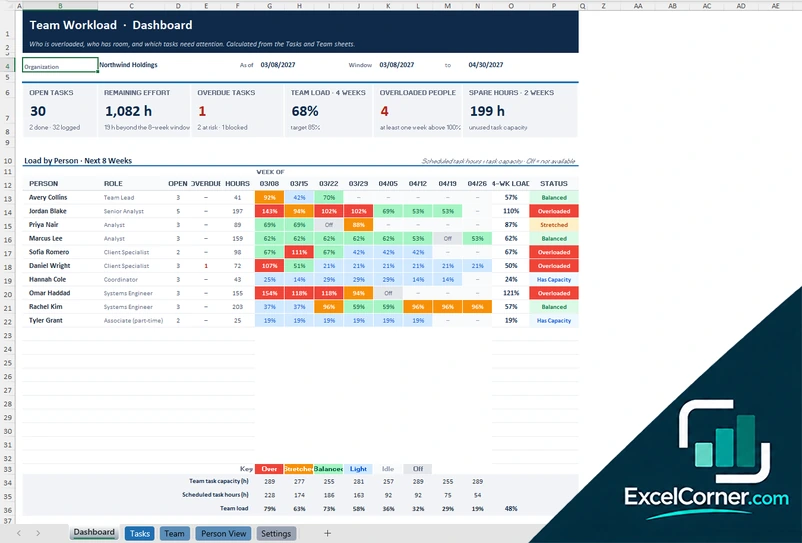
More free resource and capacity templates
These templates are planning tools with sample data. Check the figures, rates and assumptions against your own situation before you make staffing or budget decisions. Excel is a trademark of Microsoft Corporation; Excel Corner is not affiliated with Microsoft.