
Home › HR & Workforce Management › Workforce Planning Template Excel
Previewing: Version 1 · Workforce Plan. Pick another version on the right.
Instant download · No sign-up · No email
Use this free workforce planning template for Excel to answer three questions: how many people do you need, how many do you have and how will you close the gap. Plan headcount and payroll for the year, model hiring against demand by team, or build a three-year strategic plan by role.
Choose your version
- File
- .xlsx · 106 KB · 3 sheets
- Works with
- Microsoft Excel (.xlsx)
- Macros
- None · formulas only
- Price
- Free
Plan your headcount, hiring and workforce gaps in Excel
Workforce planning connects your business plan to your people. It estimates how many employees you need, compares that with who you have today after exits and hires, and shows the gap you must close with hiring, training, contractors or automation. A workforce plan spreadsheet keeps that logic in one place so you can change an assumption and see the result.
These Excel workforce planning templates look at the problem from three angles. The first is a position-based headcount and payroll plan for the year. The second is a capacity and hiring planner that turns demand into required heads by team and month. The third is a strategic plan for the next three years that compares demand with supply by role and tracks the actions that close the gap.
Best for
- HR and finance teams that plan headcount and payroll against a budget
- Operations leaders who size teams from workload and attrition
- Organizations building a multi-year plan for critical roles and succession
Maybe not for
A shift scheduling tool. These templates plan headcount by month and year, not daily rosters.
Which version is right for you?
All three are free, formula-driven Excel files with sample data you can replace. They are independent, so you can download more than one.
Version 1
Workforce Plan
Plan your headcount and payroll for the year from a list of positions, with hires, exits, budget and a department view.
DashboardPositionsSetup
.xlsx · 106 KB
Version 2
Capacity and Hiring Planner
Turn monthly workload into the people you need by team, and see hires, attrition, payroll and recruiting cost.
OverviewModelInputs
.xlsx · 53 KB
Version 3
Strategic Workforce Plan
Compare the people you need with the people you will have over three years, by role, and track the actions that close the gap.
DashboardGap AnalysisWorkforceAction Plan
.xlsx · 95 KB
What is inside the workforce planning Excel templates
Version 1: Workforce Plan
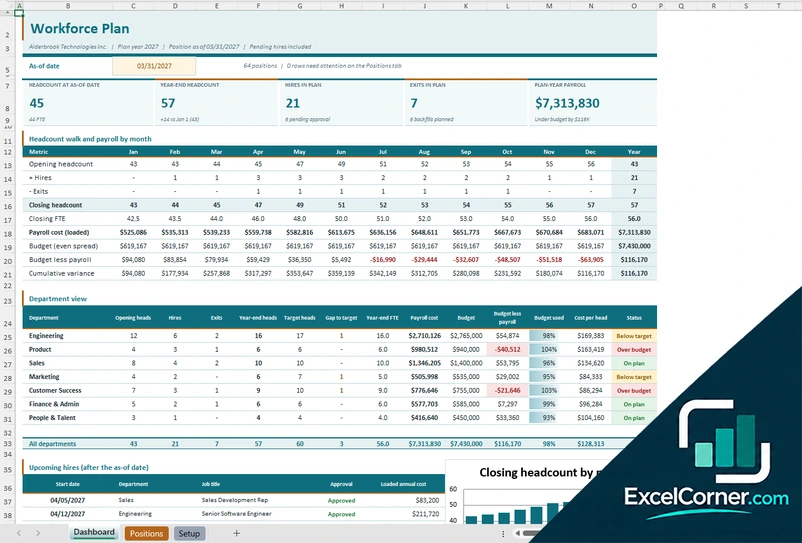
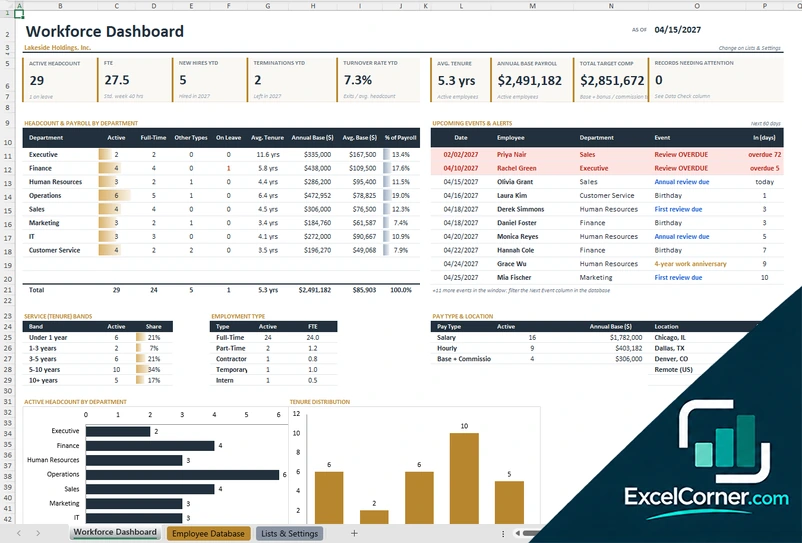
On the Positions sheet you add one row per position, filled or planned, with the department, job title, employee or requisition, pay plan, FTE, start date, separation date, approval status, annual base pay and bonus. Positions pending approval can be included or left out with one setting. The Dashboard shows the headcount at the as-of date, the year-end headcount, the hires and exits in the plan and the plan-year payroll, with a month-by-month headcount walk, payroll against budget and the cumulative variance. A department view compares year-end heads with the target, payroll with budget and cost per head, and a list shows the upcoming hires. The Setup sheet holds the departments, budgets, target heads and the benefits load for each pay plan.
Version 2: Capacity and Hiring Planner
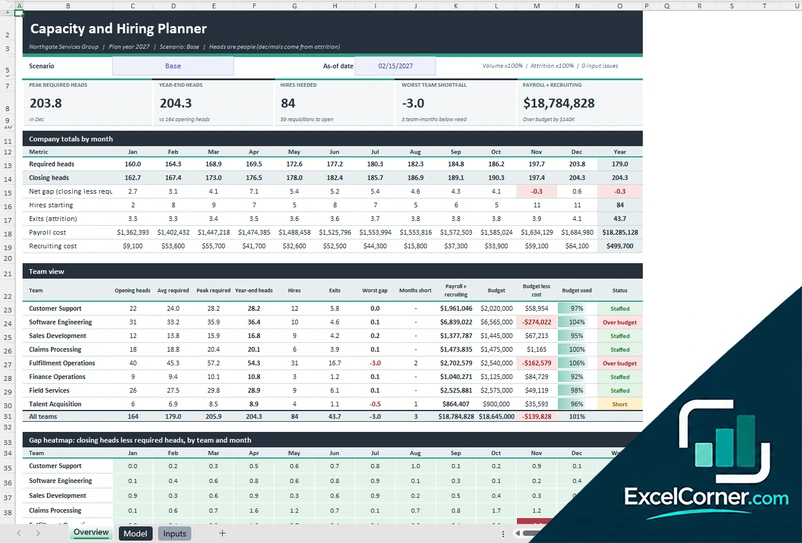
On the Inputs sheet you enter the opening heads, the output per person, utilization, absence and training, a safety buffer, attrition, cost per head, cost per hire, hiring lead time, the maximum hires per month and the budget for each team, along with the monthly workload. The Overview shows the peak required heads, the year-end heads, the hires needed, the worst team shortfall and the payroll and recruiting cost, with totals by month, a team view, a gap heatmap by team and month and a list of requisitions to open with the date each should open. You can switch between a base, growth, conservative and stress scenario and compare them, and the Model sheet shows the month-by-month calculation for every team.
Version 3: Strategic Workforce Plan
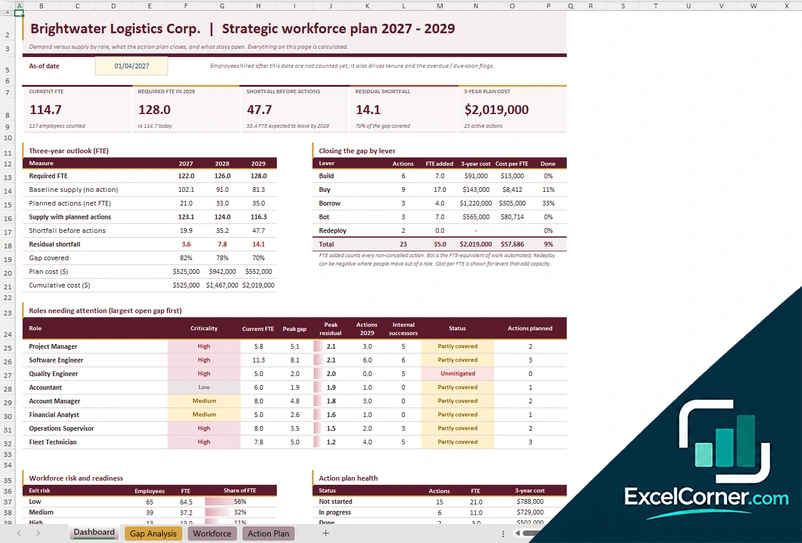
On the Workforce sheet you list each employee with the role, hire date, FTE, exit risk, promotion readiness and target role. Gap Analysis holds the required FTE for each role over three years and the exit rate for each risk level, and shows the baseline supply, the gap before actions and the residual gap after actions, with a status such as covered, partly covered or unmitigated. In the Action Plan you record actions under five levers, build, buy, borrow, bot and redeploy, with the FTE impact, one-time and annual cost, owner, due date and status. The Dashboard summarizes the current FTE, the required FTE in the final year, the shortfall before actions, the residual shortfall and the three-year plan cost, with the roles needing attention, exit risk, internal successors and the health of the action plan.
How to use the workforce planning template in Excel
- Download
Pick the version you want and open it in Excel. - Set up your plan
Enter the company name, the plan year, your departments or teams and their budgets or assumptions. Fill in the input cells; formula cells calculate on their own. - Add your people or demand
List positions, hires and exits, or enter the workload each team has to handle, or the employees on your register. - Review the gaps
Check headcount against target, payroll against budget and the roles or teams where you will fall short, then record the actions to close the gap.
Review the plan every quarter and after any change in demand, budget or attrition, so the numbers stay current.
Which workforce planning template do you need?
| Workforce Plan | Capacity and Hiring Planner | Strategic Workforce Plan | |
|---|---|---|---|
| Horizon | One plan year, month by month | One plan year, month by month | Three years |
| Best for | Headcount, hires, exits and payroll against budget | Required heads from workload, with hiring limits | Demand versus supply by role, with an action plan |
| You get | Headcount walk, payroll and budget by department | Gap heatmap, scenarios and requisitions to open | Gap before and after actions, cost and role risk |
They are separate files, so you can use more than one.
Tips for a workforce plan that holds up
- Start from business demand, such as orders, tickets or projects, and work back to the heads you need.
- Include attrition, because people leaving can widen the gap faster than growth does.
- Plan hiring lead time: a requisition has to open months before the person starts.
- Compare a base, growth, conservative and stress scenario instead of relying on one forecast.
- Track critical roles and internal successors separately from the rest of the workforce.
- Compare payroll with budget each month so the cumulative variance does not surprise you.
Frequently asked questions
Is this workforce planning template for Excel free?
Yes. All three versions are free to download as .xlsx files. You do not need an account or an email address.
Which version should I choose?
Choose the Workforce Plan (Version 1) to plan positions, hires, exits and payroll against budget for one year. Choose the Capacity and Hiring Planner (Version 2) to calculate the heads you need from workload, with attrition and hiring limits. Choose the Strategic Workforce Plan (Version 3) for a three-year view of demand and supply by role with an action plan. They are separate files, so you can use more than one.
What is workforce planning?
Workforce planning is the process of making sure you have the right number of people with the right skills at the right time. It compares future demand for work with the supply of employees you expect to have and plans actions to close the difference.
How does the capacity planner calculate required headcount?
For each team it divides the monthly workload by the output of one full-time person, adjusted for utilization, absence, training and a safety buffer. It then applies attrition, hiring lead time and a maximum number of hires per month to show whether you will have enough heads.
What actions does the strategic plan track?
The action plan groups actions into five levers: build, buy, borrow, bot and redeploy. Each action has an impact in full-time equivalents, a cost, an owner, a due date and a status, and the dashboard shows how much of the gap the actions close.
Does the template work in Google Sheets?
The files are made for Microsoft Excel and use standard formulas with no macros. You can upload them to Google Drive and open them with Google Sheets, but some formatting or charts may look different.
Is my employee information stored online?
No. The templates are plain Excel files, so the names and salaries you type stay in your own file on your own computer.
More free HR and workforce templates
These templates are planning tools with sample data. Projections are illustrations of the assumptions you enter, not forecasts or HR or legal advice. Excel is a trademark of Microsoft Corporation; Excel Corner is not affiliated with Microsoft.