
Home › Project Management › Workload Template Excel
Previewing: Version 1 · Team Workload Management. Pick another version on the right.
Instant download · No sign-up · No email
Use this free workload template for Excel to manage the work of your team. List the tasks with an owner, an effort estimate and a due date, and see who is overloaded, who has room and which tasks need attention. Or model the workload of a whole department and see how many people you need. Pick the version that fits your team.
Choose your version
- File
- .xlsx · 112 KB · 5 sheets
- Works with
- Microsoft Excel (.xlsx)
- Macros
- None · formulas only
- Price
- Free
Manage team workload in an Excel workload template
Workload management is about balancing the work that has to be done with the people who can do it. When it is invisible, some people burn out while others have spare time. A workload spreadsheet makes the load visible: tasks with an estimate and a due date are spread over the weeks and compared with each person’s capacity.
These Excel workload templates cover three needs. The first is a team workload management workbook with a dashboard, a task list and a one-page view for each person. The second is a workload board that focuses on the next weeks, with workstreams and task health. The third is a staffing model that turns workload drivers into the full-time equivalents you need by team and month.
Best for
- Team leaders who want to see and balance the load of their team
- Managers preparing 1:1s and planning who can take new work
- Operations leaders who size teams from volumes and productivity
Maybe not for
Detailed project scheduling with dependencies. These templates balance workload by person and week, and a Gantt chart is a better fit for task dependencies.
Which version is right for you?
All three are free, formula-driven Excel files with sample data you can replace. They are independent, so you can download more than one.
Version 1
Team Workload Management
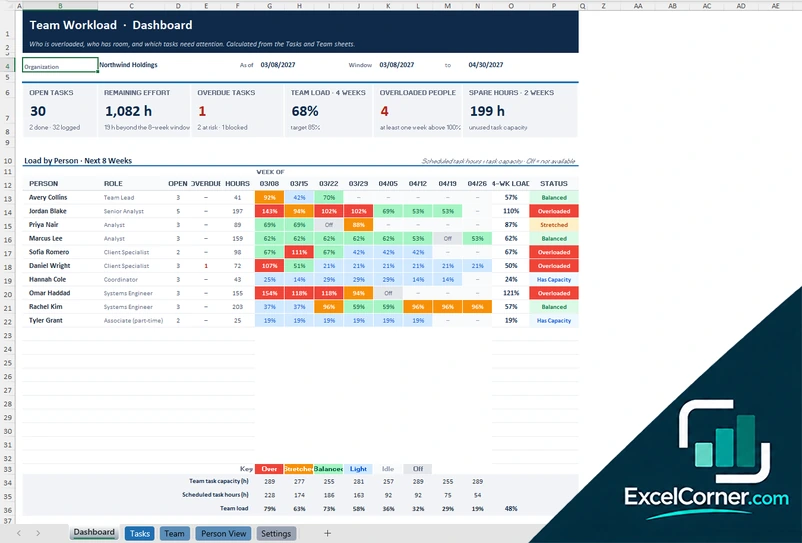
Track tasks by owner and see the load of each person for the next 8 weeks, with a one-page person view for 1:1s.
DashboardTasksTeamPerson ViewSettings
.xlsx · 112 KB
Version 2
Team Workload Board
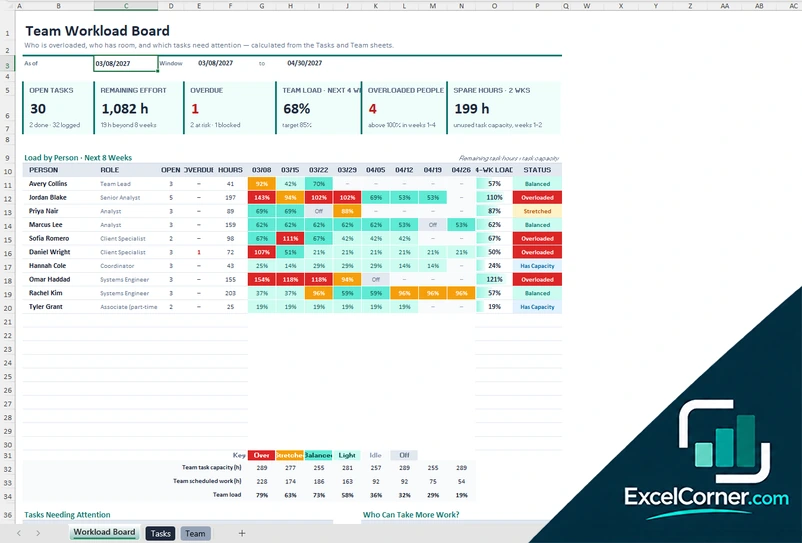
See the load by person and week, the tasks that need attention and the people who can take more work.
Workload BoardTasksTeam
.xlsx · 100 KB
Version 3
Workload and Staffing Model
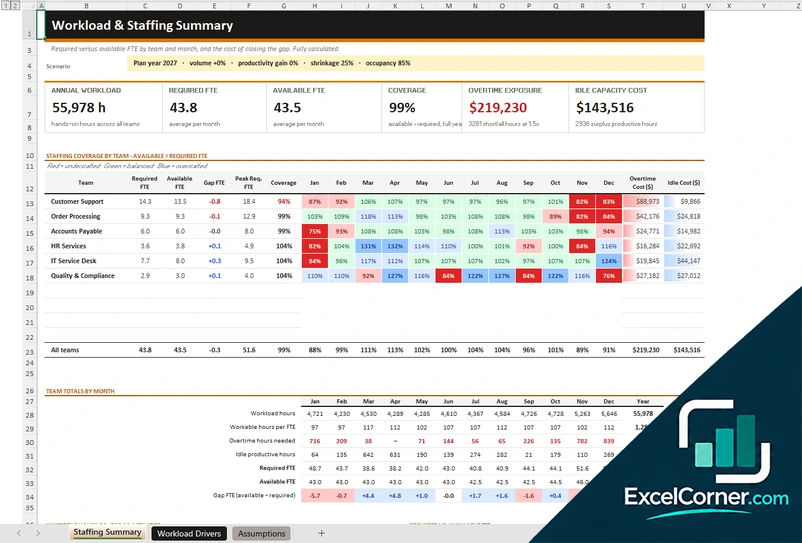
Turn workload drivers into the FTE you need by team and month, and see the cost of the gap in overtime and idle capacity.
Staffing SummaryWorkload DriversAssumptions
.xlsx · 41 KB
What is inside the workload Excel templates
Version 1: Team Workload Management
On the Team sheet you list your people with their role and the hours per week they can give to planned tasks, and on the Tasks sheet you list each task with an owner, the effort estimate, the dates, the status and the percent done. The Dashboard shows the open tasks, the remaining effort, the overdue tasks, the team load over four weeks, the overloaded people and the spare hours over two weeks, with a heatmap of the load by person for the next eight weeks and a status for each person. The Person View lets you pick a name and shows a one-page summary of that person’s open tasks, remaining hours, overdue work and weekly load, and the Settings sheet holds the as-of date and the thresholds.
Version 2: Team Workload Board
The Tasks sheet lists every piece of work with a workstream, an owner, a priority, an estimate in hours, the dates, the status and the percent done, and it spreads the remaining hours over the workdays left, with a health flag for each task. On the Team sheet you set the as-of date, the target load, the overload threshold and the at-risk window, and list the people with their weekly hours and time off. The Workload Board shows the open tasks, the remaining effort, the overdue tasks, the team load for the next four weeks, the overloaded people and the spare hours, with the load by person for the next eight weeks, the tasks needing attention and a list of who can take more work.
Version 3: Workload and Staffing Model
On the Workload Drivers sheet you enter the volume of work for each team and month and the time it takes, and on the Assumptions sheet you enter the plan year, the paid hours per day, the target occupancy, the overtime premium, the holidays and the productive time of one FTE, as well as the headcount, the cost and the scenario levers for volume, productivity and shrinkage. The Staffing Summary shows the annual workload in hours, the required FTE, the available FTE, the coverage, the overtime exposure and the idle capacity cost, with the staffing coverage by team and month, color coded for understaffed, balanced and overstaffed, and team totals by month.
How to use the workload template in Excel
- Download
Pick the version you want and open it in Excel. - Set up your team
Enter your people with their role and the hours they can give to planned work, plus time off. Fill in the input cells; formula cells calculate on their own. - Add the work
List each task with an owner, an effort estimate, a start date, a due date and a status, or enter the workload drivers for each team. - Rebalance
Check the load by person and by week, and move work from the people who are overloaded to those with room.
Update the status and the percent done of the tasks every week, so the remaining effort stays accurate.
Which workload template do you need?
| Team Workload Management | Team Workload Board | Workload and Staffing Model | |
|---|---|---|---|
| Best for | A task list with a dashboard and a person view | A weekly board of load and task health | Sizing teams from volumes |
| You enter | Tasks and team capacity | Tasks, workstreams and team capacity | Workload drivers and staffing assumptions |
| You get | Load by person for the next 8 weeks and a 1:1 view | Load, overdue tasks and who can take more work | Required versus available FTE and overtime cost |
They are separate files, so you can use more than one.
Tips for managing workload
- Estimate the effort of every task, and update the estimate as you learn more.
- Plan for a target load below 100 percent, so there is room for the unexpected.
- Count only the hours a person can really give to planned work.
- Review overdue and at-risk tasks first, and ask whether they are blocked.
- Use the person view in your 1:1s to talk about priorities.
- Rebalance the work before people are overloaded, not after.
Frequently asked questions
Is this workload template for Excel free?
Yes. All three versions are free to download as .xlsx files. You do not need an account or an email address.
Which version should I choose?
Choose Team Workload Management (Version 1) for a dashboard, a task list and a person view. Choose the Team Workload Board (Version 2) for a board focused on the next weeks with task health. Choose the Workload and Staffing Model (Version 3) to size a department from workload drivers. They are separate files, so you can use more than one.
How does the template calculate the load?
Each task has an effort estimate, a start date and a due date. The remaining effort is spread over the workdays left and added up by week for each owner, and the weekly total is divided by the person’s available hours to give a load percentage.
How do I see who is overloaded?
The load by person is color coded and has a status such as has capacity, balanced, stretched or overloaded, based on the target load and the overload threshold that you set.
What does the staffing model calculate?
It turns the workload hours into the required FTE by team and month using the productive hours per FTE, the target occupancy and the shrinkage, compares them with the available FTE and shows the coverage, the overtime exposure and the cost of idle capacity.
Does the template work in Google Sheets?
The files are made for Microsoft Excel and use standard formulas with no macros. You can upload them to Google Drive and open them with Google Sheets, but some formatting or charts may look different.
Is my data stored online?
No. The templates are plain Excel files, so the names and figures you type stay in your own file on your own computer.
More free resource and capacity templates
These templates are planning tools with sample data. Check the figures, rates and assumptions against your own situation before you make staffing or budget decisions. Excel is a trademark of Microsoft Corporation; Excel Corner is not affiliated with Microsoft.