
Home › Personal Finance › Expense Reconciliation Template Excel
Previewing: Version 1 · Expense Account Reconciliation. Pick another version on the right.
Instant download · No sign-up · No email
Use this free expense reconciliation template for Excel to match what your bank or card statement shows with what is in your books. Find unexplained differences, list open items and close the month with confidence. Pick the version that fits your close.
Choose your version
- File
- .xlsx · 110 KB · 3 sheets
- Works with
- Microsoft Excel (.xlsx)
- Macros
- None · formulas only
- Price
- Free
Reconcile your expenses in Excel, month after month
Expense reconciliation means checking that every charge on a bank or card statement matches an entry in your ledger, and that the balances agree at month-end. Differences usually come from timing, such as outstanding charges and credits in transit, or from mistakes, such as transposed digits, duplicate entries or bank errors.
These Excel expense reconciliation templates match statement lines to ledger entries automatically, list the reconciling items and show whether the difference is explained. A third version reconciles an employee expense report against policy, receipts, a cash advance and company-paid charges.
Best for
- Small businesses and teams that close their books every month
- Reconciling a bank or card account against a ledger
- Employees and managers settling an expense report against a cash advance
Maybe not for
Full accrual accounting with journal entries. These templates reconcile statements and expense reports; they do not build accrual schedules.
Which version is right for you?
All three are free, formula-driven Excel files. They are independent, so you can download more than one.
Version 1
Expense Account Reconciliation
Close the month for one expense account. Statement lines are matched to ledger entries automatically, reconciling items are listed, spending is checked against budget and a checklist guides the sign-off.
ReconciliationStatementLedger
.xlsx · 110 KB
Version 2
Account Reconciliation
Reconcile a bank or card statement against your ledger for one account and one month. Lines are matched automatically, exceptions get a resolution and ledger activity is summarized by category.
ReconciliationStatementLedger
.xlsx · 105 KB
Version 3
Expense Report and Reconciliation
Log each expense, check it against your policy and settle the balance with the cash advance and the charges paid by the company.
Expense ReportPolicy & Lists
.xlsx · 29 KB
What is inside the expense reconciliation Excel templates
Version 1: Expense Account Reconciliation
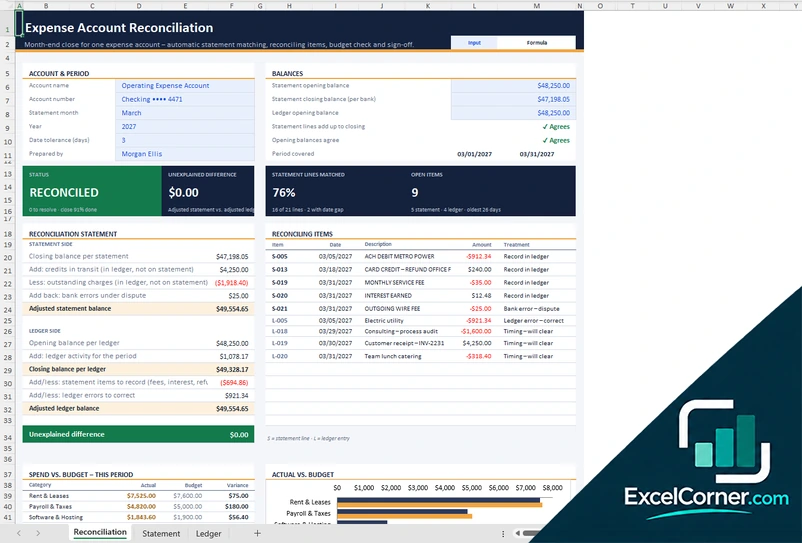
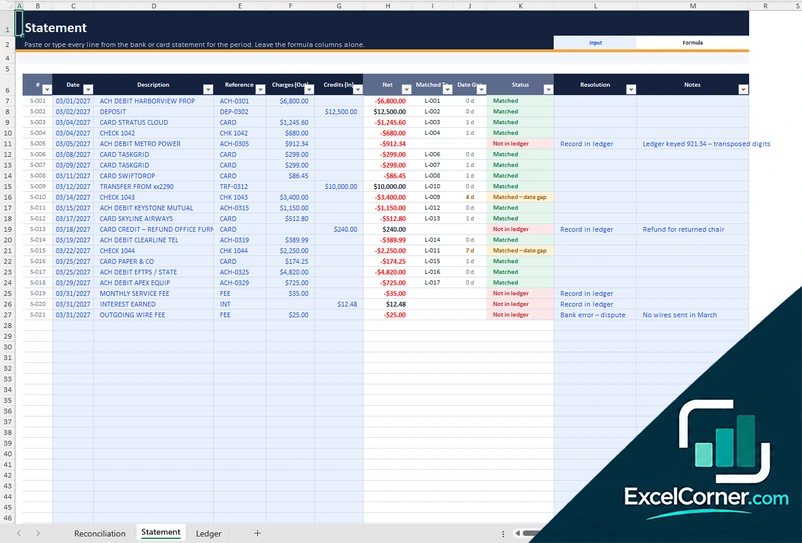
The Reconciliation sheet starts with the account name and number, the statement month, the opening and closing balances and a date tolerance in days. It checks that the statement lines add up to the closing balance and that the opening balances agree, and it shows whether you are reconciled, the unexplained difference, the share of statement lines matched and the number of open items. A reconciliation statement adjusts both the statement side (credits in transit, outstanding charges, bank errors under dispute) and the ledger side (fees, interest and refunds to record, ledger errors to correct). Below it, you compare actual spending with budget by category and work through a month-end close checklist with owners, then add the sign-off. You paste the statement lines on the Statement sheet and the entries on the Ledger sheet.
Version 2: Account Reconciliation
On the Statement sheet you paste each line from the bank or card statement, with its reference, charges and credits, and the template shows the net amount, the ledger entry it matches, the date gap and a status such as Matched, Matched with a date gap or Not in ledger. For each exception you record a resolution and a note, for example a ledger entry to record or a bank error to dispute. The Reconciliation sheet adjusts the statement balance and the ledger balance, lists the reconciling items, shows the unexplained difference and summarizes ledger activity by category with a chart, followed by a sign-off.
Version 3: Expense Report and Reconciliation
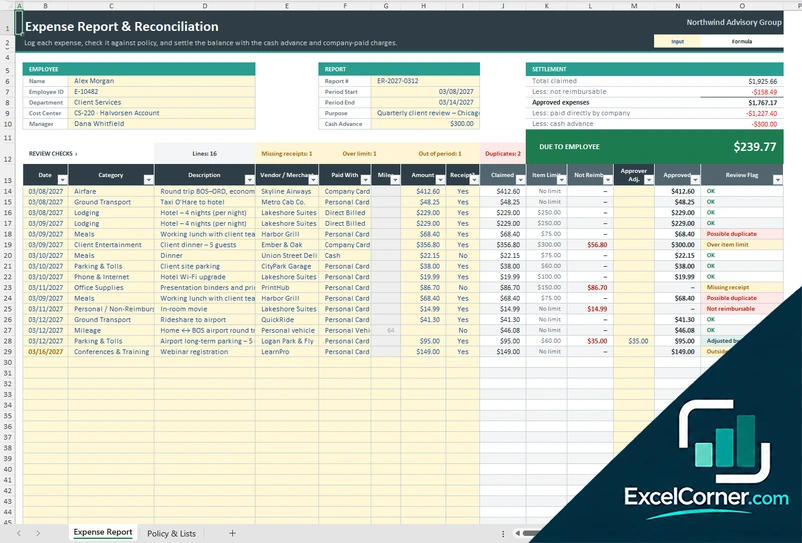
The Expense Report sheet holds the employee and report details and a log where you enter the date, category, description, vendor, how the expense was paid, the amount and whether you have a receipt. Each line shows the amount claimed, the item limit, the part that is not reimbursable, any approver adjustment and the approved amount, with a review flag such as OK, Possible duplicate, Missing receipt, Over item limit or Not reimbursable. The settlement subtracts what is not reimbursable, what the company paid directly and the cash advance to show what is due to the employee, and a summary by category with GL codes and a sign-off complete the report. On the Policy and Lists sheet you set the mileage rate, the receipt threshold, the categories and their limits.
How to use the expense reconciliation template in Excel
- Download
Pick the version you want and open it in Excel. - Enter your balances and lines
Fill in the account, the statement month and the opening and closing balances, then paste or type the statement lines and the ledger entries, or the expenses on your report. - Review the matches
The template matches lines automatically. Check items with a date gap or without a match, and choose a treatment for each reconciling item. - Sign off
Work through the checklist until the unexplained difference is zero, then add the preparer and reviewer sign-off.
Close the month only when the unexplained difference is zero and every open item has a treatment, and follow up any item that stays open for more than 30 days.
Which expense reconciliation template do you need?
| Expense Account Reconciliation | Account Reconciliation | Expense Report and Reconciliation | |
|---|---|---|---|
| View | Statement vs. ledger with a budget check and a close checklist | Statement vs. ledger with charges by category | An employee expense report settled against policy |
| Best for | A monthly close for one expense account | A clean bank or card reconciliation | Reimbursements, cash advances and company-paid charges |
| You enter | Statement lines, ledger entries and budgets | Statement lines and ledger entries | Expenses, receipts and policy limits |
They are separate files, so you can use more than one.
Tips for a faster month-end reconciliation
- Set a small date tolerance so lines are matched even when the posting dates differ by a few days.
- Check that the opening balances agree with last month’s closing balances before you start.
- Review matches with a date gap first, because they are the most likely to hide a mistake.
- Book bank fees, interest and refunds from the statement in your ledger every month.
- Follow up any open item older than 30 days before it becomes a year-end problem.
- Keep receipts for expenses above your policy limit and let the review flags point out the missing ones.
Frequently asked questions
Is this expense reconciliation template for Excel free?
Yes. All three versions are free to download as .xlsx files. You do not need an account or an email address.
Which version should I choose?
Choose the Expense Account Reconciliation (Version 1) for a month-end close of one expense account with a budget check and a checklist. Choose the Account Reconciliation (Version 2) for a straightforward statement-versus-ledger reconciliation with charges by category. Choose the Expense Report and Reconciliation (Version 3) to settle an employee expense report against policy, receipts and a cash advance. They are separate files, so you can use more than one.
How does the automatic matching work?
You paste the statement lines and the ledger entries, and the template matches each statement line to a ledger entry within the date tolerance you set. Each line shows a status such as Matched, Matched with a date gap or Not in ledger, so you only review the exceptions.
What are reconciling items?
Reconciling items explain the difference between the statement and the ledger. Some are timing items, such as credits in transit and outstanding charges. Others need action, such as fees, interest or refunds to record, ledger errors to correct and bank errors to dispute.
Can I use it for accrued expenses?
The reconciliation lists charges that are in your ledger but not yet on the statement as outstanding items, which covers expenses you have recorded before the bank or card posts them. For a full accrual schedule with journal entries you would need a separate template.
What does the expense report check for?
Version 3 compares each line with your policy and flags items such as a possible duplicate, a missing receipt, an item over its limit, a personal or non-reimbursable expense and an expense outside the report period. It then settles the report against the cash advance and company-paid charges.
Does the template work in Google Sheets?
The files are made for Microsoft Excel and use standard formulas with no macros. You can upload them to Google Drive and open them with Google Sheets, but some formatting or charts may look different.
Is my financial information stored online?
No. The templates are plain Excel files, so the numbers you type stay in your own file on your own computer.
More free personal finance templates
These templates are educational tools, not accounting or financial advice. Results depend on the information you enter. Excel is a trademark of Microsoft Corporation; Excel Corner is not affiliated with Microsoft.