
Home › Personal Finance › Financial Tracker Excel Template
Previewing: Version 1 · Financial Tracker. Pick another version on the right.
Instant download · No sign-up · No email
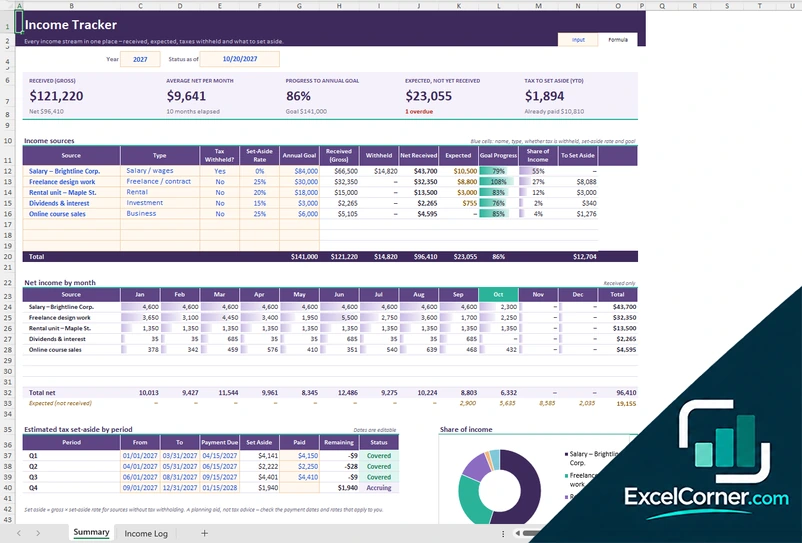
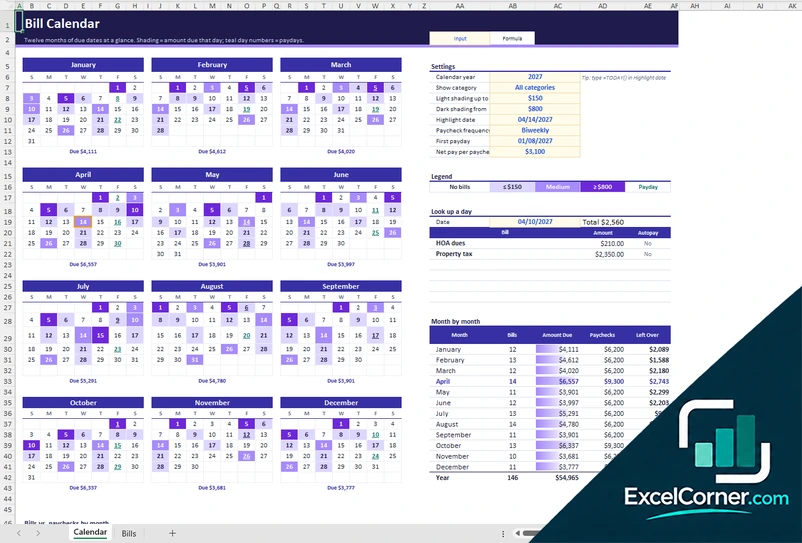
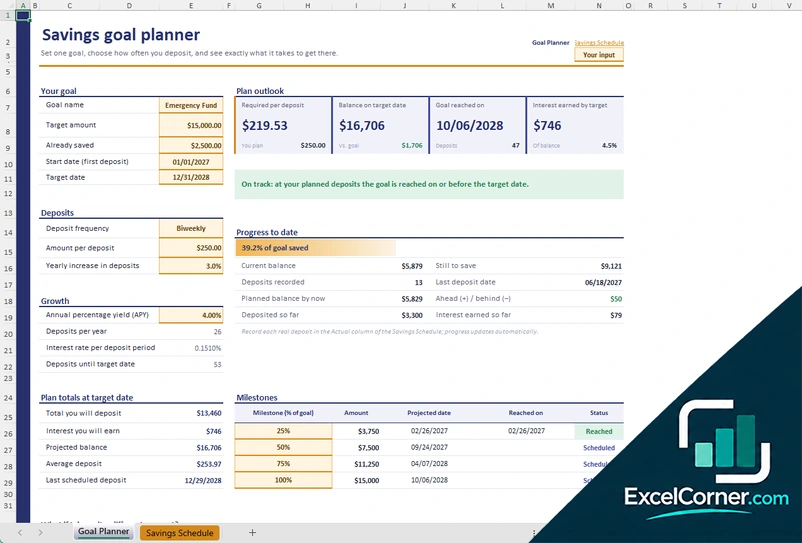
Use this free financial tracker Excel template to see where your money comes from and where it goes. Log your transactions, compare budget and actual by category and follow your balances, net worth and savings rate. Pick the version that fits how you track.
Choose your version
- File
- .xlsx · 106 KB · 3 sheets
- Works with
- Microsoft Excel (.xlsx)
- Macros
- None · formulas only
- Price
- Free
Track your money in one Excel workbook
A financial tracker brings your income, spending, savings and account balances into one place. Instead of guessing, you can see how much came in this month, what you spent in each category, how much you saved or invested and how much was left over.
These Excel financial tracking templates work two ways. The Financial Tracker and the Pro version are driven by a transaction log: you enter each money movement once and the dashboard, budget comparison and cash flow update on their own. The Annual Finance Tracker is lighter: you plan once, enter monthly totals and watch year-to-date progress and a year-end forecast.
Best for
- Households that want one view of income, spending and savings
- People who like to log every transaction
- Anyone who prefers monthly totals and a year-end forecast
Maybe not for
Business bookkeeping. These trackers are built for personal and household finances.
Which version is right for you?
All three are free, formula-driven Excel files. They are independent, so you can download more than one.
Version 1
Financial Tracker
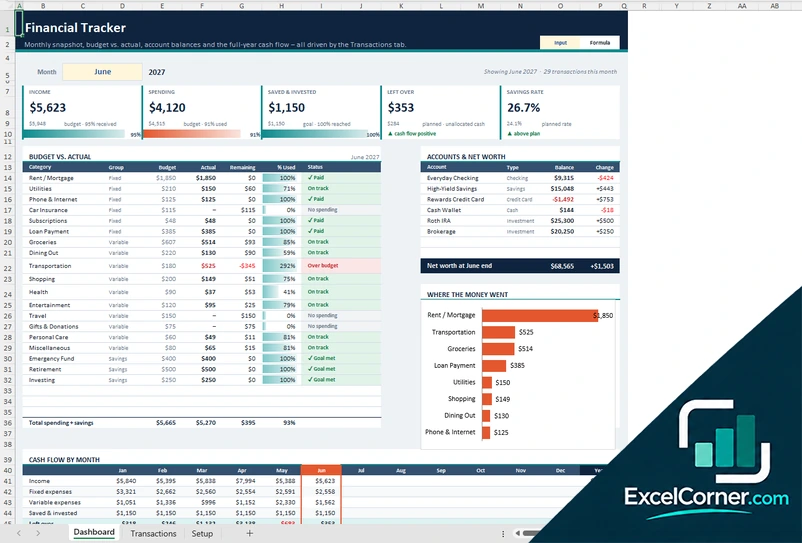
See your month at a glance: income, spending, what you saved and invested, budget versus actual, account balances and cash flow.
DashboardTransactionsSetup
.xlsx · 106 KB
Version 2
Financial Tracker Pro
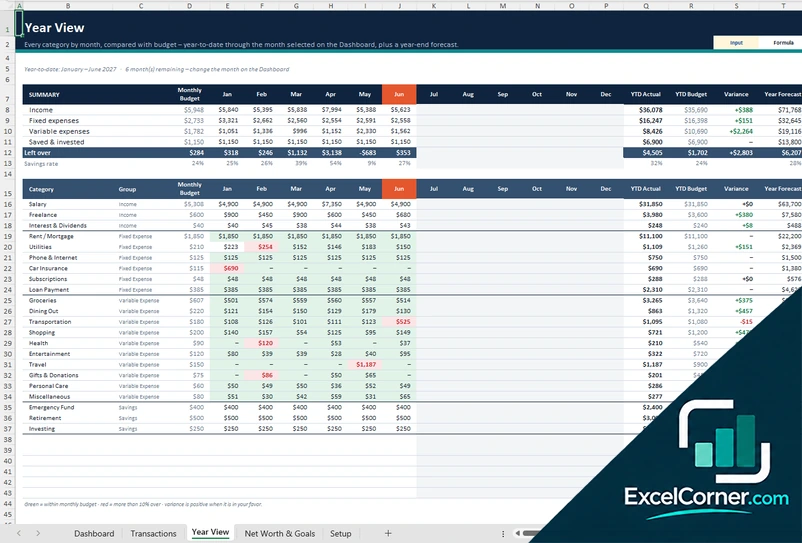
Everything in the financial tracker plus a year view of every category and a sheet for net worth and savings goals.
DashboardTransactionsYear ViewNet Worth & GoalsSetup
.xlsx · 130 KB
Version 3
Annual Finance Tracker
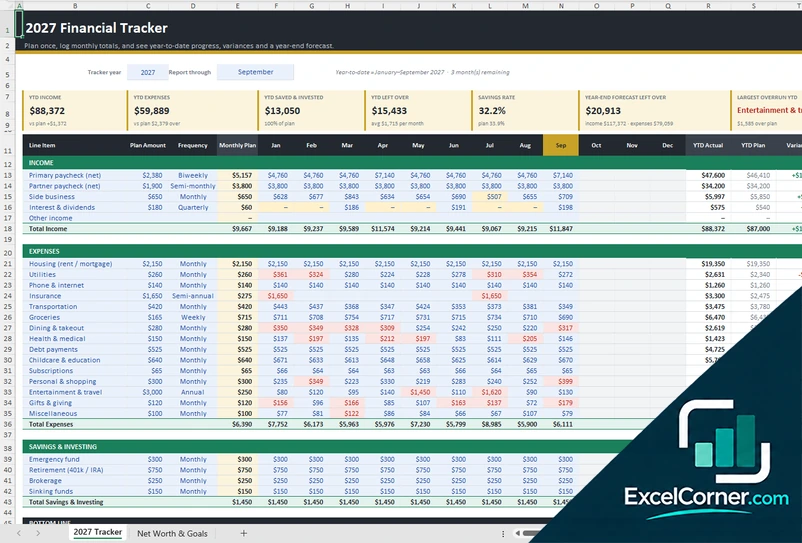
Plan your year once, log monthly totals and see year-to-date progress, variances and a year-end forecast.
2027 TrackerNet Worth & Goals
.xlsx · 33 KB
What is inside the financial tracker Excel templates
Version 1: Financial Tracker
You log every money movement on the Transactions sheet with its date, description, amount, category and account, and the Dashboard does the rest. It shows income, spending, saved and invested, what is left over and your savings rate for the month you pick, a budget versus actual table by category with a status such as On track, Over budget or Goal met, your accounts with their balances and change, a chart of where the money went and the cash flow by month for the full year. The Setup sheet holds your categories, budgets and accounts.
Version 2: Financial Tracker Pro
The Dashboard and Transactions work like the standard tracker. The Year View shows every category month by month compared with its budget, with a summary of income, fixed and variable expenses and savings, and the year-to-date actual, budget, variance and year forecast. The Net Worth and Goals sheet adds a net worth figure to the dashboard and shows how many of your savings goals are on track.
Version 3: Annual Finance Tracker
On the tracker sheet you plan each income, expense and savings line with an amount and a frequency, which becomes a monthly plan, and then type your actual totals for each month. It shows year-to-date income, expenses, saved and invested, what is left over, your savings rate, the year-end forecast of what will be left over and the largest overrun so far. Each line shows its plan, year-to-date actual, variance, monthly average and year forecast, with a monthly cash flow and a view of where the money goes. The Net Worth and Goals sheet records month-end balances and shows whether each savings goal is on pace.
How to use the financial tracker Excel template
- Download
Pick the version you want and open it in Excel. - Set up your categories and accounts
Review the budget by category and add your accounts on the Setup sheet, or plan your income, expenses and savings lines in the annual tracker. - Log your money
Enter each transaction with its date, description, amount, category and account, or type the monthly totals. Fill in the input cells; formula cells calculate on their own. - Read the dashboard
Check income, spending, what you saved and invested, what is left over and your savings rate, and compare budget with actual.
Update the tracker regularly, at least once a week, and review the budget comparison at the end of each month.
Which financial tracker do you need?
| Financial Tracker | Financial Tracker Pro | Annual Finance Tracker | |
|---|---|---|---|
| Method | Log each transaction | Log each transaction | Enter monthly totals |
| Views | Monthly dashboard, budget vs. actual and cash flow | The dashboard plus a year view, net worth and goals | A year-to-date tracker with a forecast, plus net worth and goals |
| Best for | Seeing a month clearly | Tracking the whole year in detail | A light plan-and-review routine |
They are separate files, so you can use more than one.
Tips for tracking your finances
- Log transactions soon after they happen, while you still remember them.
- Enter amounts as positive numbers and let the category decide whether money comes in or goes out.
- Set a realistic budget for each category and review the ones marked over budget first.
- Record transfers between accounts so your balances and net worth stay correct.
- Track your savings rate every month to see whether your saving habit is improving.
- Use the year-end forecast to adjust your spending before the year is over.
Frequently asked questions
Is this financial tracker Excel template free?
Yes. All three versions are free to download as .xlsx files. You do not need an account or an email address.
Which version should I choose?
Choose the Financial Tracker (Version 1) if you want a monthly dashboard driven by a transaction log. Choose the Financial Tracker Pro (Version 2) if you also want a year view of every category and a net worth and goals sheet. Choose the Annual Finance Tracker (Version 3) if you prefer to plan once and enter monthly totals. They are separate files, so you can use more than one.
How do I enter a transaction?
On the Transactions sheet, add one row per money movement with the date, description, amount, category and account. Amounts are always positive and the category decides whether it is money in or out. For a transfer between accounts, fill in the destination account.
Does it track my net worth?
Yes. The dashboard shows your accounts and their balances, and the Pro and Annual versions add a Net Worth and Goals sheet where you record month-end balances and see whether each savings goal is on pace.
What is the savings rate?
The savings rate is the share of your income that you save or invest. The dashboard calculates it for the month and compares it with your plan.
Does the template work in Google Sheets?
The files are made for Microsoft Excel and use standard formulas with no macros. You can upload them to Google Drive and open them with Google Sheets, but some formatting or charts may look different.
Is my financial information stored online?
No. The templates are plain Excel files, so the numbers you type stay in your own file on your own computer.
More free personal finance templates
These templates are educational tools, not financial advice. Results depend on the information you enter. Excel is a trademark of Microsoft Corporation; Excel Corner is not affiliated with Microsoft.