
Home › Project Management › Issue Log Excel Template
Previewing: Version 1 · Issue Log and Status Report. Pick another version on the right.
Instant download · No sign-up · No email
Use these free issue log templates for Excel to record every project issue once, give it a priority and a due date, and follow it until it is resolved. One version adds a status report for steering meetings, one adds an SLA dashboard with escalations, and one shows the open issues on a Kanban board.
Choose your version
- File
- .xlsx · 78 KB · 3 sheets
- Works with
- Microsoft Excel (.xlsx)
- Macros
- None · formulas only
- Price
- Free
Keep a project issue log in an Excel spreadsheet
An issue log is the list of problems that are happening now and need someone to fix them. Each issue needs an owner, a priority, a due date and a status, so that the important ones are not lost and the late ones are escalated. A spreadsheet is a practical home for the log when every issue is a row and the reports are calculated from those rows.
These issue log Excel templates share one idea: log each issue once and let the workbook calculate the rest. The first template turns the log into a status report with the issue health, the decisions needed from the steering group and the issues that need escalation. The second adds an SLA dashboard with compliance, aging, owner workload and cost exposure. The third is a Kanban issue board with a weekly review and the cost of delay.
Best for
- Project managers and PMO teams that report issues to a steering committee
- Teams that work to resolution targets and need to see which issues have breached them
- Delivery and support teams that move issues through stages on a board
Maybe not for
A full help desk or a software bug tracker with workflows and integrations. These templates keep an issue log and reports in Excel.
Which version is right for you?
All three are free, formula-driven Excel files with sample data you can replace. They are independent, so you can download more than one.
Version 1
Issue Log and Status Report
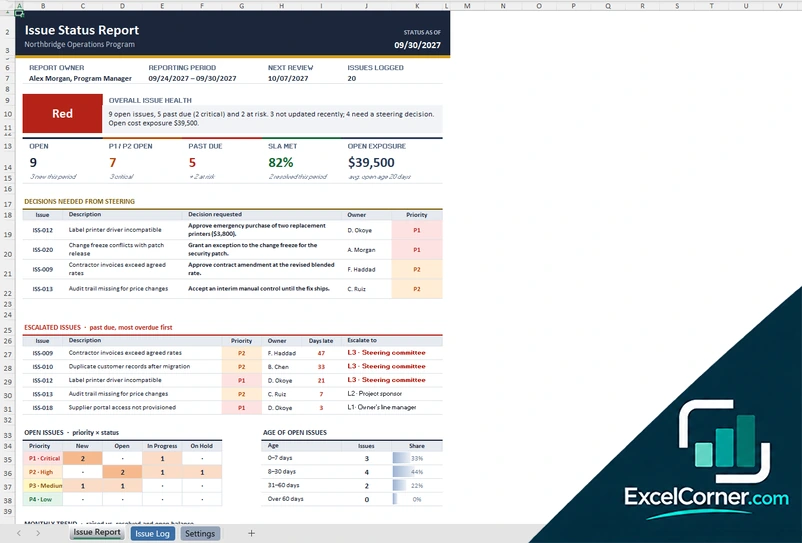
Log issues with a priority and a due date and get a status report with the overall issue health, the decisions needed and the escalated issues.
Issue ReportIssue LogSettings
.xlsx · 78 KB
Version 2
Issue Log with SLA Dashboard
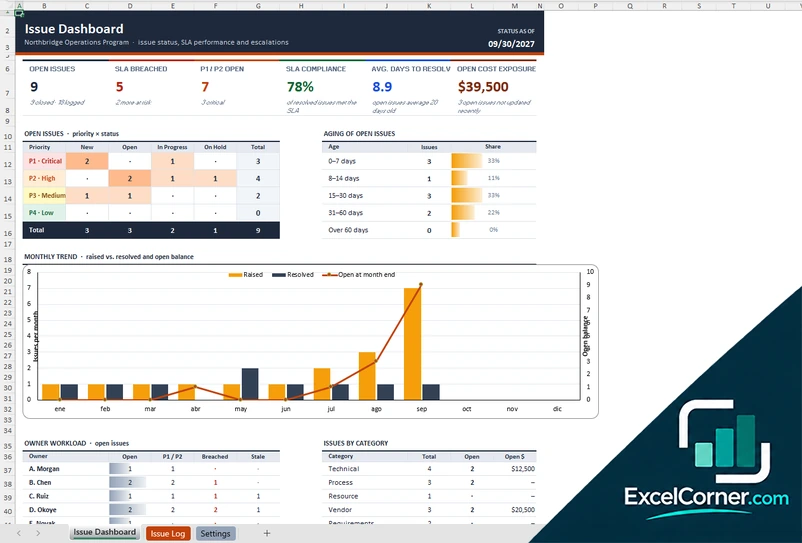
Track issues against resolution targets and see SLA compliance, the age of open issues, workload by owner and the cost of open issues.
Issue DashboardIssue LogSettings
.xlsx · 65 KB
Version 3
Issue Board and Weekly Review
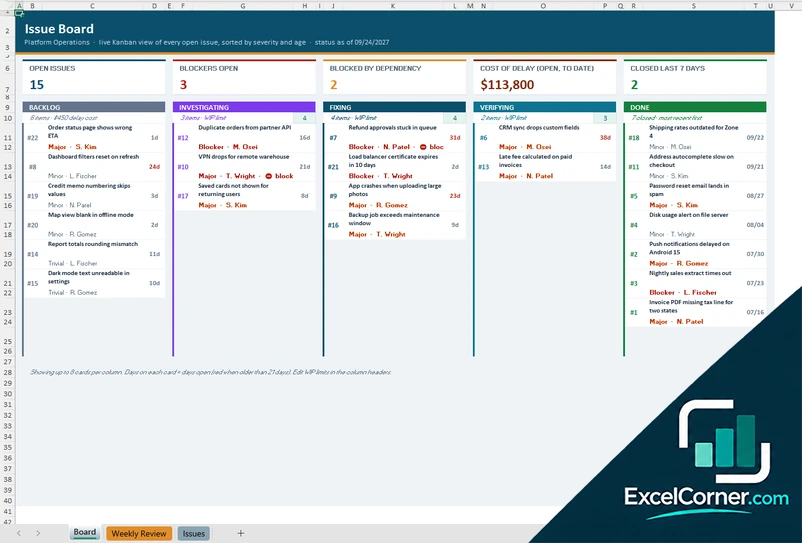
See every open issue on a Kanban board, review the week and track blockers, dependencies and the cost of delay.
BoardWeekly ReviewIssues
.xlsx · 57 KB
What is inside the issue log Excel templates
Version 1: Issue Log and Status Report
The Settings sheet holds the program name, the report owner, the status date, the reporting period, the priority matrix, the resolution targets, the escalation rules and the lists of categories and owners. The Issue Log records each issue with the date raised, the impact on the business, the category, the owner, the impact and urgency ratings, the status, the date resolved, the estimated cost, the next action and whether it needs a steering decision. It calculates the priority, the due date, the age and the escalation level. The Issue Report shows the overall health, the open issues, the past due items, the SLA met rate and the open exposure, with the decisions needed from steering, the escalated issues, the open issues by priority and status, the age of open issues and a monthly trend chart.
Version 2: Issue Log with SLA Dashboard
The Settings sheet holds the project name, the status date, the stale-issue threshold, the priority matrix, the resolution targets for each priority, the escalation rules and the lists. The Issue Log records each issue and calculates the priority, the SLA due date, the age, the status group and the escalation. The Issue Dashboard shows the open issues, the SLA breached, the P1 and P2 open, the SLA compliance, the average days to resolve and the open cost exposure, with the open issues by priority and status, the aging of open issues, a monthly trend chart, the workload by owner, the issues by category and the escalations required.
Version 3: Issue Board and Weekly Review
On the Issues sheet you add each issue once with the date opened, the workstream, the severity, the assignee, the stage, whether it is blocked and by what, and the cost of delay per day. It calculates the days open, the cost of delay to date and the week opened and closed. The Board shows the open issues in the backlog, investigating, fixing, verifying and done columns with work-in-progress limits, plus the number of blockers and the cost of delay. The Weekly Review lets you pick a week to see what was opened and closed, the net change, the four-week average and the cost of delay for the week, with a 12-week trend chart and the open issues by workstream.
How to use an issue log template in Excel
- Download
Pick the version you want and open it in Excel. The files have sample issues so you can see how the sheets work. - Set the rules
On the Settings sheet, enter the project name, the status date and the report owner, then review the priority matrix, the resolution targets, the categories and the list of owners. - Log the issues
Add one row for each issue with the date raised, a description, the impact, the category, the owner and the impact and urgency ratings. The priority and the due date are calculated. - Update the status
Change the status, the date resolved, the next action and the last update as the work moves on. - Review the report
Open the report, the dashboard or the board to see open issues, overdue items, escalations and the monthly trend.
Set the status date each reporting period, or enter the TODAY function to keep it live.
Which issue log template do you need?
| Issue Log and Status Report | Issue Log with SLA Dashboard | Issue Board and Weekly Review | |
|---|---|---|---|
| For | Reporting issues to a steering group | Tracking SLA compliance and escalations | Moving issues through stages |
| Best for | Project managers and PMOs | Teams with resolution targets | Delivery and support teams |
| Main outputs | Issue health, decisions needed and escalated issues | SLA compliance, aging, owner workload and cost exposure | Kanban board, weekly trend and cost of delay |
| Sheets | 3 | 3 | 3 |
| Charts | Yes | Yes | Yes |
They are separate files, so you can use more than one.
Tips for keeping an issue log
- Log an issue as soon as it appears and give it one owner, so it does not depend on someone remembering it.
- Rate the impact and the urgency separately and let the priority matrix combine them. That keeps ratings consistent between people.
- Write the next action and the date of the last update on every open issue. Issues that have not moved in a while should stand out.
- Escalate by rule, not by feeling. Decide how many days late triggers each escalation level and let the log flag it.
- Record the estimated cost of open issues, so decision makers can see what delay is costing.
- Review the log in a short weekly meeting and close issues that are resolved the same day.
Frequently asked questions
Is this issue log Excel template free?
Yes. All three versions are free to download as .xlsx files. You do not need an account or an email address.
Which version should I choose?
Choose the Issue Log and Status Report (Version 1) to report issues to a steering group. Choose the Issue Log with SLA Dashboard (Version 2) to track resolution targets and escalations. Choose the Issue Board and Weekly Review (Version 3) to run issues on a Kanban board.
How is the priority calculated?
You rate the impact and the urgency of each issue, and the Settings sheet turns the pair into a priority from P1 to P4 with a priority matrix that you can change.
What is the difference between an issue log and a risk log?
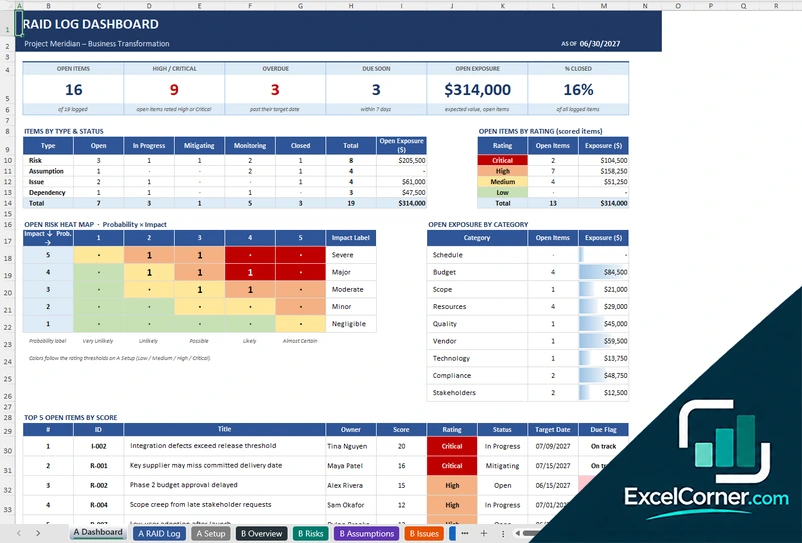
An issue is a problem that is already happening. A risk is something that might happen. If you track both in one register, see the RAID log templates, which cover risks, assumptions, issues and dependencies.
How do escalations work?
The log compares each open issue with its due date. Issues past due are flagged, and the templates show the escalation level and who to escalate to, based on the rules on the Settings sheet.
Can I add my own categories and owners?
Yes. The Settings sheet holds editable lists of categories, owners and statuses that feed the dropdowns in the log.
Does the template work in Google Sheets?
The files are made for Microsoft Excel and use standard formulas with no macros. You can upload them to Google Drive and open them with Google Sheets, but some formatting or charts may look different.
Is my project information stored online?
No. The templates are plain Excel files, so the costs, names and dates you type stay in your own file on your own computer.
These templates are planning and record-keeping tools with sample data. Check the figures against your contracts, invoices and accounting records before you rely on them. Excel is a trademark of Microsoft Corporation; Excel Corner is not affiliated with Microsoft.