
Home › Calendars, Schedules & Productivity › Monthly Schedule Template Excel
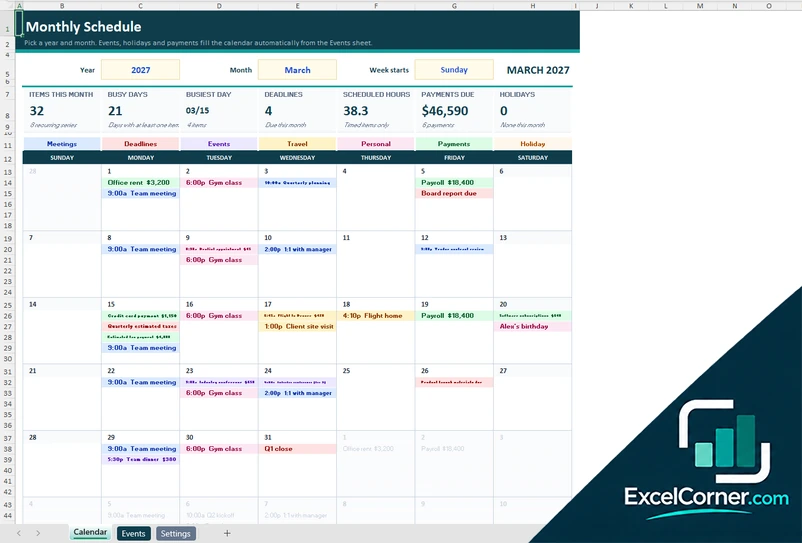
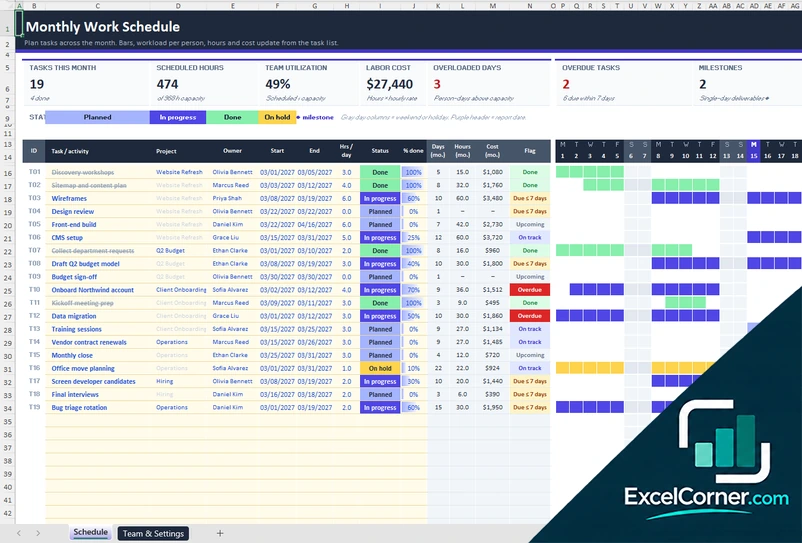
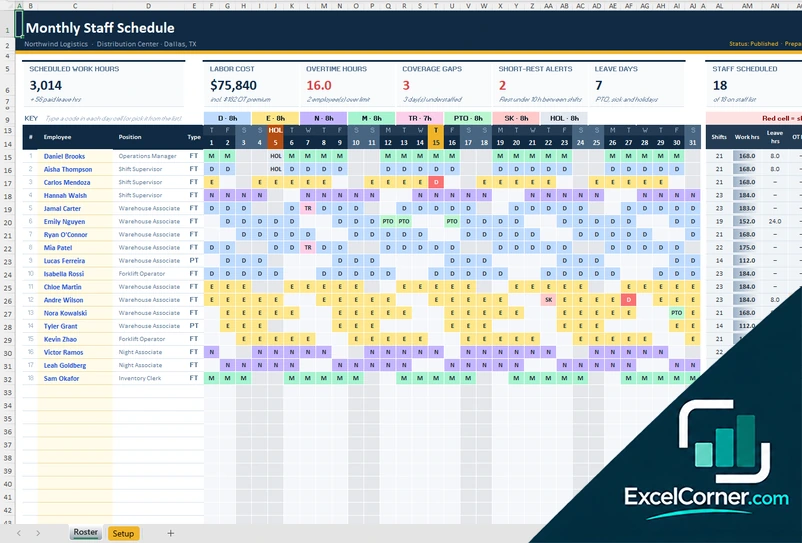
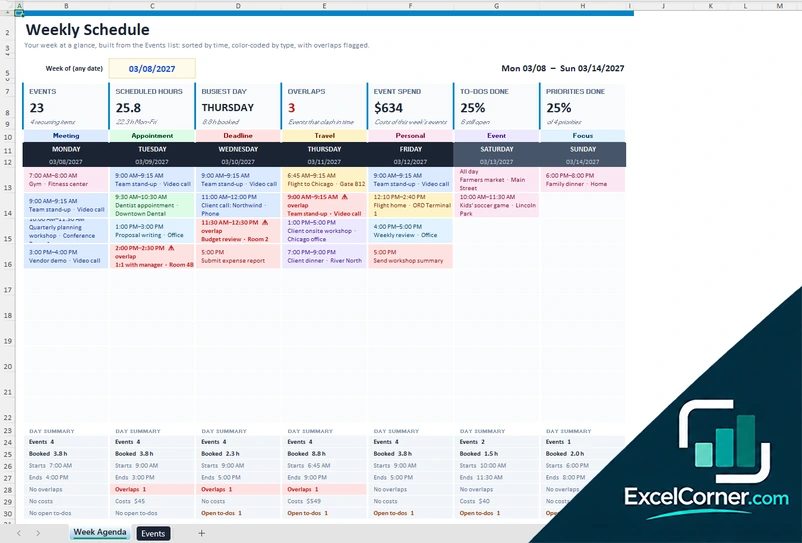
Previewing: Version 1 · Monthly Calendar Schedule. Pick another version on the right.
Instant download · No sign-up · No email
Use these free monthly schedule templates for Excel to plan a whole month. One version is a monthly calendar that fills itself from a list of events and payments, one is a monthly work schedule with task bars and workload per person, and one is a monthly staff roster with shift codes, overtime and coverage.
Choose your version
- File
- .xlsx · 324 KB · 3 sheets
- Works with
- Microsoft Excel (.xlsx)
- Macros
- None · formulas only
- Price
- Free
Make a monthly schedule in an Excel spreadsheet
A monthly schedule gives you the view of the whole month. You can see which days are busy, which deadlines are close and whether the work fits in the time you have. A spreadsheet is a good tool for this because the calendar can be calculated from a list: you enter each event once, and the month fills itself, including the items that repeat every week or every month.
These Excel templates cover three kinds of monthly schedule. The first is a monthly calendar for a person or a team, with meetings, deadlines, travel, personal items and payments. The second is a monthly work schedule, where you give each task a start date, a number of hours a day and an owner, and the sheet draws a bar for each task and shows the workload for each person. The third is a monthly staff schedule, where you type a shift code in each day cell and the roster adds up the hours, the overtime, the labor cost, the coverage gaps and the rest between shifts.
Best for
- Individuals and teams who want one view of the month with events, deadlines and payments
- Project leads and managers who plan tasks and the workload of a team over a month
- Managers of shift-based teams who prepare the roster for the month
Maybe not for
A shared online calendar with invitations. These templates are Excel files, so they work best for planning and review.
Which version is right for you?
All three are free, formula-driven Excel files with sample data you can replace. They are independent, so you can download more than one.
Version 1
Monthly Calendar Schedule
Enter each item once, with a repeat rule, and see the whole month in a calendar with busy days, deadlines, scheduled hours and payments due.
CalendarEventsSettings
.xlsx · 324 KB
Version 2
Monthly Work Schedule
Give each task a start date, hours a day and an owner, and see the bars across the month, the workload per person and the labor cost.
ScheduleTeam & Settings
.xlsx · 43 KB
Version 3
Monthly Staff Schedule
Type a shift code in each day cell and see the work hours, labor cost, overtime, coverage gaps and short-rest alerts for the month.
RosterSetup
.xlsx · 79 KB
What is inside the monthly schedule Excel templates
Version 1: Monthly Calendar Schedule
The Events sheet is a list of items with the date, the start time, the title, the category, the location, a repeat rule and an end date for it, an amount and notes, and it calculates the hours and whether each item falls in the month. The Calendar sheet shows the month you choose, with the year, the month and the first day of the week at the top, and each day shows up to five items in time order, colored by category. The top shows the items in the month, the busy days, the busiest day, the deadlines, the scheduled hours, the payments due and the holidays, and a table gives the items, the hours and the amount for each category. The Settings sheet holds the categories, which are meetings, deadlines, events, travel, personal items and payments, with a color, and the list of U.S. holidays.
Version 2: Monthly Work Schedule
On the Schedule sheet each row is a task with the project, the owner, the start date, the hours a day, the status, which can be planned, in progress, done or on hold, and the percent done, and the sheet works out the end date, the days and hours in the month, the cost and a flag. Bars across the days of the month show when each task is planned, with gray columns for weekends and holidays, and a diamond marks a milestone. The top shows the tasks this month, the scheduled hours, the team utilization, the labor cost, the overloaded days, the overdue tasks, the milestones and the working days. The Team & Settings sheet holds the month, the report date, the team with the role, the daily capacity and the hourly rate, a summary of the scheduled hours, the capacity, the utilization, the overloaded days and the labor cost for each person, and the holidays and closures, with a chart.
Version 3: Monthly Staff Schedule
The Roster sheet lists each employee with the position and the type of employment, and a grid of the days of the month where you type or pick a shift code, such as day, evening, night, paid time off, sick leave or a holiday. It colors the days, marks weekends and holidays, and calculates for each person the number of shifts, the work hours, the leave hours, the overtime hours, the target hours and the difference, the short-rest alerts and the labor cost. The top shows the scheduled work hours, the labor cost, the overtime hours, the coverage gaps, the short-rest alerts, the leave days and the staff scheduled. The Setup sheet holds the company, the site, the month, the report date, the pay and compliance rules, which are the overtime threshold, the overtime multiplier and the minimum rest between shifts, the shift codes with their type, start time, unpaid break and leave hours, the minimum staffing and the holidays.
How to use a monthly schedule template in Excel
- Download
Pick the version you want and open it in Excel. The files have sample data so you can see how they work. - Choose the month
Pick the year and the month, and, in the calendar, the day on which the week starts. - Set up the lists
On the Settings or Setup sheet, edit the categories, the holidays, the team with their hours and rates, or the shift codes and the pay rules. - Add the items
Add each event once on the Events sheet, each task with its start date and hours a day, or type a shift code in the day cell of each employee. - Check the month
Look at the busy days, the workload, the overdue tasks, the labor cost and the coverage gaps, and adjust the schedule.
Change the month or the year and the whole schedule is calculated again.
Which monthly schedule template do you need?
| Monthly Calendar Schedule | Monthly Work Schedule | Monthly Staff Schedule | |
|---|---|---|---|
| For | Events, deadlines and payments in a calendar | Tasks, owners and workload across the month | Shifts for every employee |
| Best for | Individuals and teams | Project leads and managers | Managers of shift teams |
| Main outputs | Items, busy days, deadlines, scheduled hours, payments due | Scheduled hours, utilization, labor cost, overloaded days, overdue tasks | Work hours, labor cost, overtime, coverage gaps, short-rest alerts |
| Sheets | 3 | 2 | 2 |
| Charts | No | Yes | No |
They are separate files, so you can use more than one.
Tips for a better monthly schedule
- Plan the month a few days before it starts, and put the fixed dates in first, such as deadlines, payments and holidays.
- Enter repeating items once with a repeat rule, instead of typing them again every week.
- Look at the busiest days first and move what you can to a quieter day.
- Keep the hours per day realistic. A team that is scheduled at full capacity every day has no room for surprises.
- For rosters, publish the schedule early and check the rest between shifts and the minimum staffing.
- Review the month at the end and use what you learned to plan the next one.
Frequently asked questions
Are these monthly schedule templates for Excel free?
Yes. All three versions are free to download as .xlsx files. You do not need an account or an email address.
Which version should I choose?
Choose the Monthly Calendar Schedule (Version 1) for a calendar of events, deadlines and payments. Choose the Monthly Work Schedule (Version 2) to schedule tasks and see the workload of a team. Choose the Monthly Staff Schedule (Version 3) for a roster with shift codes.
Can I enter events that repeat?
Yes. In the monthly calendar each event has a repeat rule, such as weekly, every two weeks, biweekly on Fridays or monthly, and an end date, so a repeating item only has to be entered once.
Can I change the month?
Yes. Pick the year and the month, and the calendar, the tasks and the roster are calculated for that month. The monthly calendar can also start the week on Sunday or on Monday.
How does the staff schedule check overtime and rest?
You set the number of hours per week after which overtime starts, the overtime multiplier and the minimum rest between shifts. The roster shows the overtime hours and the cost, and marks in red a shift that starts before the minimum rest has passed.
Does the monthly calendar include holidays?
Yes. The files include a list of U.S. holidays that you can edit, and the monthly work schedule and the staff schedule let you add company holidays and closures, which are shown as non-working days.
Does the template work in Google Sheets?
The files are made for Microsoft Excel and use standard formulas with no macros. You can upload them to Google Drive and open them with Google Sheets, but some formatting or charts may look different.
Is my information stored online?
No. The templates are plain Excel files, so the names, tasks and dates you type stay in your own file on your own computer.
These templates are planning and record-keeping tools with sample data. Check the figures and any legal or policy requirements, such as overtime and rest rules for staff schedules, against the rules that apply to you. Excel is a trademark of Microsoft Corporation; Excel Corner is not affiliated with Microsoft.