
Home › Calendars, Schedules & Productivity › Excel Time Blocking Template
Previewing: Version 1 · Weekly Time Block Planner. Pick another version on the right.
Instant download · No sign-up · No email
Use these free Excel time blocking templates to decide in advance how you will spend your time. One version is a weekly planner with a color-coded grid of half-hour blocks, one is a day view with a log of what you really did and insights on your focus time, and one builds your week from an ideal week with one-off changes.
Choose your version
- File
- .xlsx · 25 KB · 2 sheets
- Works with
- Microsoft Excel (.xlsx)
- Macros
- None · formulas only
- Price
- Free
Plan your time with time blocks in Excel
Time blocking is a way to plan your day by giving every part of it a purpose. Instead of a list of tasks, you schedule blocks of time for deep work, meetings, email, exercise and breaks. A spreadsheet suits this well, because it can count how many hours you planned for each kind of work, how long your longest focus block is and how much of your workday is still open.
These Excel time blocking templates cover three styles. The first is a weekly planner: you pick a category for each half hour and the grid colors itself, with totals by category and your top three priorities. The second is a day view with a block log, where you plan blocks, mark them done, moved or skipped and rate your energy, and then see insights on completion, focus share and energy by time of day. The third starts from an ideal week of recurring blocks and lets you add one-off changes for specific dates.
Best for
- Knowledge workers, managers and freelancers who want to protect time for focused work
- People who want to compare how they planned to spend their time with how they did
- Anyone who wants an ideal week that they can adjust when the week changes
Maybe not for
A calendar app that syncs with meeting invitations. These templates help you design and review your time blocks in Excel.
Which version is right for you?
All three are free, formula-driven Excel files with sample data you can replace. They are independent, so you can download more than one.
Version 1
Weekly Time Block Planner
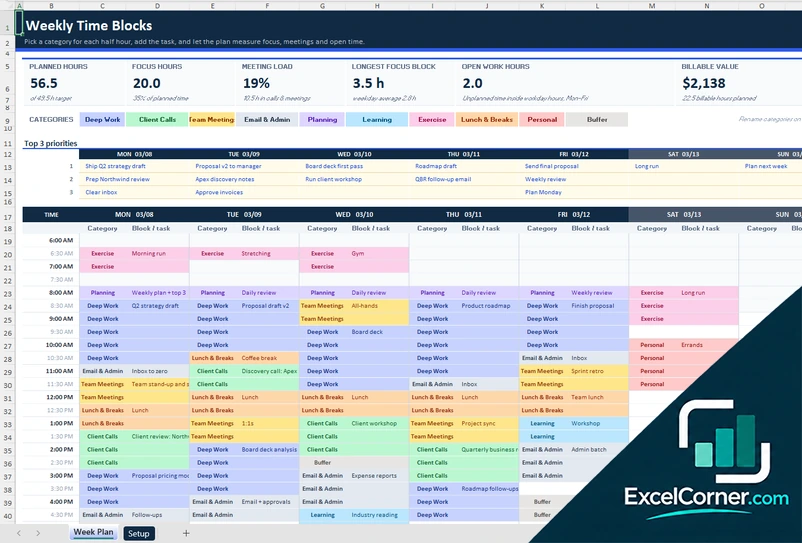
Pick a category for each half hour of the week and see the planned hours, the focus time, the meeting load and your top three priorities.
Week PlanSetup
.xlsx · 25 KB
Version 2
Day View and Block Log
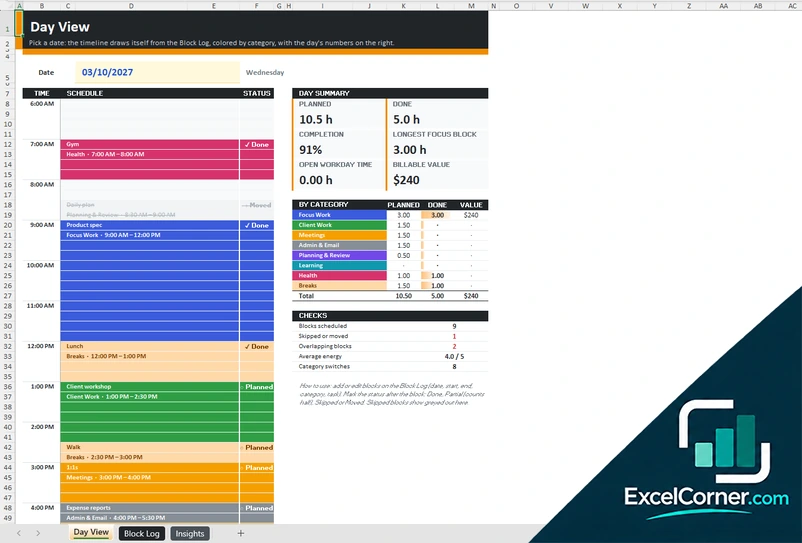
Pick a date to see the day as a timeline, log each block as done, moved or skipped and review completion, focus share and energy.
Day ViewBlock LogInsights
.xlsx · 83 KB
Version 3
Ideal Week Planner
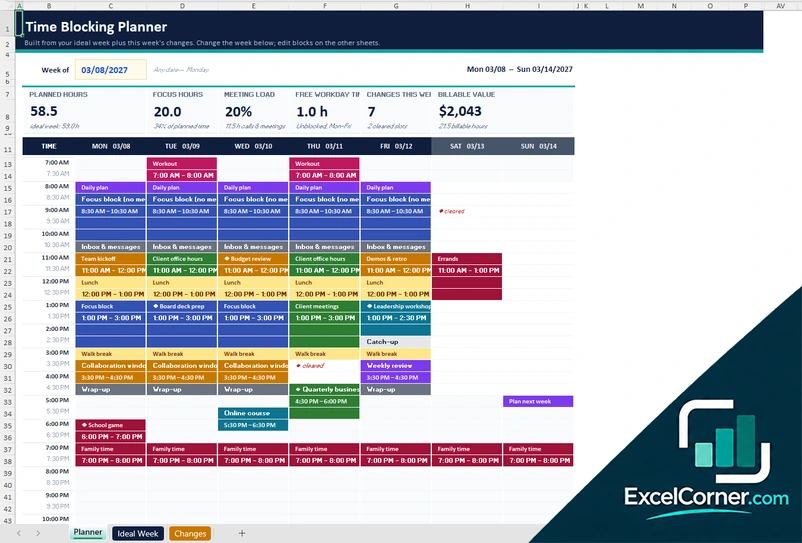
Define your ideal week once, then add one-off changes and see this week against the ideal by category and by day.
PlannerIdeal WeekChanges
.xlsx · 72 KB
What is inside the Excel time blocking templates
Version 1: Weekly Time Block Planner
On the Week Plan sheet you pick a category for each half-hour slot and write the block or task, and the grid colors itself. It shows the planned hours, the focus hours, the meeting load, the longest focus block, the open work hours and the billable value, with your top three priorities and two charts. The Setup sheet holds any date in the week, the day on which the week starts, the first time slot, the start and end of the workday and the categories with a color, a type, whether they are billable, the value per hour and a weekly target, with the planned hours, the variance and the share of each.
Version 2: Day View and Block Log
In the Block Log you add one row for each time block with the date, the start time, the category, the block or task, a status such as done, moved, skipped or partial, an energy rating from 1 to 5 and notes. It calculates the planned and done hours, the value and a check. The Day View draws the timeline of any date you pick, with a day summary of the planned and done hours, the completion, the longest focus block, the open workday time and the value by category, and checks for the number of blocks, the skipped or moved ones, overlaps, the average energy and the category switches. The Insights sheet shows the planned against done hours by category, the completion, the focus share, the energy by time of day and the done hours by weekday.
Version 3: Ideal Week Planner
On the Ideal Week sheet you list the recurring blocks, one row for each pattern, with the days, the start time, the block name, the category and the duration, and the sheet checks for overlaps and totals the hours per week. It also holds the categories with a color, a type, whether they are billable, the rate and the ideal hours per week. The Changes sheet takes one-off blocks for a specific date, which can replace the usual block or clear it. The Planner shows the week of any date you enter, with the planned hours, the focus hours, the meeting load, the free workday time, the number of changes and the billable value, a comparison of this week against the ideal week, the hours by day and category and two charts.
How to use a time blocking template in Excel
- Download
Pick the version you want and open it in Excel. The files have a sample week so you can see how they work. - Set the week and the hours
On the Setup sheet, enter any date in the week, the day on which the week starts and the times at which your workday starts and ends. - Edit the categories
Rename the categories, such as deep work, meetings, email and admin, exercise and breaks. Choose the type of each one, such as focus or admin, and, if you bill your time, the value per hour and the weekly target. - Plan the blocks
Pick a category for each half hour in the weekly planner, add blocks to the day view or the block log, or define the recurring blocks of your ideal week. - Review the totals
Check the planned hours, the focus hours, the meeting load, the longest focus block and the open workday time, and compare them with your targets.
Change a block and the hours by category, the focus time and the charts update.
Which time blocking template do you need?
| Weekly Time Block Planner | Day View and Block Log | Ideal Week Planner | |
|---|---|---|---|
| For | A color-coded grid for the week | Planning blocks and logging what you did | A recurring ideal week with changes |
| Best for | Planning the week at a glance | Reviewing plan against reality and energy | People with a regular weekly rhythm |
| Main outputs | Planned and focus hours, meeting load and longest focus block | Completion, focus share, skipped blocks and energy by time | This week vs. ideal, changes and hours by day and category |
| Sheets | 2 | 3 | 3 |
| Charts | Yes | Yes | Yes |
They are separate files, so you can use more than one.
Tips for time blocking
- Block your most important work first, at the time of day when you have the most energy.
- Group similar tasks, such as email and admin, into one block instead of spreading them through the day.
- Leave buffer blocks between meetings and for the work that takes longer than planned.
- Protect at least one long block of focus time every day, and say no to meetings during it.
- At the end of the week, compare what you planned with what you did and adjust the blocks.
- Do not plan every minute. A plan with some slack is easier to follow.
Frequently asked questions
Is this Excel time blocking template free?
Yes. All three versions are free to download as .xlsx files. You do not need an account or an email address.
Which version should I choose?
Choose the Weekly Time Block Planner (Version 1) for a color-coded weekly grid. Choose the Day View and Block Log (Version 2) to plan blocks and log what you did. Choose the Ideal Week Planner (Version 3) if you have a regular weekly rhythm with recurring blocks.
What is time blocking?
Time blocking is a method of planning your day by dividing it into blocks of time and giving each block a purpose. It helps to protect focus time and to see whether your plan fits in the hours you have.
How long are the time slots?
The weekly planner and the ideal week use half-hour slots, 32 of them from the time your workday starts. You set the first slot and the working hours on the Setup sheet.
Can I track billable time?
Yes. Each category can be marked as billable with a value per hour, and the templates show the billable value of the planned hours, and the done hours in the log.
Does it show how well I followed my plan?
The Day View and Block Log version records whether each block was done, moved, skipped or partly done, and the Insights sheet shows the completion rate, the focus share and the energy by time of day.
Does the template work in Google Sheets?
The files are made for Microsoft Excel and use standard formulas with no macros. You can upload them to Google Drive and open them with Google Sheets, but some formatting or charts may look different.
Is my information stored online?
No. The templates are plain Excel files, so the tasks, names and dates you type stay in your own file on your own computer.
These templates are planning and record-keeping tools with sample data. Check the figures and any legal or policy requirements, such as overtime and rest rules for staff schedules, against the rules that apply to you. Excel is a trademark of Microsoft Corporation; Excel Corner is not affiliated with Microsoft.