
Home › Calendars, Schedules & Productivity › Hourly Schedule Template Excel
Previewing: Version 1 · Weekly Hourly Planner. Pick another version on the right.
Instant download · No sign-up · No email
Use these free hourly schedule templates for Excel to plan time hour by hour. One version is a 24-hour weekly planner for all 168 hours of the week, one is a booking schedule that shows rooms or resources by the hour, and one is an hour-by-hour board for a 24-hour operation with shifts, targets and actual output.
Choose your version
- File
- .xlsx · 18 KB · 2 sheets
- Works with
- Microsoft Excel (.xlsx)
- Macros
- None · formulas only
- Price
- Free
Plan your time by the hour in an Excel spreadsheet
An hourly schedule divides the day into one-hour slots, so you can see who or what is doing something at each hour. That level of detail helps when your time is tight, when a room or a machine can only be used by one person at a time, or when output has to be tracked hour by hour. A spreadsheet suits this well because the grid can color itself and the totals update when you change a slot.
These Excel templates cover three uses. The first is a weekly hourly planner: you pick an activity for each of the 168 hours of the week, and the grid colors itself and compares your hours with weekly targets for sleep, work, exercise and more. The second is an hourly booking schedule, with a day board where every room, space or piece of equipment is a column, and a bookings list that checks for double bookings and calculates utilization and revenue. The third is an hour-by-hour board for a 24-hour operation, where you compare the target and the actual output for each hour of three shifts.
Best for
- Individuals who want to plan the whole week hour by hour, including sleep and time off
- Offices, studios and venues that rent rooms, desks or equipment by the hour
- Supervisors who run shifts around the clock and follow output against a target each hour
Maybe not for
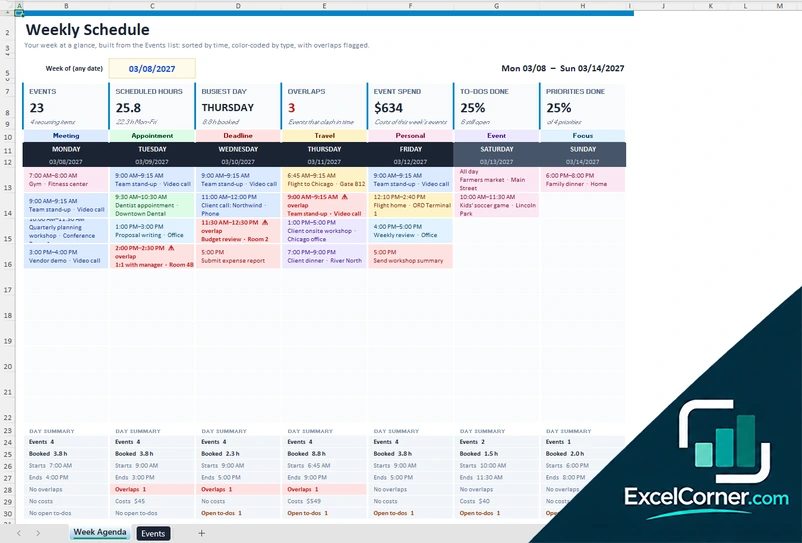
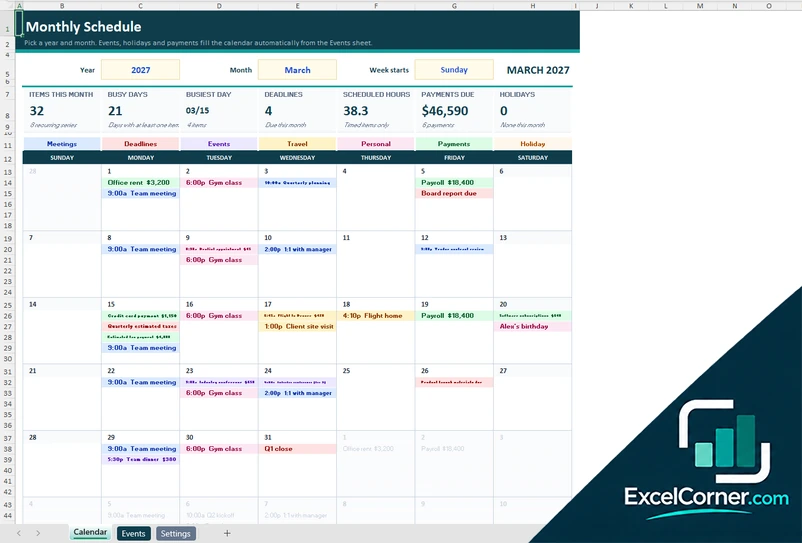
Employee shift rosters by day or by month. For staff rotas, see the weekly schedule and the monthly schedule templates.
Which version is right for you?
All three are free, formula-driven Excel files with sample data you can replace. They are independent, so you can download more than one.
Version 1
Weekly Hourly Planner
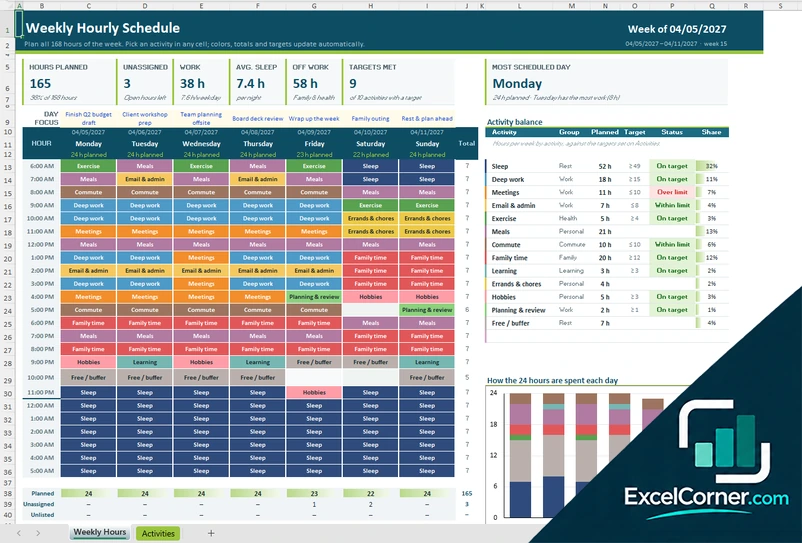
Pick an activity for each hour of the week, and see the hours planned, the unassigned hours, your sleep and how each activity compares with its target.
Weekly HoursActivities
.xlsx · 18 KB
Version 2
Hourly Booking Schedule
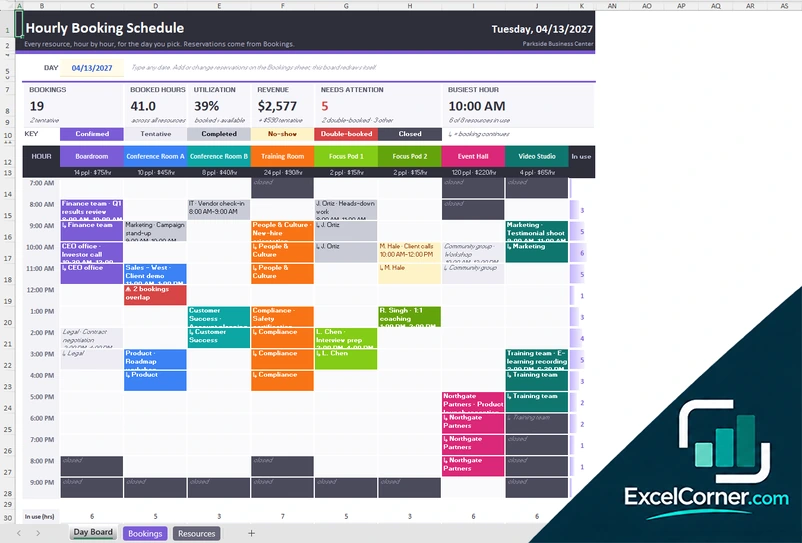
Show every room, space or piece of equipment by the hour for any day, with double-booking checks, utilization and revenue.
Day BoardBookingsResources
.xlsx · 69 KB
Version 3
Hour-by-Hour Shift Board
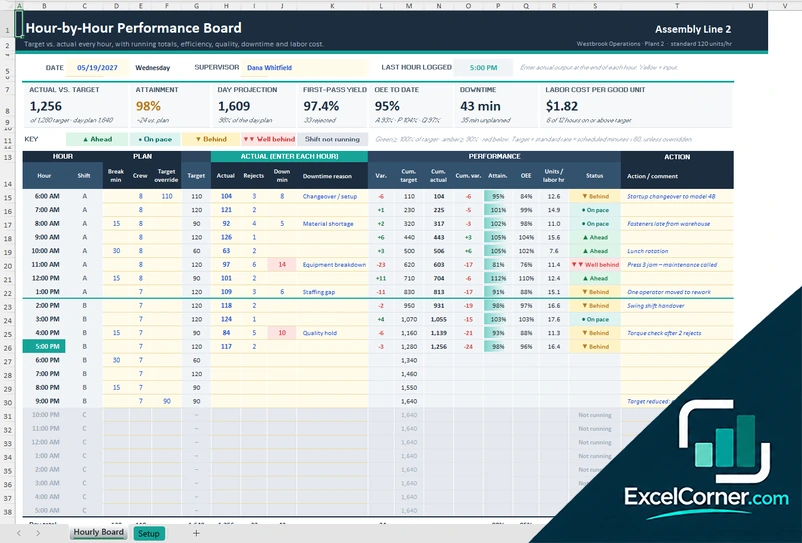
Plan the target for each hour of three shifts, enter the actual output and see attainment, projected output, downtime and labor cost.
Hourly BoardSetup
.xlsx · 25 KB
What is inside the hourly schedule Excel templates
Version 1: Weekly Hourly Planner
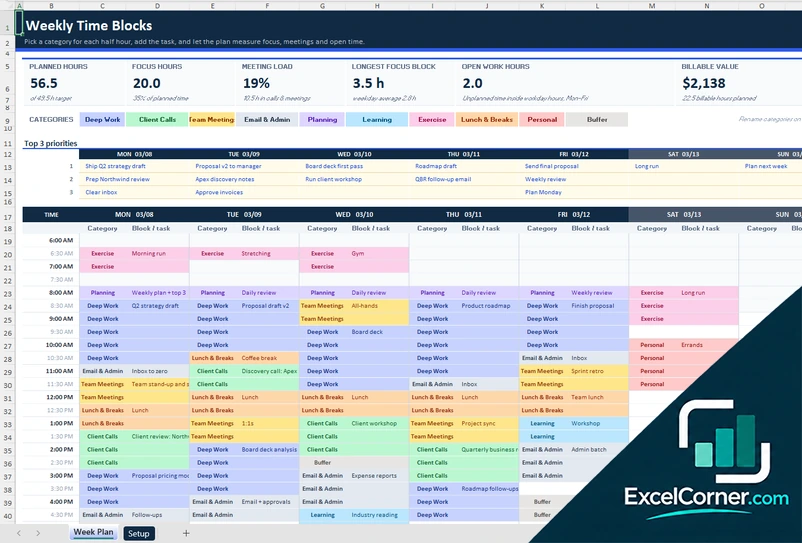
On the Weekly Hours sheet you pick an activity in any cell of the grid, which shows the 24 hours of each day from Monday to Sunday, and the colors, totals and targets update on their own. The top shows the hours planned, the unassigned hours, the work hours, the average sleep, the hours outside work, the targets met and the most scheduled day, with a focus line for each day. The activity balance table lists the hours planned for each activity against its target, with a status and a share, and a chart shows how the 24 hours of each day are spent. The Activities sheet holds the week to plan, the hour at which the grid starts, the activity list with a group, a weekly target and an at least or at most rule, and a color for each.
Version 2: Hourly Booking Schedule
The Day Board shows the day you type, with the hours down the side and up to eight resources across the top. Each booking is colored by its status, which can be confirmed, tentative, completed, no-show, double-booked or closed, and the board shows the number of bookings, the booked hours, the utilization, the revenue, the bookings that need attention and the busiest hour. The Bookings sheet is the list of every reservation, with the date, the resource, the start and end time, who booked it, the purpose, the number of people, the status and a discount, and it calculates the hours, the rate, the amount and a check for overlaps. The Resources sheet holds the rooms, spaces or equipment with a type, a capacity, an hourly rate, the hours they are available and a color, and totals the bookings, the booked hours and the revenue for the month.
Version 3: Hour-by-Hour Shift Board
The Hourly Board has one row for each hour of the 24-hour day. You enter the crew, the break minutes, a target override if needed, and, at the end of each hour, the actual output, the rejects, the downtime minutes and the downtime reason. The board calculates the target, the variance, the cumulative target, actual and variance, the attainment, the OEE, the units per labor hour and a status that runs from ahead to well behind. At the top it shows the actual against the target, the attainment, the day projection, the first-pass yield, the OEE to date, the downtime and the labor cost per good unit, with two charts. The Setup sheet holds the site, the unit of output, the standard rate per hour, the three shifts with their start hour and default crew, the labor cost, the thresholds for green and amber, and the downtime reasons marked as planned or unplanned.
How to use an hourly schedule template in Excel
- Download
Pick the version you want and open it in Excel. The files have sample data so you can see how they work. - Set the day or the week
Enter the week that starts on a Monday, the day for the booking board, or the date of the shift, and choose the hour at which the grid starts. - Set up the lists
On the Activities, Resources or Setup sheet, enter your activities with their weekly targets, your rooms and rates, or your shifts, standard rate and downtime reasons. - Fill in the hours
Pick an activity for each hour of the week, add a booking to the Bookings sheet, or type the actual output at the end of each hour. - Check the totals
Look at the hours planned, the unassigned hours, the utilization, the revenue or the attainment, and adjust the schedule.
Change a slot and the colors, the totals and the status flags update.
Which hourly schedule template do you need?
| Weekly Hourly Planner | Hourly Booking Schedule | Hour-by-Hour Shift Board | |
|---|---|---|---|
| For | Planning your own 168 hours | Rooms, spaces and equipment by the hour | Target against actual output every hour |
| Best for | Individuals who plan the week hour by hour | Offices, studios and venues | Supervisors of 24-hour operations |
| Main outputs | Hours planned, unassigned hours, sleep, targets met | Bookings, booked hours, utilization, revenue, double bookings | Attainment, projected output, yield, downtime, labor cost |
| Sheets | 2 | 3 | 2 |
| Charts | Yes | No | Yes |
They are separate files, so you can use more than one.
Tips for an hourly schedule
- Plan the whole 24 hours, including sleep and meals, so that the week adds up to 168 hours.
- Leave a few free or buffer hours. A schedule with no slack breaks on the first delay.
- Set weekly targets for the activities that matter to you and check them at the end of the week.
- Block your hardest work for the hours when you have the most energy.
- For bookings, enter the start and end of each reservation so that double bookings show up at once.
- For shifts, review the downtime reasons every day to find the ones that repeat.
Frequently asked questions
Are these hourly schedule templates for Excel free?
Yes. All three versions are free to download as .xlsx files. You do not need an account or an email address.
Which version should I choose?
Choose the Weekly Hourly Planner (Version 1) to plan your own week hour by hour. Choose the Hourly Booking Schedule (Version 2) to book rooms, spaces or equipment by the hour. Choose the Hour-by-Hour Shift Board (Version 3) to follow target and actual output each hour of a 24-hour operation.
Is there a 24 hour schedule template?
Yes. The Weekly Hourly Planner covers all 24 hours of each day of the week, and you can choose the hour at which the grid starts. The shift board has three shifts that together cover the 24 hours.
Can I use half-hour slots?
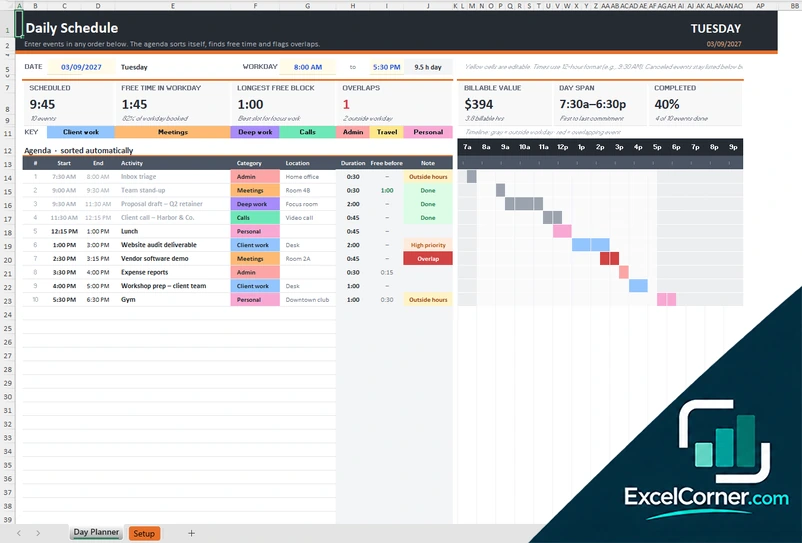
The weekly planner and the shift board work in one-hour slots. If you need half-hour slots, the daily schedule templates use 30-minute timelines.
How does the booking schedule handle double bookings?
Each booking is checked against the others for the same resource. Overlapping bookings are flagged as double-booked on the Bookings sheet and on the day board, and the board lists the bookings that need attention.
Can I set targets for the weekly planner?
Yes. On the Activities sheet you set a weekly target in hours for each activity and whether it is an at least or an at most target, and the planner shows whether each one is on target.
Does the template work in Google Sheets?
The files are made for Microsoft Excel and use standard formulas with no macros. You can upload them to Google Drive and open them with Google Sheets, but some formatting or charts may look different.
Is my information stored online?
No. The templates are plain Excel files, so the names, tasks and dates you type stay in your own file on your own computer.
These templates are planning and record-keeping tools with sample data. Check the figures and any legal or policy requirements, such as overtime and rest rules for staff schedules, against the rules that apply to you. Excel is a trademark of Microsoft Corporation; Excel Corner is not affiliated with Microsoft.