
Home › Calendars, Schedules & Productivity › Daily Schedule Template Excel
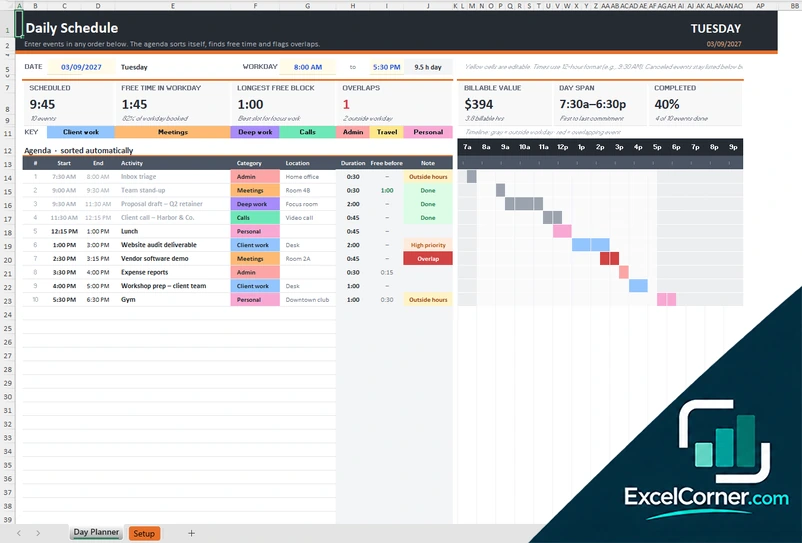
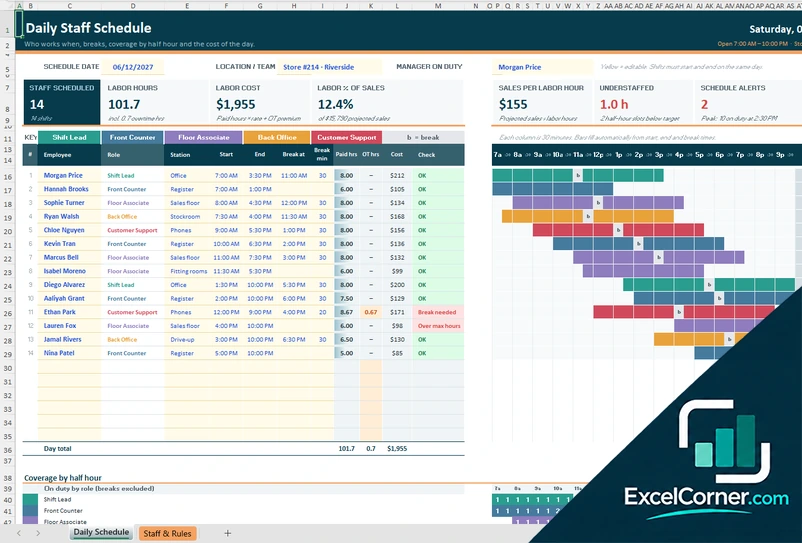
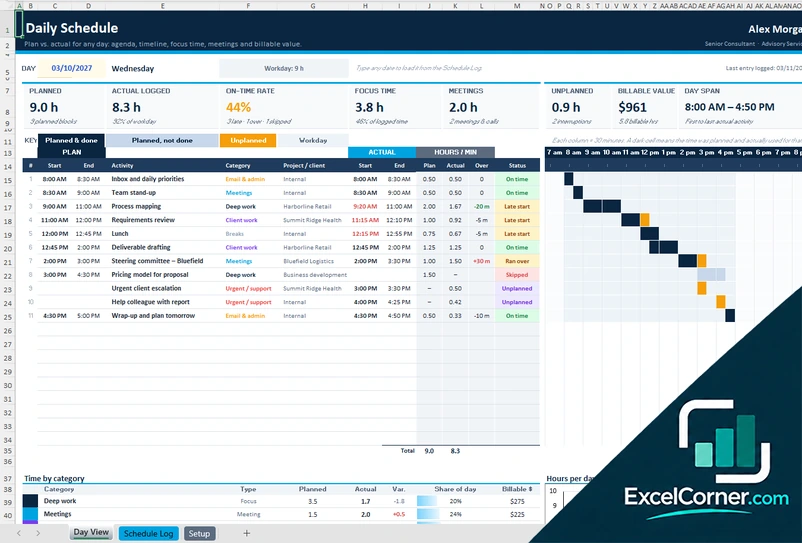
Previewing: Version 1 · Daily Day Planner. Pick another version on the right.
Instant download · No sign-up · No email
Use these free daily schedule templates for Excel to plan one day at a time. One version is a day planner that sorts your agenda and shows free time on a timeline, one is a daily staff schedule with breaks, coverage and labor cost, and one compares your planned day with what you really did.
Choose your version
- File
- .xlsx · 31 KB · 2 sheets
- Works with
- Microsoft Excel (.xlsx)
- Macros
- None · formulas only
- Price
- Free
Make a daily schedule in an Excel spreadsheet
A daily schedule shows what happens at each time of one day. For a person, it is a list of appointments, meetings and focus blocks, and the question is whether there is enough time. For a business, it is who works when, when they take a break and whether every hour has enough people. A spreadsheet works well for both, because it can sort the events, find the free time and add up the hours.
These Excel templates cover three uses. The first is a day planner: you type your events in any order, and the agenda sorts itself, finds the free time and flags overlaps, with a timeline of the day. The second is a daily staff schedule, where you enter the start time, the end time and the break of each employee, and the sheet draws the shifts in a grid of half hours and calculates the paid hours, the overtime and the labor cost. The third is a plan versus actual log, where you plan the blocks of a day, record what happened and see how much time went to focus work, meetings and unplanned work.
Best for
- Professionals and freelancers who plan their day in time blocks and want to see their free time
- Store, restaurant and office managers who schedule employees for one day
- Anyone who wants to compare a planned day with the real one
Maybe not for
A calendar app that sends invitations and reminders. These templates help you design and review your day in Excel.
Which version is right for you?
All three are free, formula-driven Excel files with sample data you can replace. They are independent, so you can download more than one.
Version 1
Daily Day Planner
Type your events in any order and see the agenda sorted, the free time, the longest free block, the overlaps and a timeline of the day.
Day PlannerSetup
.xlsx · 31 KB
Version 2
Daily Staff Schedule
Enter the start, end and break of each employee and see the shifts on a half-hour grid, with labor hours, labor cost, overtime and coverage.
Daily ScheduleStaff & Rules
.xlsx · 42 KB
Version 3
Daily Plan vs. Actual
Plan the time blocks of any day, log the actual times and see the on-time rate, the focus time, the unplanned work and the billable value.
Day ViewSchedule LogSetup
.xlsx · 91 KB
What is inside the daily schedule Excel templates
Version 1: Daily Day Planner
On the Day Planner sheet you type the date and the start of the workday, then add events in any order with the start time, the activity, the category, the location, the duration, the priority, whether it is billable and its status. The agenda lists them by start time with the free time before each one, and a timeline shows the day in colored bars, with gray for the hours outside the workday and red where events overlap. The top shows the time scheduled, the free time in the workday, the longest free block, the overlaps, the billable value, the day span and the share of events completed, and there is space for your top three priorities. The Setup sheet holds the hour at which the timeline starts and the activity categories, each with a billable rate and a color, and shows the time scheduled, the billable value and the share of the day for each category.
Version 2: Daily Staff Schedule
The Daily Schedule sheet takes the date, the location or team and the manager on duty, and lists each employee with the role, the station, the start and end time, the time of the break and its length. It calculates the paid hours, the overtime hours, the cost and a check, and draws each shift as a bar on a grid of half hours, with a mark for the break. The top shows the staff scheduled, the labor hours, the labor cost, the labor cost as a share of projected sales, the sales per labor hour, the half-hour slots that are understaffed and the schedule alerts, and a coverage table shows how many people of each role are on duty in each half hour. The Staff & Rules sheet holds the opening and closing hours, the overtime and meal break rules, the roles with a color, the stations and the staff list with an hourly rate and a maximum number of hours a day.
Version 3: Daily Plan vs. Actual
The Schedule Log has one row for each time block, with the date, the planned start and end, the activity, the category, the project or client, whether it is billable and notes, and the actual start and end. It calculates the planned and actual hours, how late the block started, how much it ran over, a status and the billable value. The Day View loads any date you type and shows the plan and the actual side by side with a timeline in 30-minute columns, and it summarizes the planned and actual hours, the on-time rate, the focus time, the meetings, the unplanned work, the billable value and the day span, with a table of the time by category, and a chart of the last seven days. The Setup sheet holds the profile, the report date, the on-time tolerance, the hour at which the timeline starts, the activity categories with a type and a color, the projects and clients with a rate and the workweek.
How to use a daily schedule template in Excel
- Download
Pick the version you want and open it in Excel. The files have a sample day so you can see how they work. - Set the day
Type the date, and on the Setup sheet enter the start and end of the workday and the hour at which the timeline starts. - Set up the lists
Enter your activity categories with a color and, if you bill your time, the rate per hour. For staff, enter the roles, the stations, the employees with their hourly rate and the pay and break rules. - Add the events or shifts
Add each event or time block in any order with its start time and duration, or each employee with the start, the end and the break. - Review the day
Look at the free time, the overlaps, the labor cost or the on-time rate, and adjust the plan.
Times use the 12-hour format, such as 9:30 AM. Change a time and the agenda, the timeline and the totals update.
Which daily schedule template do you need?
| Daily Day Planner | Daily Staff Schedule | Daily Plan vs. Actual | |
|---|---|---|---|
| For | Planning your own day | Scheduling employees for one day | Comparing the plan with what happened |
| Best for | Professionals and freelancers | Store, restaurant and office managers | People who review how they spend time |
| Main outputs | Free time, longest free block, overlaps, billable value | Labor hours, labor cost, overtime, coverage by half hour | On-time rate, focus time, unplanned work, billable value |
| Sheets | 2 | 2 | 3 |
| Charts | No | Yes | Yes |
They are separate files, so you can use more than one.
Tips for a better daily schedule
- Plan the day the evening before, or first thing in the morning, and keep to the same routine.
- Schedule your most important task first, and add the meetings around it.
- Leave free time between events for travel, breaks and tasks that take longer than planned.
- Check the longest free block of the day before you say yes to a new meeting.
- For staff, check the breaks and the coverage by half hour before you confirm the schedule.
- At the end of the day, compare the plan with what happened and note why it was different.
Frequently asked questions
Are these daily schedule templates for Excel free?
Yes. All three versions are free to download as .xlsx files. You do not need an account or an email address.
Which version should I choose?
Choose the Daily Day Planner (Version 1) to plan your own day and see your free time. Choose the Daily Staff Schedule (Version 2) to schedule employees for one day and see the labor cost. Choose the Daily Plan vs. Actual (Version 3) to record what happened and review your day.
Does the agenda sort itself?
Yes. In the day planner you can enter events in any order, and the agenda lists them by start time, shows the duration and the free time before each event and flags the events that overlap.
How does the staff schedule calculate overtime and breaks?
You set the number of hours after which daily overtime starts, the overtime multiplier, the hours after which a meal break is required and the minimum break. The schedule shows the paid hours, the overtime hours and the cost for each employee and flags a break that is needed or an employee who is over the daily maximum.
Can I plan more than one day?
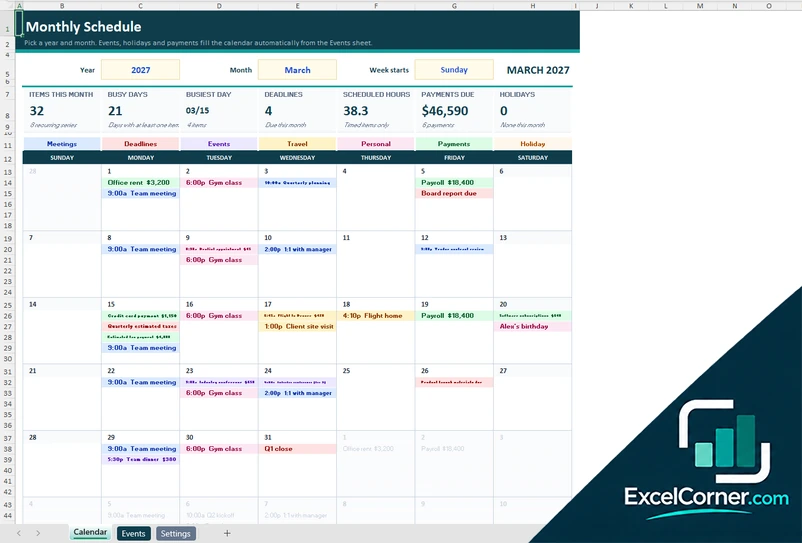
The day planner and the staff schedule show one day at a time, and you change the date to plan another day. The plan vs. actual version keeps a log of many days and shows the day you type, with a chart of the last seven days.
Is there a weekly or an hourly version?
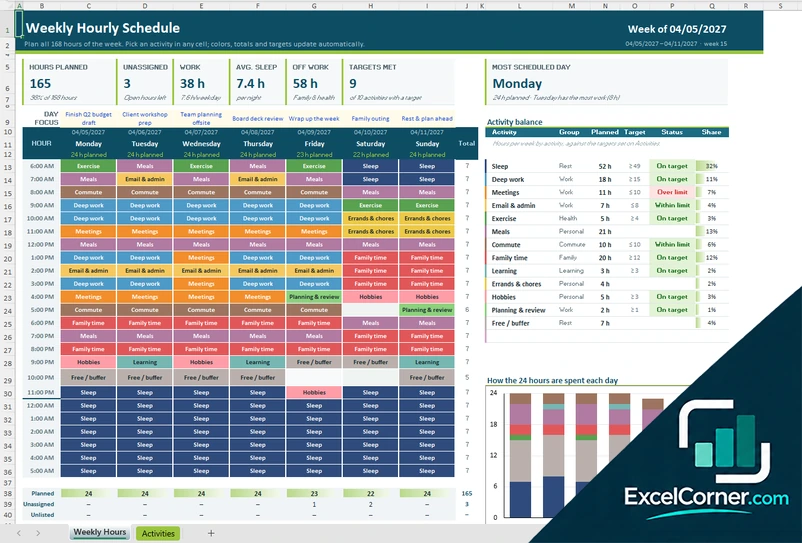
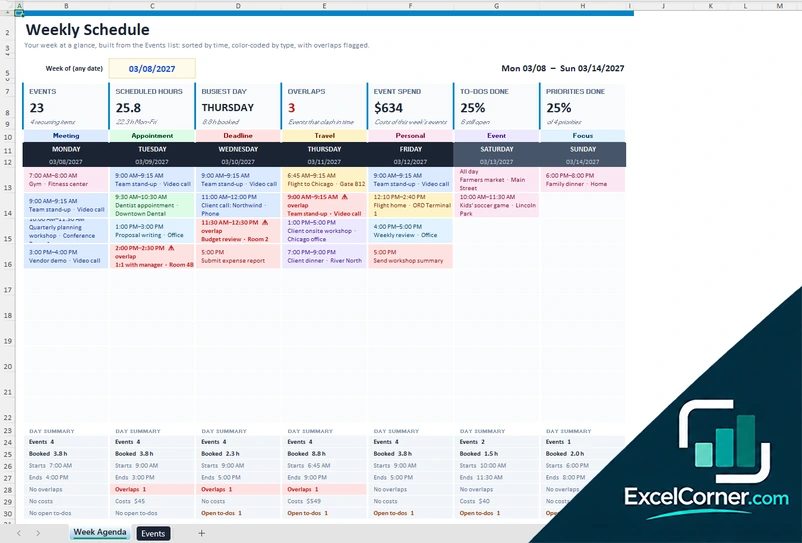
Yes. The Excel weekly schedule page has a week-at-a-glance planner and an employee shift schedule, and the hourly schedule page has a planner for all 168 hours of the week.
Does the template work in Google Sheets?
The files are made for Microsoft Excel and use standard formulas with no macros. You can upload them to Google Drive and open them with Google Sheets, but some formatting or charts may look different.
Is my information stored online?
No. The templates are plain Excel files, so the names, tasks and dates you type stay in your own file on your own computer.
These templates are planning and record-keeping tools with sample data. Check the figures and any legal or policy requirements, such as overtime and rest rules for staff schedules, against the rules that apply to you. Excel is a trademark of Microsoft Corporation; Excel Corner is not affiliated with Microsoft.