
Home › Calendars, Schedules & Productivity › Excel Checklist Template
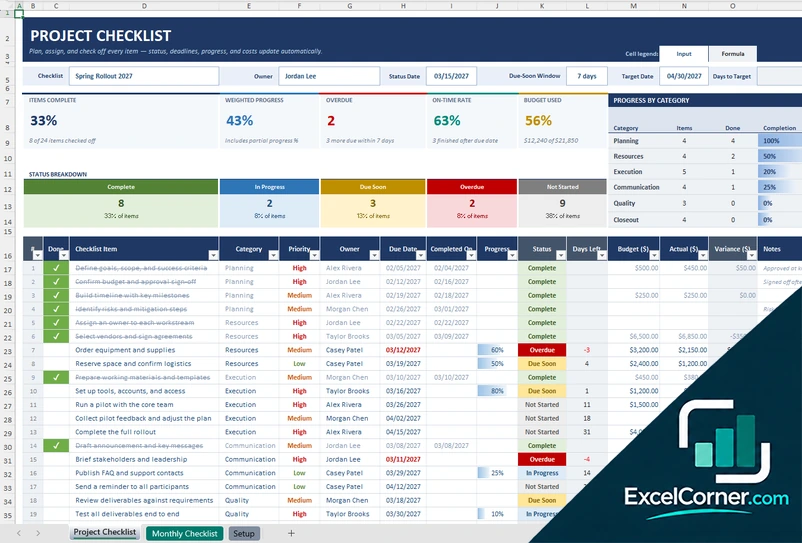
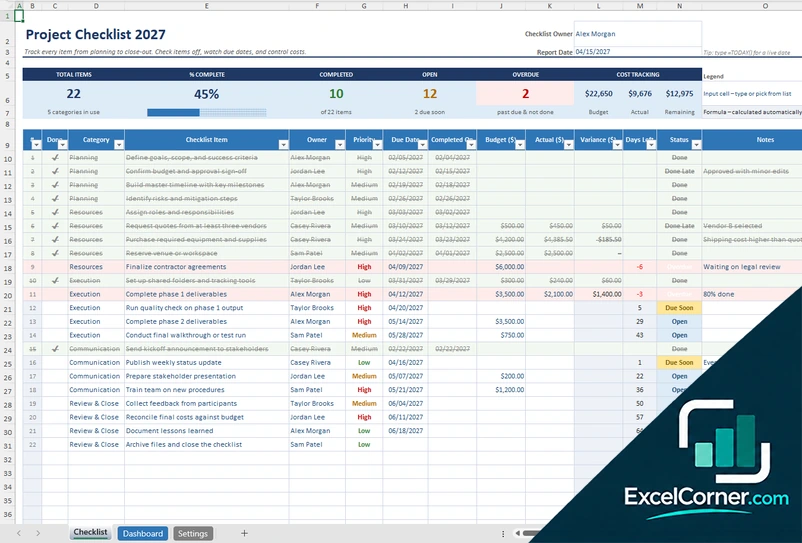
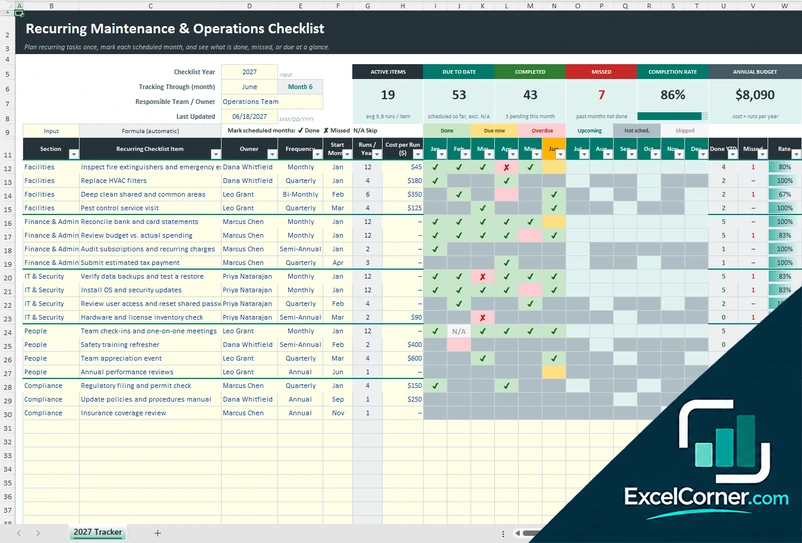
Previewing: Version 1 · Project and Monthly Checklist. Pick another version on the right.
Instant download · No sign-up · No email
Use these free Excel checklist templates to plan a project, run a routine or keep up with recurring tasks. One version combines a project checklist with a monthly routine checklist, one has checkboxes and a dashboard by category and owner, and one tracks recurring maintenance and operations tasks through the year.
Choose your version
- File
- .xlsx · 35 KB · 3 sheets
- Works with
- Microsoft Excel (.xlsx)
- Macros
- None · formulas only
- Price
- Free
Make a checklist in an Excel spreadsheet
A checklist makes sure that nothing is forgotten. It lists the steps, says who is responsible and by when, and shows what is done. In Excel, a checklist can do more than a piece of paper: it can calculate the share of items that are complete, flag the ones that are overdue and show progress by category or by person.
These Excel checklist templates cover three uses. The first has a project checklist with owners, due dates, progress and budget, and a monthly checklist for routines that repeat on certain days. The second is a checklist with a tick box for each item and a dashboard of completion by category, owner and priority. The third is a recurring checklist for maintenance and operations, where you plan each task once, mark the months in which it is due and track what was done or missed.
Best for
- Project managers and team leads who need a task checklist with owners and due dates
- Office, facilities and operations teams with routines that repeat daily, weekly, monthly or yearly
- Anyone who wants a checklist with tick boxes and a clear view of progress
Maybe not for
A shared task board with comments and notifications. These checklists live in an Excel file, so they work best for one person or a small team.
Which version is right for you?
All three are free, formula-driven Excel files with sample data you can replace. They are independent, so you can download more than one.
Version 1
Project and Monthly Checklist
Plan a project with owners, due dates, progress and budget, and keep a monthly routine checklist that you tick off day by day.
Project ChecklistMonthly ChecklistSetup
.xlsx · 35 KB
Version 2
Checklist with Checkboxes and Dashboard
Tick off each item in the Done column and see completion, overdue items and cost on a dashboard by category, owner and priority.
ChecklistDashboardSettings
.xlsx · 30 KB
Version 3
Recurring Task Checklist
Plan each recurring task once, mark the months it is due and track what was done or missed, with the annual budget and the spend to date.
2027 Tracker
.xlsx · 26 KB
What is inside the Excel checklist templates
Version 1: Project and Monthly Checklist
The Project Checklist sheet lists each item with its category, priority, owner, due date, completion date, progress, status, days left, budget, actual cost, variance and notes, and shows the items complete, the weighted progress, the overdue items, the on-time rate and the budget used, with the progress by category and a status breakdown. The Monthly Checklist is a day-by-day grid for routines with a frequency such as daily, weekdays, a certain weekday or the first or the fifteenth of the month, and it scores the planned check-ins, the ones done on schedule, those missed and the perfect days. The Setup sheet holds the categories, owners, routine areas, priorities and frequencies.
Version 2: Checklist with Checkboxes and Dashboard
The Checklist sheet lists each item with a Done column that you tick, the category, the owner, the priority, the due date, the completion date, the budget, the actual cost, the variance, the days left, the status and notes. At the top it shows the total items, the percent complete, the completed, open and overdue items and the budget, actual and remaining cost. The Dashboard breaks the items down by category, by owner and by priority and status, with three charts. The Settings sheet holds the categories, owners, priorities, the due-soon window and instructions.
Version 3: Recurring Task Checklist
On one sheet you enter each recurring item with its section, owner, frequency, the month it starts, the number of runs per year and the cost per run. The checklist lays the tasks out in a monthly grid, where you mark each scheduled month as done, missed or skipped. The frequencies are monthly, bi-monthly, quarterly, semi-annual and annual, and the sections cover areas such as facilities, finance and admin, IT and security, people and compliance. The top of the sheet shows the active items, the tasks due to date, the completed and missed tasks, the completion rate, the annual budget and the spend to date, and a chart.
How to use a checklist template in Excel
- Download
Pick the version you want and open it in Excel. The files have sample items so you can see how they work. - Set up the lists
On the Setup or Settings sheet, enter the categories, the owners, the priority levels and the due-soon window. The dropdowns in the checklist use these lists. - Add the items
Write one checklist item per row with its category, owner, priority and due date, or, in the recurring checklist, the frequency and the month it starts. - Check things off
Mark each item as done, select the tick in the Done column or enter the completion date. The status, the days left and the progress calculate automatically. - Review progress
Look at the dashboard or the summary for the share complete, the overdue items and the progress by category, and update the status date each time you review.
Type the TODAY function in the status date to keep the overdue and due-soon flags live.
Which checklist template do you need?
| Project and Monthly Checklist | Checklist with Checkboxes and Dashboard | Recurring Task Checklist | |
|---|---|---|---|
| For | A project plus routines that repeat | One list with tick boxes and charts | Maintenance and operations tasks through the year |
| Best for | Project managers and office managers | Teams that want a progress dashboard | Facilities, IT and compliance teams |
| Main outputs | Items complete, overdue, on-time rate and monthly score | Completion by category, owner and priority | Tasks due, completed, missed and spend to date |
| Sheets | 3 | 3 | 1 |
| Charts | No | Yes | Yes |
They are separate files, so you can use more than one.
Tips for better checklists
- Write each item as a clear action that can be done and checked, for example Send the contract instead of Contract.
- Give every item one owner and a due date. Items without an owner are the ones that do not get done.
- Group items by phase or category so that you can see where progress is stuck.
- For routines, use the same checklist every time and change it only when the process changes.
- Review the checklist at a fixed time each week and close or reschedule the items that are overdue.
- Keep a note of why an item was skipped. It helps when you improve the checklist.
Frequently asked questions
Is this Excel checklist template free?
Yes. All three versions are free to download as .xlsx files. You do not need an account or an email address.
Which version should I choose?
Choose the Project and Monthly Checklist (Version 1) for a project checklist and a monthly routine grid. Choose the Checklist with Checkboxes and Dashboard (Version 2) if you want a tick box for each item and charts by category and owner. Choose the Recurring Task Checklist (Version 3) for maintenance and operations tasks that repeat through the year.
Does the checklist have checkboxes?
Version 2 lets you select a tick in the Done column of each item, and the status and the progress update from it. The other versions use a completion date or a status in a dropdown.
Can I make a daily or weekly checklist?
Yes. The monthly checklist in Version 1 is a day-by-day grid where each routine has a frequency such as daily, weekdays, a certain weekday or the first of the month. Version 3 handles tasks that repeat monthly, quarterly, twice a year or yearly.
How does the template calculate progress?
It counts the items marked as done against the total, and in Version 1 it also gives credit for partial progress. It flags items past their due date as overdue and those due within your due-soon window as due soon.
Can I track the cost of a checklist?
Yes. Versions 1 and 2 have budget and actual columns with the variance for each item, and Version 3 calculates the annual budget and the spend to date from the cost of each run.
Does the template work in Google Sheets?
The files are made for Microsoft Excel and use standard formulas with no macros. You can upload them to Google Drive and open them with Google Sheets, but some formatting or charts may look different.
Is my information stored online?
No. The templates are plain Excel files, so the tasks, names and dates you type stay in your own file on your own computer.
More free to-do, schedule and planning templates
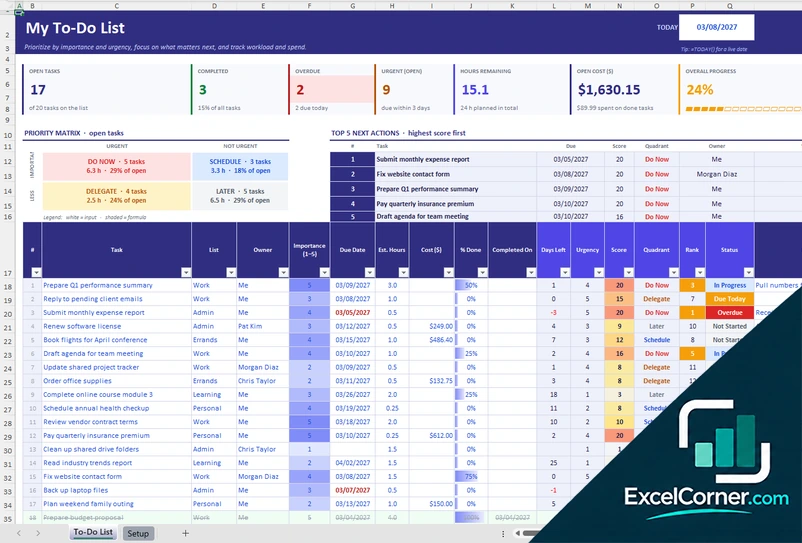
These templates are planning and record-keeping tools with sample data. Check the figures and any legal or policy requirements, such as overtime and rest rules for staff schedules, against the rules that apply to you. Excel is a trademark of Microsoft Corporation; Excel Corner is not affiliated with Microsoft.