
Home › Marketing, Sales & Customers › Content Calendar Template Excel
Previewing: Version 1 · Content Calendar by Channel. Pick another version on the right.
Instant download · No sign-up · No email
Use these free content calendar templates for Excel to plan blog posts, emails, videos and social posts in one place. One version is a content calendar with a lane for every channel and a column for every week, one is an annual calendar with monthly themes, campaigns and costs, and one is a blog and SEO calendar that tracks every article from keyword to refresh.
Choose your version
- File
- .xlsx · 33 KB · 6 sheets
- Works with
- Microsoft Excel (.xlsx)
- Macros
- None · formulas only
- Price
- Free
Plan your content in an Excel spreadsheet
A content calendar is the schedule for everything you publish: what it is, which channel it goes on, who is responsible, and when it is due. Without one, content gets made in a rush, topics repeat and busy weeks collide with empty ones. A spreadsheet is a good place to start because it is flexible. You can add the columns that your team needs, filter by channel or owner, and see the week, the year or the pipeline at a glance.
These Excel templates look at a content calendar in three ways. The first is a content calendar by channel: each channel has its own lane and each week its own column, and you type the pieces straight into the grid, with no list to keep. The second is an annual content calendar that shows the whole year: a theme and key dates for every month, the pieces by channel and month, the cost per month and a campaign planner with a timeline. The third is a blog and SEO content calendar that follows each article through brief, draft, review and publish dates, flags what is late, shows the workload of each writer and tells you which published articles are due for a refresh.
Best for
- Marketing teams and content managers who plan content across several channels
- Bloggers, SEO specialists and agencies that run an editorial calendar for a site
- Small business owners who want a simple plan for the year, with campaigns and a budget
Maybe not for
A content management or project management platform with approvals, comments and publishing built in. These templates are Excel files for planning and tracking, and they work well next to those tools.
Which version is right for you?
All three are free, formula-driven Excel files with sample data you can replace. They are independent, so you can download more than one.
Version 1
Content Calendar by Channel
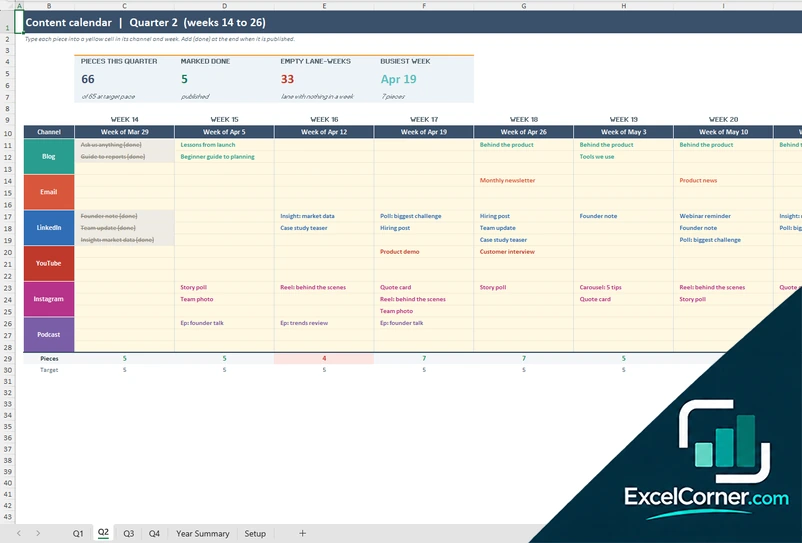
No list to maintain: every channel has a lane and every week a column. Type the piece into its week and see the totals, the empty weeks and the year by channel.
Q1Q2Q3Q4Year SummarySetup
.xlsx · 33 KB
Version 2
Annual Content Calendar
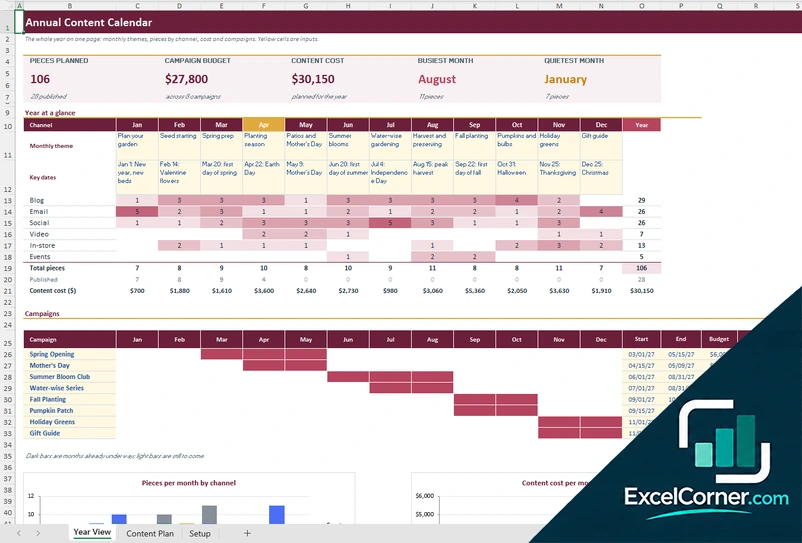
See the year on one page: themes and key dates by month, pieces by channel, cost per month, and campaigns with their budget and timeline.
Year ViewContent PlanSetup
.xlsx · 33 KB
Version 3
Blog and SEO Content Calendar
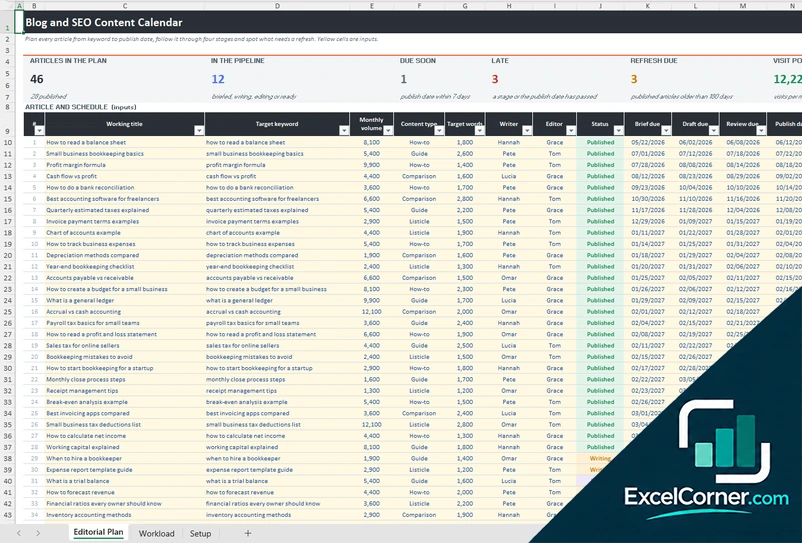
Plan articles by keyword, writer and four deadlines, flag late stages, track the workload of the team and find the articles that need a refresh.
Editorial PlanWorkloadSetup
.xlsx · 37 KB
What is inside the content calendar Excel templates
Version 1: Content Calendar by Channel
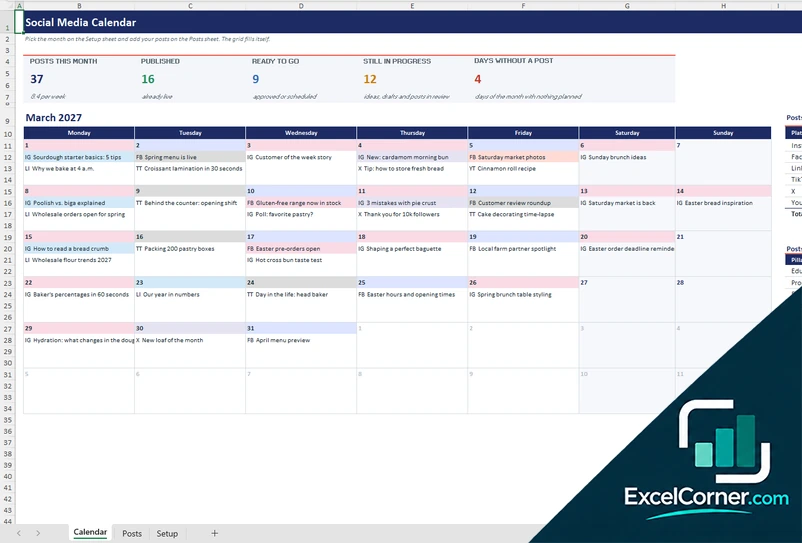
The workbook has one sheet for each quarter, Q1 to Q4, plus a Year Summary and a Setup sheet. Each quarter sheet is a grid with a lane for each of six channels and a column for each of 13 weeks that start on Monday. Every lane has three yellow lines for each week, and you type the title of the piece into its place. When a piece is published you add (done) at the end and it turns grey with a line through it. Under the grid, the pieces of each week are counted and compared with your weekly target, and the week turns red when it is below it. Each lane also shows its pieces, those marked done and its empty weeks, and four tiles show the pieces of the quarter, those done, the empty lane-weeks and the busiest week. The Year Summary adds the four quarters by channel, with a heat map, a chart by quarter and a chart of the pieces in each of the 52 weeks. The Setup sheet holds the year, the weekly target and the names of the channel lanes.
Version 2: Annual Content Calendar
On the Content Plan sheet you list up to 300 pieces for the year, each with a publish date, a channel, a content type, a title, a campaign, a status, an owner and a cost. The Year View then shows the year on one page. You write a theme and the key dates for each month, and the sheet counts the pieces by channel and month as a heat map, with the total pieces, the pieces published and the content cost of each month. Below it, a campaign planner lists up to eight campaigns with a goal, a start and end date and a budget, draws a timeline bar for the months that each one runs, and shows how many pieces it has, what they cost and how much of the budget is left. At the top it shows the pieces planned, the campaign budget, the content cost, the busiest month and the quietest month, and two charts show the pieces per month by channel and the cost per month.
Version 3: Blog and SEO Content Calendar
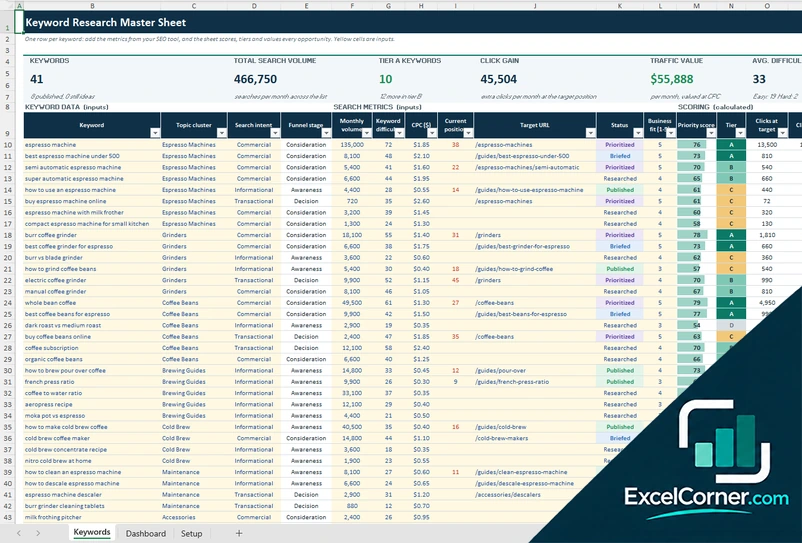
The Editorial Plan holds up to 150 articles. For each one you enter the working title, the target keyword, the monthly search volume, the content type, the target word count, the writer, the editor and the status from idea to published, then four dates: the brief, the draft, the review and the publish date. Once an article is live, you add its URL and the date of its last update. The sheet calculates the days to publish, a timing that names the first stage that is late, such as the brief, the draft, the review or the publish date, the visit potential from the search volume, the age of the content and a refresh check of fresh, aging or refresh due. The Workload sheet shows, for each writer, the capacity per month, the articles in the pipeline, the words in progress and the share of capacity due in the next 30 days, an eight-week schedule of publish dates with the busy weeks highlighted, and the pipeline by status and content type, with two charts.
How to use a content calendar template in Excel
- Download
Pick the version you want and open it in Excel. The files have sample content for a made-up brand, so you can see how each sheet works. - Set up the lists
On the Setup sheet, enter your brand and the status date, and edit the lists of channels, content types, pillars, owners and statuses. - Add your content
Add one row for each piece of content or each article, with a channel, a title, an owner, a status and the dates. - Update as you work
Change the status as each piece moves forward, and add the cost, the live URL or the date of the last update where the template asks for it. - Review the plan
Pick a week, read the year at a glance or check the workload. Look for empty days, late items, busy weeks and articles to refresh.
Replace the sample content with your own. The totals, the counts, the charts and the flags update on their own.
Which content calendar template do you need?
| Content Calendar by Channel | Annual Content Calendar | Blog and SEO Content Calendar | |
|---|---|---|---|
| For | A grid with a lane for each channel and a column for each week | The whole year, campaigns and budget | Articles from keyword to refresh |
| Best for | Teams that publish on several channels every week | Planning themes, seasons and campaigns | Blogs, SEO teams and content agencies |
| Main outputs | Pieces per week, empty lane-weeks, totals by channel and quarter | Pieces by month and channel, cost per month, campaign budget left | Late stages, due soon, writer workload, refresh due |
| Sheets | 6 | 3 | 3 |
| Charts | Yes | Yes | Yes |
They are separate files, so you can use more than one.
Tips for a content calendar
- Decide which channels you can keep up with, and plan fewer pieces that you finish rather than many that you do not.
- Give every piece one owner, a draft date and a publish date, so that nothing waits on everyone.
- Plan around seasons, product launches and key dates, and leave room for news.
- Group content into a few pillars and check the balance each month.
- Reuse a good idea in several formats, such as an article, an email and a short video.
- Write down the keyword or the goal of each piece before you write it.
- Review published content on a schedule and refresh the pieces that are getting old.
Frequently asked questions
Are these content calendar templates for Excel free?
Yes. All three versions are free to download as .xlsx files. You do not need an account or an email address.
Which version should I choose?
Choose the Content Calendar by Channel (Version 1) to type your content straight into a grid with a lane for each channel and a column for each week. Choose the Annual Content Calendar (Version 2) to plan the year, with monthly themes, campaigns and costs. Choose the Blog and SEO Content Calendar (Version 3) if you publish articles and want to track keywords, deadlines, workload and refreshes.
What is a content calendar?
A content calendar is a schedule of the content you plan to publish, such as blog posts, emails, videos and social posts. It shows what each piece is, where it goes, who owns it and when it is due, so that the team can plan ahead and avoid gaps.
What should a content calendar include?
At a minimum it needs the publish date, the channel, the title or topic, the owner and the status. Many calendars also include the content type, the pillar, the funnel stage, the keyword, the call to action and the draft date. The columns in these templates cover all of those.
How do I make a weekly content calendar in Excel?
Make a grid with one row for each channel and one column for each week, then write the title of each piece in its channel and week. In Version 1 each quarter sheet has 13 weekly columns that start on Monday, three yellow lines for each channel in each week, and totals under the grid that turn red when a week is below your target.
Can I use it for LinkedIn, Instagram or YouTube?
Yes. The channels are a list that you can edit. The templates come with channels such as a blog, email, LinkedIn, YouTube and Instagram, and you can rename them or add your own. For a calendar only for social media, see the social media calendar templates.
How does the refresh check work?
In the blog and SEO calendar, you enter the date of the last update of each published article. If the article is older than the number of days that you set on the Setup sheet, it is marked as due for a refresh. Articles close to that limit are marked as aging.
Does the template work in Google Sheets?
The files are made for Microsoft Excel and use standard formulas with no macros. You can upload them to Google Drive and open them with Google Sheets, but some formatting or charts may look different.
Is my information stored online?
No. The templates are plain Excel files, so the titles, dates, costs and notes you type stay in your own file on your own computer.
More free marketing templates
These templates are planning tools with made-up sample data. The dates, costs and traffic figures depend on what you enter and are not a forecast of results. Excel is a trademark of Microsoft Corporation; Excel Corner is not affiliated with Microsoft.