
Home › Marketing, Sales & Customers › Editorial Calendar Excel Template
Previewing: Version 1 · Editorial Calendar with Story Board. Pick another version on the right.
Instant download · No sign-up · No email
Download these free editorial calendar templates for Excel to plan, schedule and track everything you publish. One version is an editorial plan with deadlines and a story board by status, one is an annual planner where you type straight into a calendar for each month, and one is an issue planner with a column for every issue and two slots for every section.
Choose your version
- File
- .xlsx · 40 KB · 3 sheets
- Works with
- Microsoft Excel (.xlsx)
- Macros
- None · formulas only
- Price
- Free
Plan your editorial calendar in an Excel spreadsheet
An editorial calendar is the plan behind what you publish: which stories or posts are coming, who writes and edits each one, what stage it is in and when it goes live. A good one stops last-minute scrambles, keeps the mix of topics balanced and shows early when a deadline is at risk. A spreadsheet is a practical place to build one, because you can add the columns your team needs, filter by writer or section, and see the plan as a list, a board or a calendar.
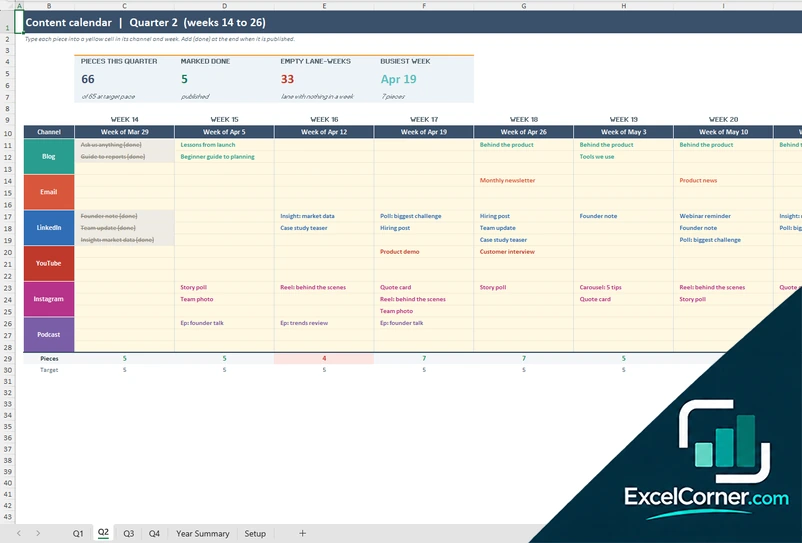
These editorial calendar Excel templates look at the same job in three ways. The first is an editorial plan for a newsroom or content desk: every story has a section, writer, editor, status and three deadlines, the sheet works out the next deadline and flags late stories, and a story board lays the stories out in columns by status. The second is an annual editorial planner with no list to maintain: there is one calendar sheet for each month, you type the channel code and the title straight into the day, the cell takes the color of its channel, and a year summary counts the pieces by channel and month. The third is an editorial calendar by issue, for magazines, newsletters and seasons of a podcast: each column is an issue with its theme, copy deadline and publish date, each section has two slots, and you type each story as Title – Writer, so the sheet can show which issues are complete, which are past their deadline and how many stories each writer has.
Best for
- Editors, newsroom and magazine teams that manage stories, writers and deadlines
- Content marketers, bloggers and agencies that plan content across several channels
- Teams where pieces need review and approval before they can be published
Maybe not for
A content management system or project management tool with built-in approvals, comments and publishing. These templates are Excel files for planning and tracking, and they work well next to those tools. If you plan blog posts and SEO, see the content calendar templates; for social posts only, see the social media calendar templates.
Which version is right for you?
All three are free, formula-driven Excel files with sample data you can replace. They are independent, so you can download more than one.
Version 1
Editorial Calendar with Story Board
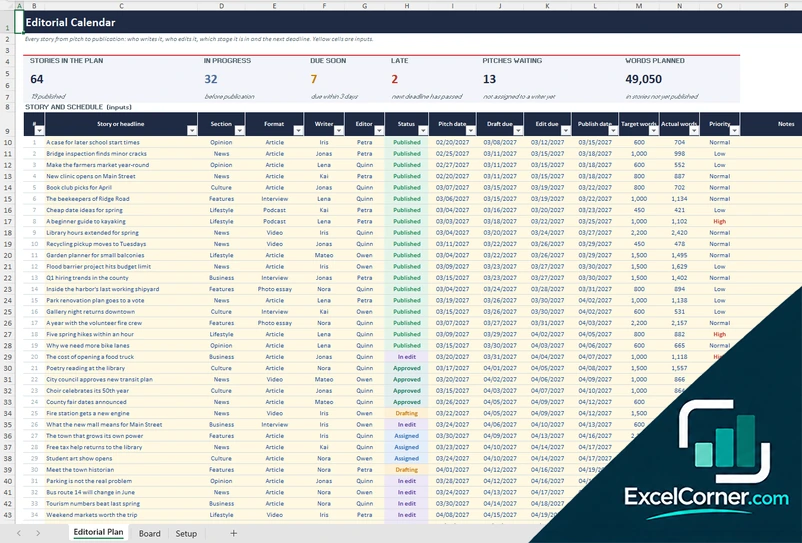
List every story with its section, writer, editor, status and deadlines, flag what is late or due soon, and see the stories on a board by status.
Editorial PlanBoardSetup
.xlsx · 40 KB
Version 2
Annual Editorial Planner
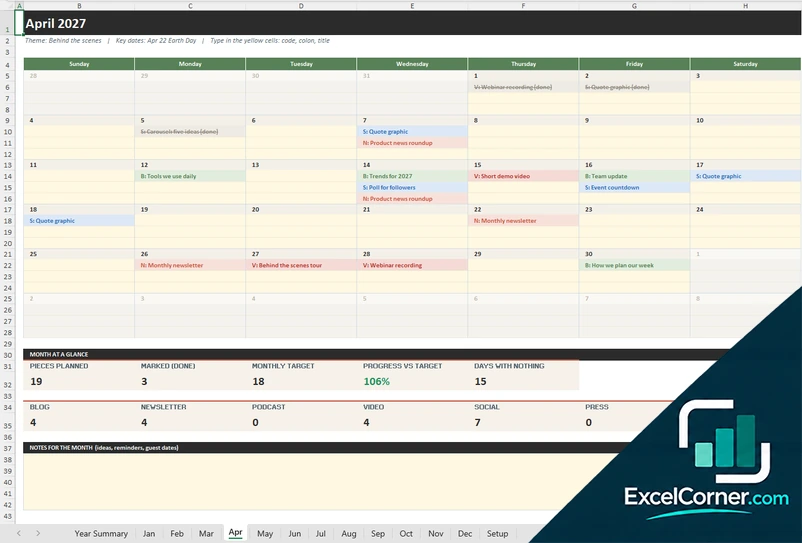
There is no list to keep: type the channel code and the title into the day and the cell takes its color. A year summary counts pieces by channel and month.
Year SummaryJanFebMarAprMayJunJulAugSepOctNovDecSetup
.xlsx · 63 KB
Version 3
Editorial Calendar by Issue
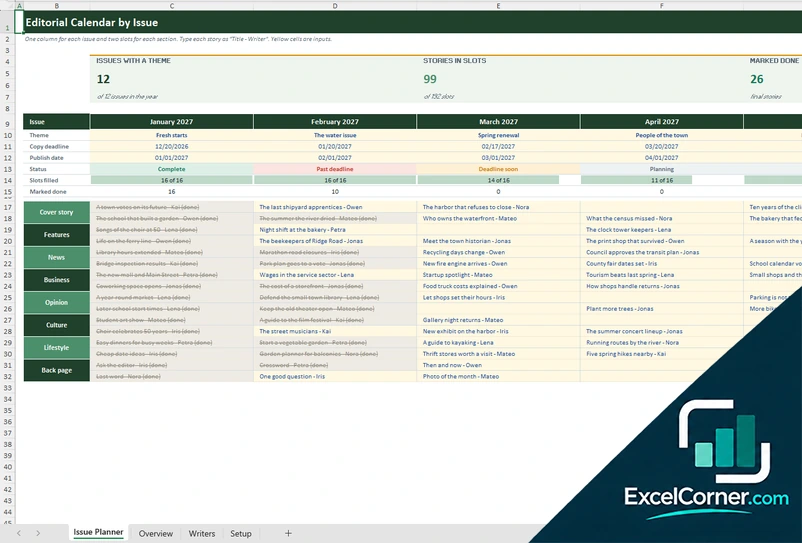
One column for each issue and two slots for each section. Type each story as Title – Writer and see the issue status, the empty slots and the writer workload.
Issue PlannerOverviewWritersSetup
.xlsx · 28 KB
What is inside the editorial calendar Excel templates
Version 1: Editorial Calendar with Story Board
The Editorial Plan holds up to 200 stories. For each one you enter the headline, the section, the format, the writer, the editor, the status from pitched to published, four dates (pitch, draft due, edit due and publish), the target and actual word count, a priority and notes. The sheet then works out the next deadline from the status, the days left, a timing of on track, due soon, late or live, and the word variance against the target. At the top it shows the stories in the plan, the stories in progress, those due soon, the late ones, the pitches waiting and the words planned. The Story Board lays the stories out in six columns by status, earliest publish date first, with a mark on late stories, and adds a table by section, the workload of each editor and a chart. The Setup sheet holds the status date, the due-soon window and the lists of sections, formats, writers, editors and priorities.
Version 2: Annual Editorial Planner
The workbook has one calendar sheet for each month, from Jan to Dec, plus a Year Summary and a Setup sheet. There is no list to maintain: you type straight into the calendar. Each day has three yellow lines, and you write the channel code, a colon and the title, such as B: Tools we use daily. The cell takes the color of its channel, and adding (done) at the end turns it grey with a line through it. Days outside the month are locked, so an entry cannot land on the wrong sheet. Under each calendar a panel shows the pieces planned, the pieces marked done, the monthly target, the progress against it and the days with nothing planned, with the pieces by channel and a box for notes. The Year Summary counts everything by channel and month as a heat map, with a link to each month and two charts. The Setup sheet holds the year, the first day of the week (Sunday or Monday), the monthly target, the channel codes and colors, and a theme and key dates for each month.
Version 3: Editorial Calendar by Issue
The Issue Planner has one column for each of 12 issues. At the top of a column you enter the theme, the copy deadline and the publish date, and the sheet shows the status of the issue (planning, deadline soon, past deadline or complete), how many of its 16 slots are filled and how many stories are marked done. Below, each of eight sections has two yellow slots, and you type each story as Title – Writer. When a story is final you add (done) at the end and it turns grey with a line through it. The Overview lists every issue with its deadline, its status and the days to the deadline, counts the stories and the empty slots of each section, and has two charts. The Writers sheet counts the stories of each writer in each issue as a heat map, using the name after the dash, with the stories done and a chart. The Setup sheet holds the year, the status date, the deadline-soon window and the lists of sections and writers.
How to use an editorial calendar template in Excel
- Download
Pick the version you want and open it in Excel. The files have sample content for a made-up publication, so you can see how each sheet works. - Set up the lists
On the Setup sheet, enter your publication or team, the status date and the lists of sections, channels, writers, editors, reviewers and stages. - Add your content
Add one row for each story or piece, with its owner, its status and its dates, or type the piece into the day on the calendar sheet or into the slot of its issue. Yellow cells are the ones you type in. - Update as you work
Change the status, mark a piece as (done) or move a story to another slot. The deadlines, flags and counts update on their own. - Review the plan
Look at the board, the month grid or the bottlenecks. Check late items, empty days, busy weeks and pieces waiting for approval.
Replace the sample content with your own. The calendar view, the counts, the flags and the charts update on their own.
Which editorial calendar template do you need?
| Editorial Calendar with Story Board | Annual Editorial Planner | Editorial Calendar by Issue | |
|---|---|---|---|
| For | Stories, writers, editors and deadlines | A calendar you fill in directly, month by month | Issues, sections and writers |
| Best for | Newsrooms, magazines and content desks | Visual planning, printing a month and campaign seasons | Magazines, newsletters and podcast seasons |
| Main outputs | Next deadline, late and due soon, story board by status, workload by editor | Color-coded month calendars, pieces by channel and month, days with nothing planned | Issue status, empty slots, stories by section, stories by writer |
| Sheets | 3 | 14 | 4 |
| Charts | Yes | Yes | Yes |
They are separate files, so you can use more than one.
Tips for an editorial calendar
- Plan from the publish date backwards, and give each piece a draft date and an edit date as well.
- Give every story one writer and one editor, so that it is always clear who has the next move.
- Keep a list of pitches and ideas apart from the stories that are scheduled.
- Block out seasons, holidays and key events first, then fill the gaps.
- Mix content types and topics so the calendar does not lean on one section.
- Review the calendar every week and move late items instead of hiding them.
- Leave a little free space for breaking news and last-minute requests.
Frequently asked questions
Is there a free editorial calendar template for Excel?
Yes. All three versions on this page are free to download as .xlsx files. You do not need an account or an email address.
Which version should I choose?
Choose the Editorial Calendar with Story Board (Version 1) to manage stories, writers, editors and deadlines. Choose the Annual Editorial Planner (Version 2) if you prefer to type straight into a calendar and see every day of the month and the year at a glance. Choose the Editorial Calendar by Issue (Version 3) if you publish in issues or editions and want to fill each issue section by section and see who is writing what.
What is an editorial calendar?
An editorial calendar is a schedule of the content you plan to publish. It lists what each piece is, who is responsible, what stage it is in and when it goes live, so the team can plan ahead and keep a steady flow of content.
What should an editorial calendar include?
At a minimum it needs the title or topic, the publish date, the owner and the status. Most teams also add the section or channel, the content format, the editor, the deadlines for each stage and notes. The columns in these templates cover all of those.
How do I make an editorial calendar in Excel?
Start with a list in which each row is one piece of content and each column is one detail, such as the date, the channel and the status. Then add a view that makes the list easier to read, such as a board by status or a month grid. These templates do both for you with formulas, so you only type the list.
What is the difference between an editorial calendar and a content calendar?
The terms overlap. An editorial calendar usually focuses on the editorial process, with writers, editors, deadlines and approval, while a content calendar often focuses on what is published where and when. The templates here cover the editorial side, and the content calendar templates cover blogs, SEO and annual campaign planning.
How does the late and due soon flag work?
In Version 1 the sheet picks the next deadline from the status of the story: the draft date until it is in edit, then the edit date, then the publish date. If that date has passed, the story is Late; if it is within the number of days set on the Setup sheet, it is Due soon.
Does the template work in Google Sheets?
The files are made for Microsoft Excel and use standard formulas with no macros. You can upload them to Google Drive and open them with Google Sheets, but some formatting or charts may look different.
Is my information stored online?
No. The templates are plain Excel files, so the headlines, dates, names and notes you type stay in your own file on your own computer.
More free marketing templates
These templates are planning tools with made-up sample data. The dates, counts and costs depend on what you enter and are not a forecast of results. Excel is a trademark of Microsoft Corporation; Excel Corner is not affiliated with Microsoft.