
Home › Marketing, Sales & Customers › Social Media Calendar Template Excel
Previewing: Version 1 · Monthly Social Media Calendar. Pick another version on the right.
Instant download · No sign-up · No email
Use these free social media calendar templates for Excel to plan what you post, where and when. One version is a monthly calendar that fills itself from your list of posts, one is an editorial planner that also tracks the results of every post, and one is a 30-day board with a tile for each day, where you choose the platform and the status of each post.
Choose your version
- File
- .xlsx · 40 KB · 3 sheets
- Works with
- Microsoft Excel (.xlsx)
- Macros
- None · formulas only
- Price
- Free
Plan your social media in an Excel spreadsheet
A social media calendar answers four questions: what will we post, on which platform, on which day, and who is doing it. Without one, posting turns into a daily scramble, and the gaps show. In a spreadsheet you can see the whole month at once, spot the days with nothing planned, keep a balance between promotional and useful posts, and check later which posts worked.
These Excel templates cover three ways to plan. The first is a monthly social media calendar: you add each post to a list with its date, time, platform and title, and a Monday to Sunday grid shows the posts of the month you choose, with a color for each platform. The second is a social media editorial calendar. Every post moves through a workflow from idea to published, and once it is live you enter the impressions, engagements and link clicks, so the sheet can calculate the engagement rate, compare your cadence with a weekly target and show your content mix. The third is a 30-day social media post board, with one tile for each day: you choose the platform, type the post idea and move the status from idea to posted, and the sheet shows what is ready and which days are still empty.
Best for
- Social media managers and freelancers who plan posts for one or several brands
- Small business owners and marketing teams that post a few times a week and want a simple system
- Content creators who want to batch their work and see their week at a glance
Maybe not for
A scheduling tool that publishes your posts for you. These templates are Excel files for planning and tracking: you copy the post into your scheduling tool or the platform yourself.
Which version is right for you?
All three are free, formula-driven Excel files with sample data you can replace. They are independent, so you can download more than one.
Version 1
Monthly Social Media Calendar
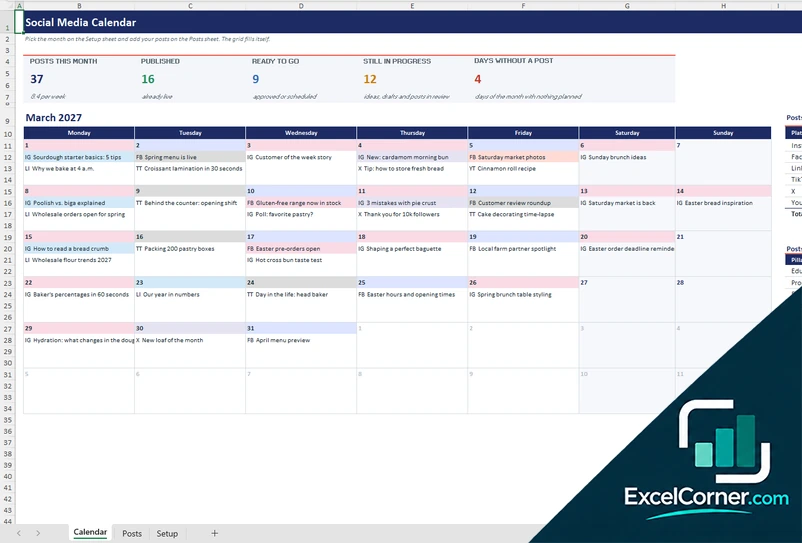
Enter each post once and see the whole month as a calendar, with a color for each platform and counts of posts by platform and content pillar.
CalendarPostsSetup
.xlsx · 40 KB
Version 2
Editorial Calendar and Performance Tracker
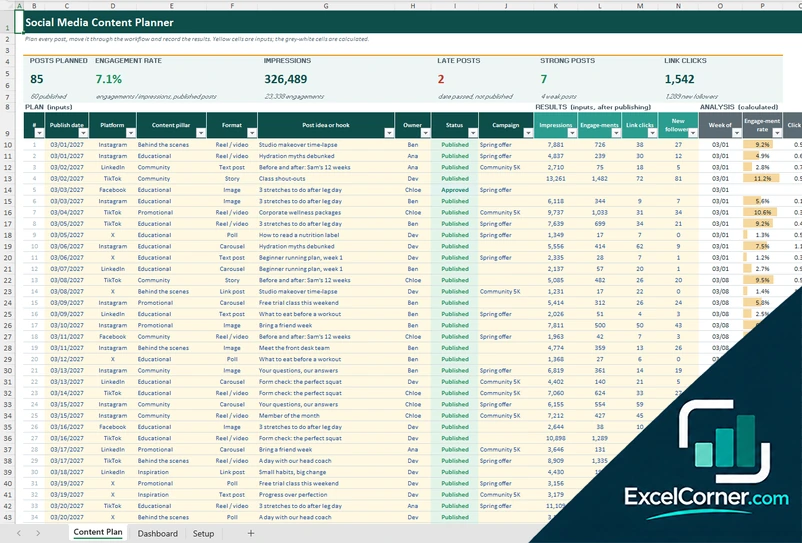
Plan posts by date, platform and pillar, follow them from idea to published, and track impressions, engagement rate and the content mix.
Content PlanDashboardSetup
.xlsx · 49 KB
Version 3
30-Day Post Board
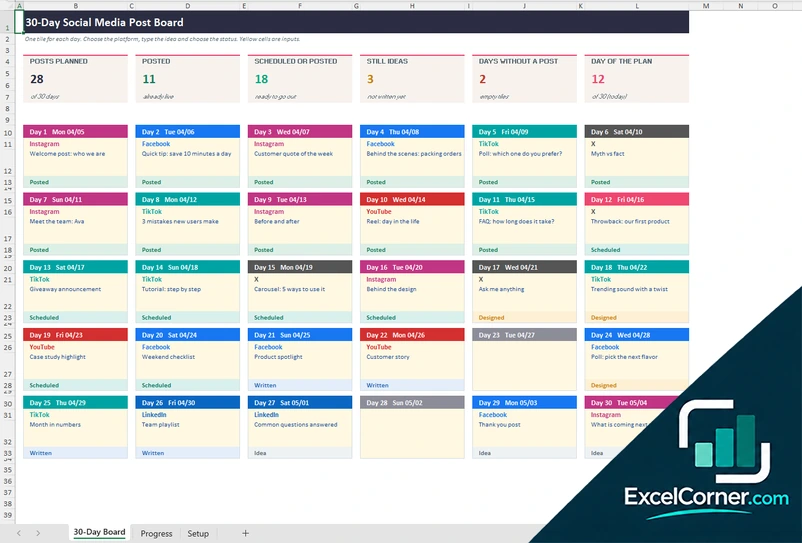
A board with one tile for each of the 30 days. Choose the platform, type the idea and move the status along. The Progress sheet counts posts by platform and status.
30-Day BoardProgressSetup
.xlsx · 19 KB
What is inside the social media calendar Excel templates
Version 1: Monthly Social Media Calendar
On the Posts sheet you list up to 300 posts, each with a date, a time, a platform, a format, a content pillar, a title or idea, a caption, an owner, a status and a campaign. The Calendar sheet shows the month and the year that you pick on the Setup sheet as a Monday to Sunday grid. Each day shows up to three posts in time order, with the platform code and a color for each platform, and a note when there are more. At the top it shows the posts this month, the posts published, the posts ready to go, the posts still in progress and the days without a post. A table and a chart show the posts by platform, and a second table shows the posts by content pillar. The Setup sheet holds the brand, the month and the year, and the lists of platforms with their codes and colors, statuses, formats, content pillars and owners.
Version 2: Editorial Calendar and Performance Tracker
The Content Plan sheet has room for 200 posts. For each post you enter the publish date, the platform, the content pillar, the format, the post idea or hook, the owner, the status from idea to published and the campaign. After the post is live you add the impressions, the engagements, the link clicks and the new followers. The sheet calculates the week of the post, the engagement rate, the click rate and how the post compares with the average of its platform, marks it as strong, average or weak, and flags posts that are late or due soon. The Dashboard compares the posts of each week with your weekly target, shows the results by platform, the content mix against the target for each pillar, the pipeline by status and the eight posts with the best engagement rate, with three charts. The Setup sheet holds the dates, the weekly targets for each platform, the pillar mix and the lists.
Version 3: 30-Day Post Board
The 30-Day Board has one tile for each day, in a grid of six columns and five rows. You enter the start date once on the Setup sheet, and the day number and the date of every tile are calculated. In each yellow tile you choose the platform from a list, type the post idea or hook and choose the status: idea, written, designed, scheduled or posted. The header of a tile takes the color of its platform, today is shown in coral and the status is colored. At the top, six tiles show the posts planned, the posts already posted, those scheduled or posted, the ideas still to write, the days without a post and the day of the plan you are on. The Progress sheet counts the posts by platform and by status with two charts. The Setup sheet holds the start date, the date to treat as today, the list of platforms and the five statuses.
How to use a social media calendar template in Excel
- Download
Pick the version you want and open it in Excel. The files have sample posts for a made-up brand, so you can see how each sheet works. - Set up the brand
On the Setup sheet, enter the brand name, the month or the start date, and edit the lists: platforms, content pillars, formats, owners and statuses. - Add your posts
Add one row for each post with the date, the platform, the pillar, the format and the title or hook. In the 30-day board, fill in one tile for each day. - Follow the workflow
Update the status or mark each production step as you go, from idea and draft to approved, scheduled and published. - Review the results
Check the calendar for empty days, the dashboard for the mix and the cadence, and, after posting, the engagement rate of each post.
Replace the sample posts with your own. The calendar, the counts, the charts and the flags update on their own.
Which social media calendar template do you need?
| Monthly Social Media Calendar | Editorial Calendar and Performance Tracker | 30-Day Post Board | |
|---|---|---|---|
| For | Seeing the month at a glance | Planning, workflow and results in one table | One post a day for 30 days, on a visual board |
| Best for | Teams that plan several posts a day across platforms | Managers who report on results | Launches, campaigns and new accounts |
| Main outputs | Month grid, posts by platform and pillar, days without a post | Engagement rate, cadence vs. target, content mix, top posts | Posts by platform and status, ready posts, days without a post |
| Sheets | 3 | 3 | 3 |
| Charts | Yes | Yes | Yes |
They are separate files, so you can use more than one at the same time.
Tips for a social media calendar
- Start with three to five content pillars, such as educational, promotional, behind the scenes and community, and keep a balance between them.
- Plan the month in one sitting and leave a few empty slots for news and timely posts.
- Pick a posting rhythm you can keep. Posting every week for months beats a burst of posts that stops.
- Reuse one idea in different formats and platforms, for example a short video, a carousel and a text post.
- Write the hook first. The first line decides whether people keep reading.
- Check the results every month and do more of what gets the highest engagement rate.
- Add an approval step before scheduling, so mistakes are caught early.
Frequently asked questions
Are these social media calendar templates for Excel free?
Yes. All three versions are free to download as .xlsx files. You do not need an account or an email address.
Which version should I choose?
Choose the Monthly Social Media Calendar (Version 1) to see the whole month as a calendar grid. Choose the Editorial Calendar and Performance Tracker (Version 2) if you also want to follow a workflow and record the results of each post. Choose the 30-Day Post Board (Version 3) for a one-month plan with one post per day, shown as a board of day tiles.
How do I make a social media calendar in Excel?
List your posts with a date, a platform and a title, and show them by date in a calendar grid. In Version 1 you add the posts on the Posts sheet, choose the month on the Setup sheet and the Calendar sheet fills itself, with up to three posts shown for each day and a color for each platform.
What should a social media calendar include?
At a minimum it needs the date, the time, the platform and the content of each post. A good calendar also has the content pillar, the format, the owner, the status, the caption and the call to action. These templates add the results, the cadence and the content mix.
How often should I post on social media?
There is no single right number. It depends on the platform, your audience and the time you have. Set a weekly target for each platform in the editorial planner, and the dashboard shows whether you reached it each week.
How is the engagement rate calculated?
In the editorial calendar, the engagement rate is the engagements of a post divided by its impressions. The sheet compares each post with the average of the same platform and marks the posts that are strong or weak, using the limits that you set.
Can I use it for Instagram, TikTok, LinkedIn or Facebook?
Yes. The platforms are lists that you can edit. The templates come with Instagram, Facebook, LinkedIn, TikTok, X and YouTube, and you can rename them or add your own, such as Pinterest or Threads.
Does the template work in Google Sheets?
The files are made for Microsoft Excel and use standard formulas with no macros. You can upload them to Google Drive and open them with Google Sheets, but some formatting or charts may look different.
Is my information stored online?
No. The templates are plain Excel files, so the posts, captions and results you type stay in your own file on your own computer.
More free marketing templates
These templates are planning tools with made-up sample data. The results you see depend on the numbers you enter and are not a guarantee of reach or engagement. Excel Corner is not affiliated with Instagram, Facebook, LinkedIn, TikTok, X or YouTube. Excel is a trademark of Microsoft Corporation; Excel Corner is not affiliated with Microsoft.