
Home › Operations, Inventory & Logistics › Packing Slip Template Excel
Previewing: Version 1 · Simple Packing Slip. Pick another version on the right.
Instant download · No sign-up · No email
Download these free packing slip templates for Excel to put the right list of goods in every box. One version is a simple packing slip that you can print in a minute, with box dimensions and billable weight. One is a pick and verify system that keeps a register of your shipments and prints the slip and a pick ticket. One is an order-based packing slip for partial shipments, with what was ordered, what shipped before, what is in this shipment and what remains.
Choose your version
- File
- .xlsx · 23 KB · 2 sheets
- Works with
- Microsoft Excel (.xlsx)
- Macros
- None · formulas only
- Price
- Free
Make a packing slip in an Excel spreadsheet
A packing slip is the document that goes inside or on the outside of a package and lists what is in it. It names the customer and the order, shows the quantity of each item that was ordered and shipped, and tells the receiver what is still to come. Unlike an invoice, it usually has no prices, or it can show them if you prefer. A good packing slip lets the receiver check the shipment in a minute and lets you prove what you sent. Making it in a spreadsheet is quick when the products, the customers and the carriers are in lists that you choose from.
These Excel templates give you three ways to work. The first is a simple packing slip for one shipment: you enter the bill-to and ship-to details, the items with the quantity ordered and shipped, and the boxes with their dimensions, and the sheet works out the back-ordered quantities, the fill rate, the dimensional weight and the billable weight. The second is a small shipping system: it keeps a register of every shipment and its lines, shows what is waiting to be picked, verified or shipped, and prints the slip together with a pick and verify ticket for the warehouse. The third is built around the order: for each order you record the shipments one by one, and the packing slip shows the quantity that was ordered, the quantity shipped before, the quantity in this shipment and the quantity that remains.
Best for
- Small businesses, online sellers and wholesalers that pack and ship orders
- Warehouse teams that pick, pack and verify orders before they leave
- Customer service and order desks that follow partial shipments and back orders
Maybe not for
A warehouse management or e-commerce system that prints packing slips automatically. These templates are Excel files that you fill in and print or save as a PDF. They work well when you want a clean slip and a record of your shipments without new software.
Which version is right for you?
All three are free, formula-driven Excel files with sample data you can replace. They are independent, so you can download more than one.
Version 1
Simple Packing Slip
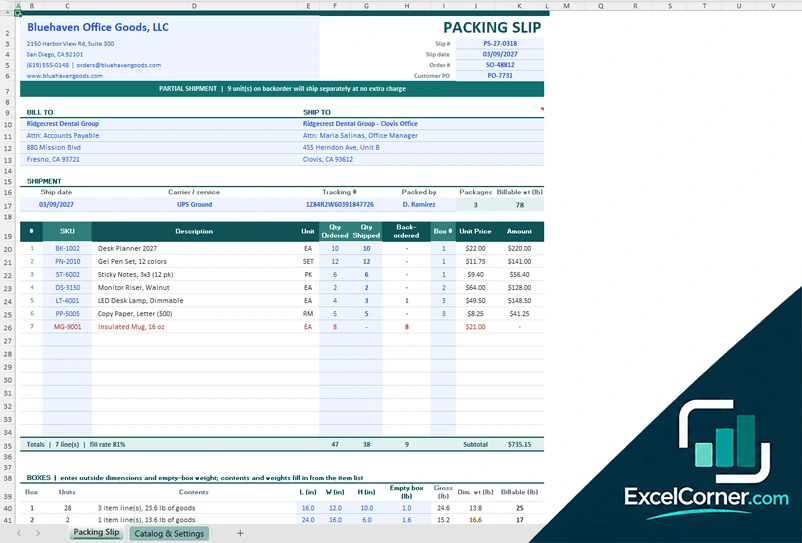
A simple packing slip with a partial shipment banner, items ordered, shipped and back-ordered, a box table with dimensions and billable weight, and a catalog and settings sheet.
Packing SlipCatalog & Settings
.xlsx · 23 KB
Version 2
Pick and Verify System
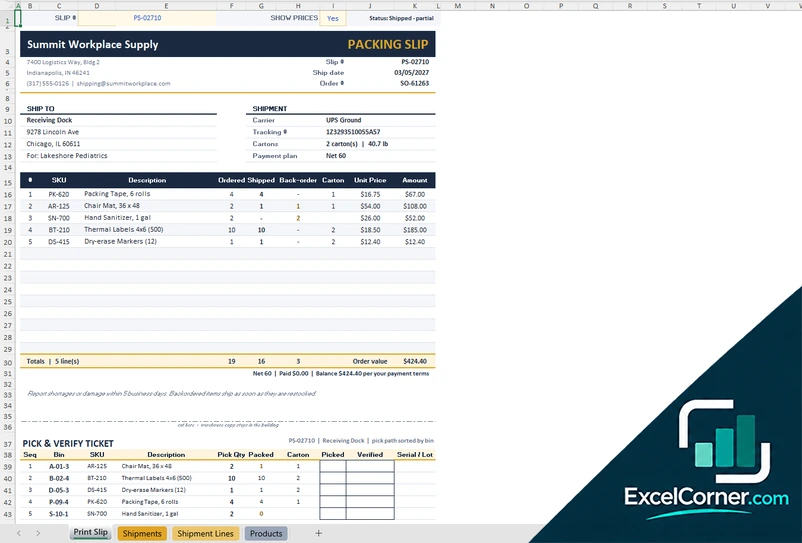
A packing slip that prints from a shipment register, with a pick and verify ticket, counters for slips to pick, verify and ship, the fill rate and the open balance.
Print SlipShipmentsShipment LinesProducts
.xlsx · 132 KB
Version 3
Partial Shipment Slip
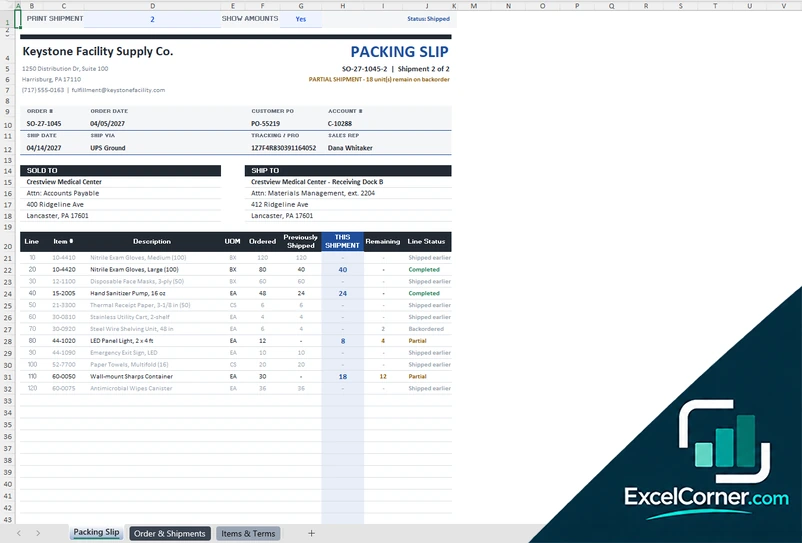
An order-based packing slip for partial shipments: pick the shipment to print and see ordered, previously shipped, this shipment and remaining quantities, with order progress and fill to date.
Packing SlipOrder & ShipmentsItems & Terms
.xlsx · 32 KB
What is inside the packing slip Excel templates
Version 1: Simple Packing Slip
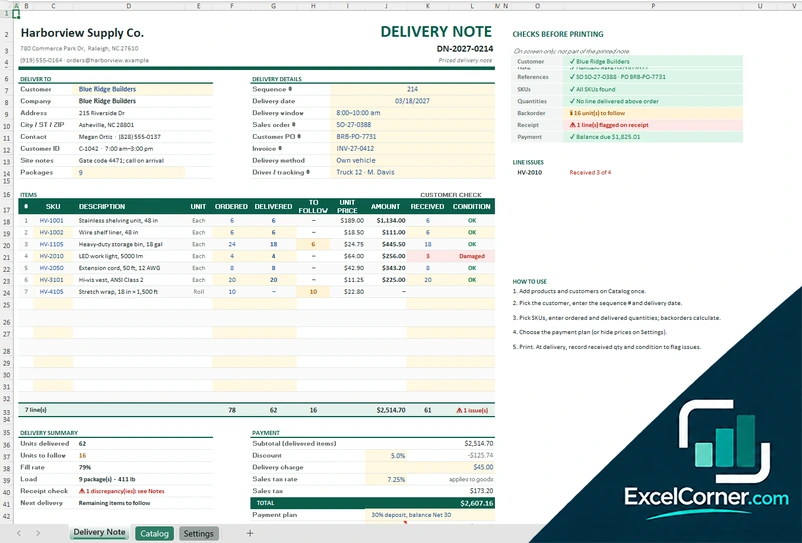
The Packing Slip sheet holds your company details, the slip number and date, the order number and the customer PO, the bill-to and ship-to boxes and the shipment details: ship date, carrier and service, tracking number, packed by, number of packages and billable weight. A banner tells the receiver when the shipment is partial. The item table lists the SKU, the description, the unit, the quantity ordered, the quantity shipped, the back-ordered quantity, the box number, the unit price and the amount, with totals and the fill rate. A table of boxes takes the outside dimensions and the empty weight of each box, fills in the contents and the weights from the item list and calculates the dimensional and the billable weight. A status and message area warns you about missing data. The Catalog and Settings sheet holds your products with prices and unit weights, your carriers, your payment plans and the return reasons and actions.
Version 2: Pick and Verify System
You choose a slip number on the Print Slip sheet and the packing slip fills in from your data: the ship-to address, the carrier, the tracking number, the number of cartons, the payment plan, the items with the quantity ordered, shipped and back-ordered, the carton, the unit price and the amount, plus a pick and verify ticket with the bin, the pick quantity, the packed quantity and boxes to tick for picked and verified, with the serial or lot number and who picked and verified. The Shipments sheet is a register of about 300 slips with the ship date, the order, the customer, the carrier, the tracking number, the payment plan, the amount paid, who picked and verified, and calculated lines, units ordered, shipped and back-ordered, cartons, weight, order value, balance and status. Cards show the slips, the ones to pick, the ones awaiting verification, the ones ready to ship, the ones shipped, the units back-ordered, the fill rate and the open balance. The Shipment Lines sheet holds about 600 lines and checks each one, and the Products sheet holds your company, carriers, payment plans, products and warehouse staff.
Version 3: Partial Shipment Slip
On the Order and Shipments sheet you enter the order with its customer, terms, sold-to and ship-to details, the sales tax rate and the payments received, and then one row for each shipment with the ship date, the carrier, the cartons or pallets, the weight, the tracking or PRO number, the freight, who packed and who checked it. The order progress block shows the units ordered and shipped, the fill to date, the lines that are complete and the order check. The Packing Slip sheet prints the shipment that you pick, for example shipment 2 of 2, with a message when it is partial, the order and customer details, and the lines with the quantity ordered, the quantity shipped before, the quantity in this shipment and the quantity that remains, with a status for each line. You can show or hide amounts. The Items and Terms sheet holds the item master, the payment terms, the carriers and the staff.
How to use a packing slip template in Excel
- Download
Pick the version you want and open it in Excel. The files have a sample company and sample orders, so you can see how each sheet works. - Set up your lists
On the catalog, products or items sheet, enter your company details, your products with their prices and weights, your carriers and your payment plans. - Enter the shipment
Choose the customer, the order and the carrier, then enter the quantity of each item that you ordered and packed. Add the tracking number and the number of boxes. - Check the slip
Look at the back-ordered or remaining quantities, the fill rate and the weight. The sheet shows a message if something does not add up. - Print and pack
Print the slip or save it as a PDF, put it in the box or in a pouch on the outside, and keep a copy or log the shipment in the register.
Replace the sample content with your own. The quantities, the totals, the weights and the status messages update on their own.
Which packing slip template do you need?
| Simple Packing Slip | Pick and Verify System | Partial Shipment Slip | |
|---|---|---|---|
| For | One slip at a time, with box details | A register of shipments and a pick ticket | Orders that ship in several parts |
| Best for | Small shops and sellers | Warehouses that verify before shipping | Order desks and wholesalers |
| Data you enter | Items of one shipment, from a catalog | About 300 shipments and 600 lines | Shipments against each order |
| Main outputs | Back-ordered units, fill rate, dimensional and billable weight | To pick, awaiting verification, ready to ship, fill rate, open balance | Ordered, previously shipped, this shipment, remaining, order progress |
| Sheets | 2 | 4 | 3 |
| Charts | No | No | No |
They are separate files, so you can use more than one.
Tips for a clear packing slip
- Give every packing slip a number, and copy the order number and the customer PO onto it.
- List the items with the same codes and descriptions that the customer sees on the order and the invoice.
- Show the quantity ordered and the quantity shipped, so that a partial shipment is clear.
- Put the packing slip where the receiver will see it first, usually in a pouch on the outside of the box.
- Pick, pack and then verify with a second person or a scan, before the box is closed.
- Write the tracking number and the carrier on the slip and in your register.
- Keep a copy of every slip. It helps with returns, claims and customer questions.
Frequently asked questions
Are these packing slip templates for Excel free?
Yes. All three versions are free to download as .xlsx files. You do not need an account or an email address.
Which version should I choose?
Choose the Simple Packing Slip (Version 1) to make one slip quickly, with the box dimensions and the billable weight. Choose the Pick and Verify System (Version 2) if you ship many orders and want a register, a pick ticket and a verification step. Choose the Partial Shipment Slip (Version 3) if your orders often ship in several parts.
What is a packing slip?
A packing slip is a document that lists the items in a shipment, with their quantities. It travels with the goods so that the receiver can check what arrived. It is also called a packing list or a delivery slip in some businesses.
What is the difference between a packing slip and an invoice?
A packing slip lists what is in the box and is used to check the shipment. An invoice asks for payment and shows prices, taxes and terms. The templates let you show or hide the prices on the packing slip.
What is the difference between a packing slip and a packing list?
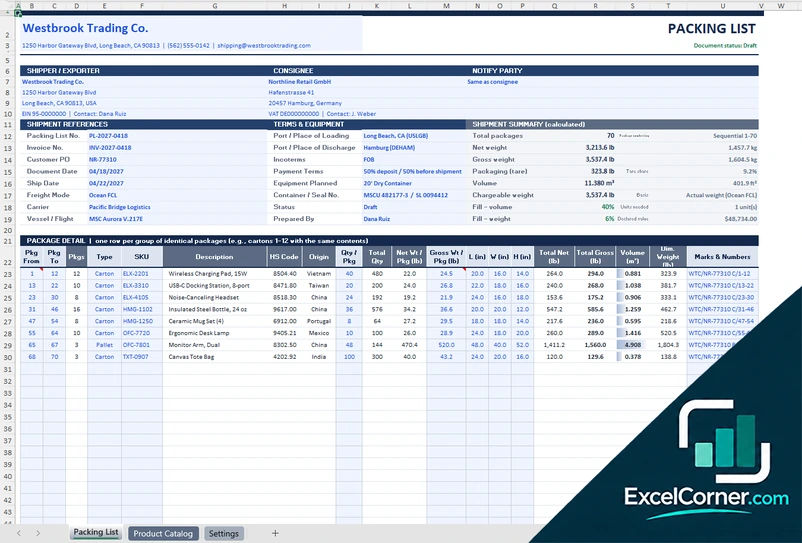
The two terms are often used for the same document. A packing slip usually goes with a domestic shipment to a customer. A packing list is more detailed and is used for export and freight shipments, with the weights, the dimensions and the packages. You can find packing list templates on this site too.
Can I use the packing slip for partial shipments?
Yes. All three versions show what is back-ordered or remaining. Version 3 goes further and shows the quantities shipped before, in this shipment and still to ship for every line of the order.
Can I print the packing slip or save it as a PDF?
Yes. The slips are set up to print on one page of letter size paper. You can also save them as a PDF from Excel and send them by email.
Does the template work in Google Sheets?
The files are made for Microsoft Excel and use standard formulas with no macros. You can upload them to Google Drive and open them with Google Sheets, but some formatting or charts may look different.
Is my information stored online?
No. The templates are plain Excel files, so the names, addresses, dates and amounts you type stay in your own file on your own computer.
These templates are document and tracking tools with made-up sample data. They are not legal documents or legal advice. Check your sales terms and the rules that apply to your goods and your carrier before you rely on them. Excel is a trademark of Microsoft Corporation; Excel Corner is not affiliated with Microsoft.