
Home › Operations, Inventory & Logistics › Shipment Tracking Excel Template Free
Previewing: Version 1 · Shipment Tracking Log. Pick another version on the right.
Instant download · No sign-up · No email
Download these free shipment tracking templates for Excel to follow every shipment from booking to delivery. One version is a tracking log with on-time performance, costs, margin and a carrier scorecard, one is a status board with a milestone timeline and a card for each shipment with its payment schedule, and one is a simple tracker that shows which shipments need action today and gives you a customer update to copy.
Choose your version
- File
- .xlsx · 41 KB · 3 sheets
- Works with
- Microsoft Excel (.xlsx)
- Macros
- None · formulas only
- Price
- Free
Track your shipments in an Excel spreadsheet
Shipment tracking means knowing, at any moment, where each shipment is, whether it will arrive on time and what is still to be done. Carriers give you tracking numbers and status pages, but when you ship with several carriers and for many customers, the information is spread over many sites. A spreadsheet gives you one place for all of it: you record the tracking number, the promised date and the last status of each shipment, and formulas flag the late and the at-risk ones, count the days and total the costs.
These Excel templates give you three ways to do it. The first is a shipment tracking log with one row for each shipment, its dates, its carrier and service, its cost and the amount charged to the customer, with the margin, the payment status and a dashboard that scores each carrier and shows the monthly trend. The second is a status board that follows each shipment through milestones, from booked to delivered, on a daily timeline, with a shipment card that shows the journey and the payment schedule of the selected shipment. The third is a single-list tracker for a busy desk: it highlights what needs action today, shows the delivery health and the balance due, and writes a customer update that you can copy into an email.
Best for
- Small businesses and online sellers that ship with several carriers
- Logistics, customer service and operations teams that answer where is my order
- Freight and procurement teams that watch carrier performance, freight spend and payments
Maybe not for
A shipment tracking platform or a carrier integration that pulls tracking events automatically. These templates do not connect to carriers: you type or paste the status from the carrier site, and the workbook does the flags, the totals and the reports.
Which version is right for you?
All three are free, formula-driven Excel files with sample data you can replace. They are independent, so you can download more than one.
Version 1
Shipment Tracking Log
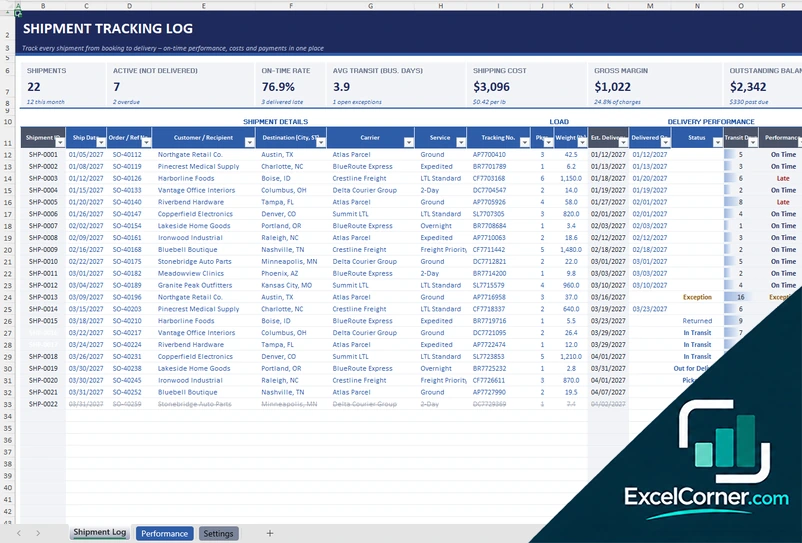
One row for each shipment with status, transit days, days late, cost, charge, margin and payment, plus a dashboard with a carrier scorecard, a monthly trend and receivables by payment plan.
Shipment LogPerformanceSettings
.xlsx · 41 KB
Version 2
Shipment Status Board
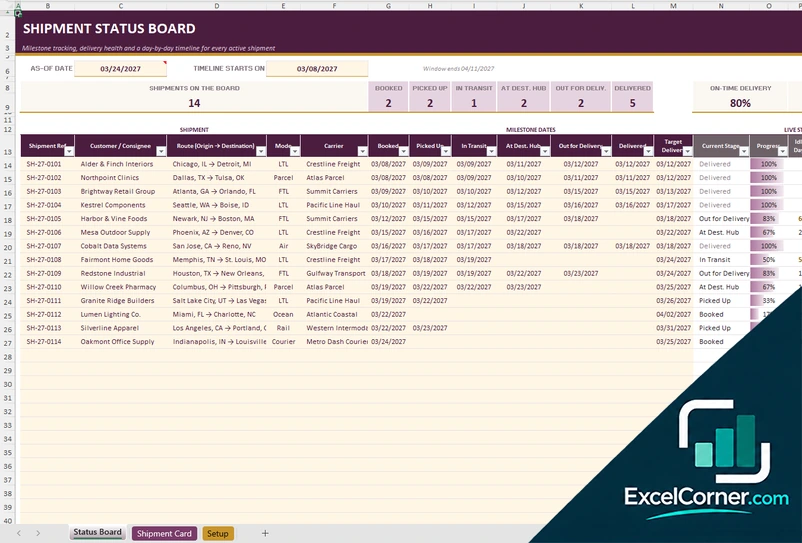
Enter the date of each milestone and the board shows the current stage, the progress, the idle days, the health against the target date and the freight and payment of every shipment.
Status BoardShipment CardSetup
.xlsx · 31 KB
Version 3
Simple Shipment Tracker
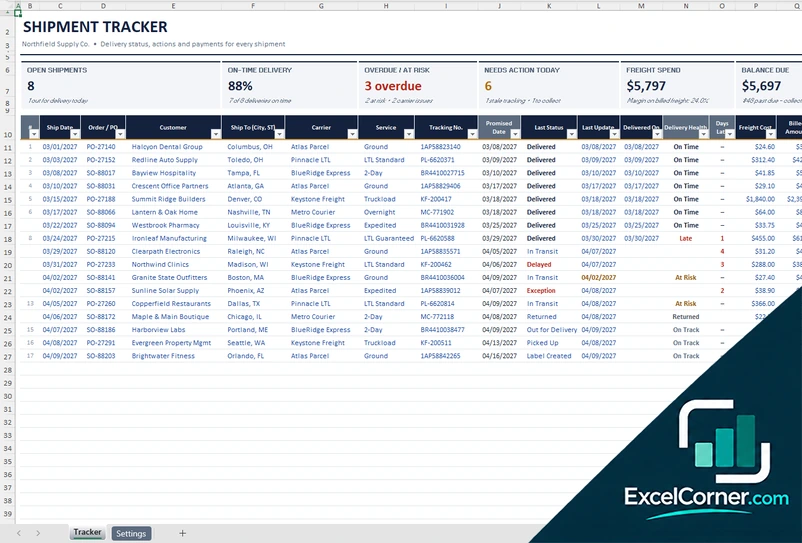
One list with the promised date, the last status and the delivery health of each shipment, the next action to take, the freight cost, the amount billed and a customer update that you can copy.
TrackerSettings
.xlsx · 31 KB
What is inside the shipment tracking Excel templates
Version 1: Shipment Tracking Log
The Shipment Log holds about 100 shipments. For each one you enter the ship date, the order or reference number, the customer, the destination, the carrier, the service, the tracking number, the weight, the estimated delivery date, the date delivered, the status, the shipping cost, the amount charged to the customer, the payment plan, the amount paid and notes. The sheet calculates the transit days, the performance (on time, late or exception), the days late, the margin, the payment due date, the balance and the payment status. Cards at the top show the shipments, the active ones that are not yet delivered, the on-time rate, the average transit in business days, the shipping cost, the gross margin and the outstanding balance. The Performance sheet is a dashboard with a carrier scorecard (shipments, delivered, on-time percentage, average transit, exceptions and returns, cost, cost per shipment and cost per pound), a monthly trend of the weight, the amount charged, the margin and the amount collected, a status snapshot and receivables by payment plan, with two charts. The Settings sheet explains how to use the template and holds the reporting year, the carriers, the customer service levels with their transit time, the payment plans and the shipment statuses.
Version 2: Shipment Status Board
The Status Board lists each active shipment in one row. You enter the shipment reference, the customer or consignee, the route, the mode, the carrier and the dates of the milestones: booked, picked up, in transit, at the destination hub, out for delivery and delivered, plus the target delivery date. The sheet shows the current stage, the progress, the idle days since the last milestone, the difference from the target, a health status, the freight cost, the payment plan, the amount paid and the balance, and a daily timeline across the sheet shows the milestones on a calendar. The top of the board counts the shipments on the board and how many are in each stage, shows the on-time delivery rate and the shipments that are late or at risk, the freight booked and the balance due, and has board totals. The Shipment Card sheet lets you select a shipment and shows its carrier, its target delivery, its current stage, the idle days and the difference from the target, a journey of the six milestones and a payment schedule with the due date, the amount, the remaining amount and the status of each installment, with the next payment due and the overdue amount. The Setup sheet explains how it works and holds the payment plans, with the deposit and the installments, and the transport modes.
Version 3: Simple Shipment Tracker
The Tracker is a single list of about 100 shipments. For each one you enter the ship date, the order or PO number, the customer, the destination, the carrier, the service, the tracking number, the promised date, the last status and the date of the last update, the date delivered, the freight cost, the billed amount, the payment terms and the amount paid. The sheet calculates the delivery health (on time, on track, at risk, overdue or returned), the days late, the payment due date, the balance, a next action and a customer update that you can copy and paste into an email. You can highlight the rows that need action. Six cards at the top show the open shipments, the on-time delivery rate, the shipments that are overdue or at risk, the shipments that need action today, the freight spend and the balance due, with a key to the delivery health colors. The Settings sheet explains how to use the tracker and holds the company and the alert rules, the carriers with a scorecard of the shipments, the on-time percentage, the late shipments and the freight spend, the service levels with their transit time in business days, the payment terms and the tracking statuses with their meaning.
How to use a shipment tracking template in Excel
- Download
Pick the version you want and open it in Excel. The files have sample shipments for a made-up company, so you can see how each sheet works. - Set it up
On the settings or setup sheet, enter your carriers, service levels with their transit time, payment terms and statuses, and any alert rules. - Add your shipments
Enter one row for each shipment with the date, the order, the customer, the destination, the carrier, the tracking number and the promised or estimated date. - Update the status
Update the status and the delivery date from the carrier site. The delivery health, the days late and the flags update on their own. - Act on the exceptions
Look at the late, at-risk and unpaid shipments first, and use the next action or the customer update to follow up.
Replace the sample shipments with your own. The flags, the on-time rate, the costs and the charts update on their own.
Which shipment tracking template do you need?
| Shipment Tracking Log | Shipment Status Board | Simple Shipment Tracker | |
|---|---|---|---|
| For | Performance, cost and margin | A milestone view of each shipment | A single list with next actions |
| Best for | Managers who review carriers | Teams that follow shipments through stages | Customer service and busy desks |
| Data you enter | Up to about 100 shipments | Up to about 30 shipments on the board | Up to about 100 shipments |
| Main outputs | On-time rate, transit days, cost, margin, carrier scorecard, receivables | Milestone timeline, stage, idle days, health, payment schedule | Delivery health, days late, needs action, freight spend, balance due |
| Sheets | 3 | 3 | 2 |
| Charts | Yes | No | No |
They are separate files, so you can use more than one.
Tips for tracking shipments
- Record the tracking number, the carrier and the promised date for every shipment when you create it.
- Update the status on a fixed schedule, for example every morning, so that the list is always current.
- Mark exceptions, such as a delay or a damaged parcel, and write the next action.
- Tell the customer before they ask. A short update on a late shipment saves a support request.
- Compare carriers on the on-time rate and on the cost for each shipment, not only on price.
- Keep the freight cost and the amount that you charge in the same row, to see the margin of each shipment.
- Track payments next to deliveries, so that you do not forget to invoice or collect.
Frequently asked questions
Are these shipment tracking templates for Excel free?
Yes. All three versions are free to download as .xlsx files. You do not need an account or an email address.
Which version should I choose?
Choose the Shipment Tracking Log (Version 1) to measure on-time delivery, cost, margin and carrier performance. Choose the Shipment Status Board (Version 2) to follow each shipment through milestones and see its payment schedule. Choose the Simple Shipment Tracker (Version 3) if you want one list with the delivery health, the shipments that need action today and a customer update to copy.
How do I track shipments in Excel?
Make a table with a row for each shipment and columns for the date, the customer, the carrier, the tracking number, the promised date and the status, and then add formulas that compare the delivered date with the promised date. The templates already have these formulas, so you only enter the shipments.
Can the template get the tracking status automatically?
No. The templates do not connect to carriers. You copy the status and the delivery date from the carrier website or the tracking email into the sheet, and the workbook calculates the rest.
How is the on-time rate calculated?
The on-time rate is the number of shipments delivered on or before the promised date divided by the number of delivered shipments. The templates calculate it for all shipments and, in Version 1, for each carrier.
Can I track different carriers and services?
Yes. Each template has lists of carriers and service levels that you can edit. Version 1 and Version 3 also include a scorecard of the carriers.
Can I track the cost and the payments of a shipment?
Yes. Version 1 records the shipping cost, the amount charged to the customer, the margin and the payment status, Version 2 has a payment schedule for each shipment, and Version 3 shows the freight cost, the billed amount and the balance due.
Does the template work in Google Sheets?
The files are made for Microsoft Excel and use standard formulas with no macros. You can upload them to Google Drive and open them with Google Sheets, but some formatting or charts may look different.
Is my information stored online?
No. The templates are plain Excel files, so the names, addresses, dates and amounts you type stay in your own file on your own computer.
These templates are document and tracking tools with made-up sample data. The delivery dates and costs depend on what you enter and are not a promise from any carrier. Check the status with the carrier before you give a delivery time to a customer. Excel is a trademark of Microsoft Corporation; Excel Corner is not affiliated with Microsoft.